play ps1 games on android
Showing posts with label tips tricks. Show all posts

Wordpress Tutorial : Install Wordpress,Plugins And Themes On Windows PC

Wordpress is the most used open source blogging tool and content management system.Every blogger today is starting his/her new blog with wordpress,because it is the best blogging tool with lots of free plugins and themes.Wordpress plugins are most useful and easy to use because they make blogging easy,clean and clear.You will lots of plugins on wordpress.However if you are not using wordpress or are not associated with it then you should try it before actually buying a hosting service then installing wordpress on it.

Testing wordpress before buying a hosting service will let you decide whether or not you want to come on it to start blogging.In this tutorial I will teach you how to install wordpress on a windows based computer or laptop.After installing it,it will run the same way as it will run on a server.Also you will learn to install wordpress themes and plugins on the localhost computer.Here localhost refers to your personal computer.So let's start.

Downloads Required

How To Install Wordpress On Windows PC

  • Download and install xampp for windows ins the root directory 'C:/xampp'.Don't install anywhere else.During installation check 'Install Apache as service' and 'Install MySql as service'.
  • Now download wordpress from the above link.
  • Now extract the zip and place the 'wordpress' folder into 'C:\xampp\htdocs'.
  • Now open xampp by going to 'Start Menu>All Programs>Apache Friends>Xampp>Xampp Control Panel'.
  • The control panel will open in the bottom right section of the screen like this below.
  • Now open the default browser and type in the address bar 'localhost/phpmyadmin' and press enter.
  • The phpmyadmin control panel will open.Now click on 'Databases'.
  • Under 'Create new database' enter 'wordpress' and click 'Create'.Your database will be created.
  • Now create a user for this database.Click the the wordpress database on the left then click 'Privileges' on the top tabs.


  • Then click 'Add a new user'.In 'Host' choose 'Local'.Then enter desired username and password.
  • In 'Database for user' select none and 'Check All' the options below.Then click 'Go'.

  • Now type this address in the address bar 'http://localhost/wordpress/wp-admin/install.php'.
  • When you go to the above link then you will be asked to create a configuration file.Click the 'Create a Configuration File' button.Then click 'Let's go!'.
  • A further page will open about database information.Here enter your username and password that you entered when you created a new user.Wrongs details here will not create a mysql database connection.
  • A wordpress setup page will open.Here you will need to enter the details of your blog like name,email,user name and password.Uncheck 'Allow search engines to index this site'.Then click 'Install Wordpress'.
wordpress setup

  • After installation click 'Log In' and enter you login details.The dashboard editor will open like below.

Install Wordpress Plugins On Localhost [Windows PC]

  • Download your favorite plugins from wordpress.org.Extract the zip file and move the extracted folder to 'C:\xampp\htdocs\wordpress\wp-content\plugins'.Paste the folder in this directory.
  • Now open wordpress on your localhost simply paste this address in any browser 'http://localhost/wordpress/wp-login.php' and log in.
  • See the image above of wordpress dashboard.Click 'Plugins'.For example I have downloaded and installed yoast plugin so I need to activate it.
  • In plugins click 'Installed plugins'.Click 'Activate' below any plugin to activate it.

wordpress plugin installation

  • The yoast plugin is a seo plugin which optimizes your content for seo.You can see it is working on localhost windows pc.By this method you can install any wordpress plugin on localhost.

Install Wordpress Themes On Localhost [Windows PC]

  • First download your favorite themes.
  • Then extract the zip file and paste the extracted folder in 'C:\xampp\htdocs\wordpress\wp-content\themes'.
  • Now again open wordpress in local host and click 'Appearance'.The theme that you put in above directory will be visible here.
  • To apply that theme just click 'Activate' below it.After activating click 'Visit site' to visit your blog.

  • You can fully customize a wordpress template by adding custom menus,widgets,header and own javascript code.
Advantages

  • Installing wordpress on localhost will give you same experience as you will get from a paid wordpress hosting.
  • You can create your own blog on localhost and customize it and later you can upload it to web hosting server.
  • This method will let you decide whether or not you want to buy a wordpress hosting.
Share this article if you like it.

Guide To Create Unpredictable Strong Passwords For Online Accounts And Services

Creating a password doesn't ensure that your email accounts are more secure.Simple passwords can be easily predicted and hacked by just few attempts.A password is the only way to log in into your online accounts and make them more secure.You think that without entering the password no one can log in to your accounts no matter whether it is a google account,microsoft account,yahoo account or a facebook account.But what will you do if your password is vulnerable and can be easily predicted by anyone that is close to you.In that case you might not know that these people might be accessing your accounts without your concern.

use strong passwords that are unpredictable

So in this post I will tell you some facts about creating strong passwords for all your online accounts like google,facebook,itunes,yahoo and facebook.Creating an unpredictable strong password will ensure stronger security to your email accounts.

Guide To Create Unpredictable Strong Passwords For Online Accounts And Services

1.Avoid Personal Info : Always avoid personal information to be used as a password.Your personal info can be your birth date,your mobile phone number,driving license number,your spouse name,her birthday etc.This information can be easily predicted by anyone close to you.So never use personal information in passwords.

2.Use Words Which You Never Heard : Most people choose words that they use often.For example a person having an interest in sports will choose a password like 'barcelona','realmadrid' etc.So anyone who knows about his favorite sports can easily predict this simple password in just few attempts.So to create a strong password use topics that you are not familiar with,for e.g 'wu-ji-bi-fan'.This is a chinese proverb and is a strong password due to special symbols in it.So nobody can predict it.To find these kind of words search on google like 'proverbs in chinese or japanese' and choose some tough words from it.

3.Use Of Special Characters : To create strong passwords use of special symbols is must.Without these special symbols and characters your password is just a normal one.You can use any special symbol visible on your computer's keyboard.Avoid @,The dot(.),underscore( _ ) because these are used the most.Try using *$!%^.

4.The Uppercase Letter Phenomena : Using an uppercase letter in your password string will make it highly secure.Because suppose if somebody gets your password and it enters your password then he/she will always get a password error because he/she will never know which letter of the password is uppercase.So make some letters in your password uppercase at alternate positions like A....b..B..M.kK.

5.The Password Length : Your password should have a good length more than 20 characters including a combination of letters,symbols and numbers.Short passwords are always vulnerable no matter how strong they are.The longer the passwords the more secure they are.A 20+ characters password is almost unpredictable if it has been chosen wisely.

6.Don't Forget Numbers : How can you forget numbers ranging from 0-9.These numbers have equal importance to special characters.Their combination is more strong than using simple words.You can use any number ranging from 0-9 to create a strong password.

7.Check Password Strength : While creating an account on google and microsoft you can check the strength of your password by just looking at the password strength meter.The more green the password strength meter the more stronger is your password.

Example of a strong password : Honda.Cbr15x^&.Ghost2Racer$.%%

What's The Use Of Creating A Strong Password If You Can't Remember It

Yes there is no use of creating strong passwords if you can't recall them when you want to login into your online accounts.To avoid this problem write these passwords on a piece of paper and try to memorize them daily for 2 to 3 days.Within no time you will be able to remember these long and strong passwords without having to write them again on paper.The more you use them the more you remember them.You can take a test of yourself every week to ensure that you still remember each and every strong password associated with your google,yahoo,itunes,microsoft or facebook account.

What If You Still Feel That Strong Passwords Are Not Enough

If you think that these strong passwords are not enough to secure your online accounts then you are not wrong.If you want a 2-layer security on your google,microsoft accounts then you can enable 2-factor authentication on these accounts.


You can check the following 2-step verification articles.

1.Enable 2-step verification on Google accounts.
2.Enable 2-step verification on Microsoft accounts.
3.Enable 2-step verification on Facebook account.

6 Tips To Secure Data On Cloud Storage

6 Tips To Secure Data On Cloud Storage Cloud Storage is getting popular day by day in this digital world.Storing your important data on cloud is a promise to yourself that it is safe from hostiles and malware attacks.Cloud storage servers are better at defending themselves against hackers,phishing and malware attacks than your standalone computer.

cloud storage

The reason behind cloud storage popularity lies in security,global availability,large storage and integrity.Cloud storage is more secure to store your data but it is not as safe to store confidential,top secret or sensitive data as it may leak out,no matter how tight is the security.So you should be aware of what type of data you are storing on cloud.

  • Security : Cloud storage servers are more reliable and secure than our home based personal computers.They fight with more viruses and malwares than our personal computers,and they are very well at defending their storage against such attacks.
  • Global Availability : You can access the data stored on cloud globally that you can't do with your pc without syncing it with other devices like your own smartphone.But cloud server runs all the time so you can access your data anywhere and anytime and in any country.
  • Data Integrity : The cloud storage ensures data integrity which means that it doesn't allow external changes to your personal data stored on the cloud.
  • Large Storage : Today most cloud storage providers provide us a large storage space upto 15 GB.Consider google drive which is providing the same.This much of storage is enough to store your personal data.
Some popular cloud storage providers are google drive,dropbox,box,microsoft skydrive and apple's icloud.

6 Tips To Secure Your Data On Cloud Storage 

1.Choose Your Passwords Wisely : Don't choose passwords that can be easily guessed by your enemies.Choose a very strong password that is almost un-hackable.A strong password leads to tight security on cloud.Never reuse your old passwords.

2.Use 2-Factor Authentication : Almost every cloud storage vendor is providing 2-factor authentication or 2-step verification.You should enable this security feature on your cloud server's account.You can check tutorial for enabling 2-factor authentication on google drive account here and microsoft skydrive account here.

3.Encrypt You Data : Before storing your personal data to cloud you should encrypt it.Data encryption will lead to stronger security as the encrypted data can't be read without decryption.There are many software available to encrypt any kind of digital data.These software encrypt the digital data into binary coded files which are of no use to others who can't decrypt it.But make sure you can decrypt it later.

4.Create Password Protected Zip Files : After encrypting the data you can make a password protected zip file for different encrypted files.Also you can split a single file into multiple zip files and store the different parts on different cloud servers.Fo example if you have file of around 500 MB then you can create multiple password protected zips of this file and store on different cloud servers.If you do this then nobody can hack your personal data because they never know where you stored other zips.However if they manage to get few zips of the same file then they will not be able to extract it due to missing parts.

5.Timely Backup Data From Cloud : Natural calamities,massive server crash always be a problem to the human made cloud storage servers and interfere in their operation that may result in loss of data,but it may hardly happen because your data is stored in multiple copies to avoid data loss.But it is also a good decision to backup data from cloud from time to time.

6.What Type Of Data To Store On Cloud : You should decide what type of data should be stored on cloud storage.Data that is not of use to others should be stored and the data that contains your personal information,passwords or anything sensitive or top secret data should be avoided at any cost.Also do not share your personal data with anyone on cloud and do not create links to your personal folders.Change the visibility of your data to yourself only.

These were the six tips to secure your personal data on cloud.Hope you liked them.If you liked the article then take 2 minutes to share it.

How To Edit Subtitles Of Any Movie/Video File

Every media player uses a file which is used to display subtitle on the screen while the movie plays.This subtitle file is an SRT file.SRT stands for SubRip Text which is a small file that contains plain text as subtitles that are displayed on the screen when the actors in movie speaks.In this tutorial you will learn how to edit subtitles of any movie.

Why To Edit Subtitles Of Movie
Editing subtitles of movie would be beneficial if you are adding your custom subtitles to movie's srt file.Also you can add subtitles in your own language.For example if you are watching an English movie then you can put any language subtitles in it like russian,spanish,german etc by editing the subtitle srt file.Having subtitles in your language will help you to understand the movie.

How To Edit The Subtitles Of Movie/Video Files
To edit the subtitles of movies you should have any movie file with a subtitle srt file and a media player like media player classics or windows media player 11.

  • If you do not have the subtitles for a particular movie then you can download the srt file from www.moviesubtitles.org.Just go to this site and search for your favourite movies subtitles.
  • For a single movie you will find many srt files here,so you need to choose the best one which best syncs with words spoken by the actors in the movies.
  • Now rename the movie and the subtitle srt file with a same name.For example if your movie name is avatar then srt file name should be avatar.
  • Now open the srt file with notepad or microsoft word.Just right click on the srt file and click "open with" then choose notepad or microsoft word.
Before you edit the subtitles you need to understand the basic format of a srt file.Each subtitle has four attributes which are Subtitle number,Start time/End time,Text of subtitle,Blank line.The subtitle number is a natural number like 1,2,3 etc.Start/End time is time period during which the subtitle will appear on screen.The text is the subtitle itself and blank line is a separator.See the image below.


  • Now you have to do only one thing that you have to edit the subtitle and put your favorite texts in place of original ones.
  • In case you want to translate the subtitles in other language the use google translate.Copy the original subtitle from the file then translate it with google translate in your desired language.After translation paste that subtitle in the srt file and save it.
  • Now open the movie and you will see the customized subtitles in your movie.Below is the example of translated subtitles which are customized by editing the srt file.


In the above images you can see the english subtitle in the first pic and the translated french subtitle in the second image.Now you can easily edit the srt file of any movie or video.If you like the article please take few seconds to share it. 

How To Enable 2-Factor Authentication On Microsoft Accounts

How To Enable 2-Factor Authentication On Microsoft Accounts Enabling 2-Factor authentication or 2-step verification on an account will ensure a double layer of security which can’t let hostiles to break into your accounts.Previously I wrote a lot and almost everything for 2-step verification on google accounts,now this time I will teach you to enable 2-step verification on on all Microsoft services accessible via a single Microsoft account.A single Microsoft account is sufficient to use with all Microsoft services like outlook,Xbox live,windows live,hotmail,skype,MSN,bing and skydrive.You need to enable 2-step verification on your Microsoft account and it will be automatically enabled for all your services associated with that particular account.

What Is 2-Factor Authentication For Microsoft Accounts
In 2-factor authentication or 2-step verification you are provided with a double layer of security which means that after you login to your Microsoft account then you need to provide a code either sent to you on your mobile number,generated by authenticator app or sent to you on your recovery email in the second step.Without entering the code you can’t login into your Microsoft account doesn’t matter if it is outlook,hotmail or windows live etc.Microsoft offers three options to receive verification codes.

  • Text Message : You will receive verification codes automatically through text messages on your mobile phone from Microsoft in the second step after you log in and you are asked for codes.For this you need to add and register your mobile number in Microsoft account.You will learn about this later.
  • Voice Call : You will be called on your mobile number and you have to listen that code as you will hear a voice of virtual computer assistant.Hear that code carefully and then enter during 2-step verification.
  • Recovery Email : If you choose this option then you will receive verification code on your alternative email recovery email.This is a separate email which you register for backup.
  • Authenticator APP : This app is available for windows and android and is available in their respective app stores.You need to setup this authenticator app and this will generate verification codes every 30 seconds.This app works in offline mode also and doesn’t require network.It only require network if the code generator clock needs to be synchronized with misrosoft servers.
Enable 2-step Verification On Microsoft Accounts
We are using outlook email service to tell you to enable 2-step verification on Microsoft accounts.However you can use any Microsoft service to enable 2-step verification as Microsoft account settings is same for all services.The 2-step verification will automatically apply to every service associated with that account.These services include hotmail,windows live,skype,bing,outlook,Xbox l ive,skydrive and MSN.The tutorial will teach you to enable 2-step verification by using alternate email,mobile number and authenticator app.Lets start with mobile phone number.

Mobile Phone Number

  • Go to outlook.com and login in to your Microsoft account.Now go to account settings by clicking your name on top right and select “account settings”.It will take you to account settings page.
  • Now you will see a number of options.Below “Password and security info” click “Edit security info” or simply click “Security info” on left side panel.


  • Under “Two-step verification” click “Set up two-step verification”.Click “Next” and then click “Done”.
  • You will see a drop down list on the top.From this list select “Phone number”.Select your country and enter your mobile phone number to receive the code.Click “Next”.


  • Enter the code you just received on your phone number to verify your phone number and click “Next”.Now your mobile number is setup and you will receive codes during 2-step verification.


Alternate Email
  • In the “Security info” click “Add” under “Alternate email address”.This email address should not be associated with Microsoft account.Add your another email from gmail or yahoo etc for recovery.
  • After you click add,enter your desired email address and click “Next”.You will receive the verification code on your email address.Enter that code and click “Next” and you are done.
  • Now you can choose “Email” during 2-step verification if you do not have your phone to receive text messages or calls.This is your backup option never remove alternate email.You can add multiple alternate emails.
Authenticator App
  • This app is available for windows smart phones and android smart phones.First you have to download and install this app from your respective apps store.In windows phone app store it is available as Microsoft authenticator app.
  • Download and install another app called “Scan” which will be used to scan the 2D bar codes which will show up during 2-step verification.This app is available on play store.
  • Now under “Authenticator app” click “Set up” then click “Next”.
  • Now you will see a drop down list and a 2D barcode.Select “Authenticator app”.Now scan the 2D barcode with the “Scan” app on your phone.You will see a notification for saving the key on your android or windows phone in authenticator app,then click OK.The secret key will be automatically added to the authenticator app and you will see a green clock and a code.Enter the code below the 2D bar code and  click “Next”.
  • Now 2-step verification is on with authenticator app.Next time when you login just pick a code from this authenticator app and enter in 2-step verification step.
Now 2-step verification is enabled on your Microsoft accounts and you have four options to receive verification codes during verification process.These four options are authenticator app,text message,voice call and email.If you lose any of the option then you can select the other for verification codes.For example if you do not have your smart phone with you with the authenticator app then you can receive codes via email or text messages.Click “Use a different verification option” during 2-step verification and select the option through which you want to receive codes.

Important Note : Use two different phones for authenticator and mobile number.I mean to say that a smart phone like android or windows phone for authenticator app and a simple mobile phone to receive codes.If you use only the smart phone for both these options then if you lose your smart phone then you will lose your two recovery options for Microsoft account.So use different devices for these two features.

Generate Application Passwords
Now after enabling 2-step verification you won’t be able to login in apps like outlook on your windows phone 8 that doesn’t support 2-step verification method.When you login into them with your correct password they will say “wrong password”.For this you need application password.You can generate application password for every app on windows phone 8 or windows 8 that doesn’t support 2-step verification.

  • Go to “Security info” and under “App passwords” click “Create a new password”.The password will be generated and you just have to enter this password in any app and just forget.It will never ask you to enter password again until you change the login password on Microsoft accounts.
  • The same application password will not work on every app.You have to generate specific password for specific app.
  • To remove all the application passwords click “Remove existing app passwords”.
Note : You only have to generate application passwords if you enable 2-factor authentication,otherwise there is no need.

Trusted Devices
If you have a trusted device then you can login from it in to your Microsoft account without 2-step verification codes.You can add a trusted device during 2-step verification process.A trusted device is your personal computer,laptop,windows phone or any other smart phone.See the image below.


You can see an option in the above pic stating that “I sign in frequently on this device.Don’t ask me for a code.”.If you check this option then that device will be added to your trusted device list and all Microsoft services like outlook,hotmail,Xbox live etc. will not ask you for codes if you login only from that device.You can just login into Microsoft account with your user name and password only but only on that trusted device.If you login from some where else then you will be asked for codes during 2-step verification.

Important Note : If you add your personal computer,laptop or windows phone to trusted device list then you will not be asked for codes and if you lose every option to receive 2-step verification codes then you can login into your Microsoft account from that trusted device only.Do not check the option “I sign in frequently on this device.Don’t ask me for a code” during 2-step verification if you are using a public computer.You can add multiple trusted devices by checking the option on different devices.

If you feel that you have checked the option on an untrusted device then you can remove it.But it will remove all the trusted devices from the list.So you need to add only trusted devices again for example your personal computer if you want to add a trusted device.

How To Remove A Trusted Device
  • In “Security info” under “Trusted devices” click “Remove all the trusted devices associated with my account”.This will remove all devices from the list.
Now you have enabled the 2-step verification/2-factor authentication on all Microsoft services accessible via a single Microsoft account and added an extra layer of security.Please share this article if you find this useful.

5 Tips To Buy Products Online

5 Tips To Buy Products OnlineBuying products online sometimes proves useful because it saves much time and product is delivered to your doorstep.But buying all products online is not recommended if you buy costly products online.If you are a beginner to online shopping then you may be fooled by many ecommerce websites if you are not aware of them.Here are some tips that will make you feel safe while shopping online.

online shopping

Tips To Buy Products Online

1.Ecommerce Website Reputation : You will see a number of ecommerce websites on the web from which you want to buy products.But all ecommerce websites are not good at giving good customer service and their most of the products are faulty.I myself got cheated from one of an online shopping website.I bought a product and it was faulty and not working at all.So always shop online with a trusted online shopping  website.Some of trusted online shopping websites are amazon,ebay and flipkart(only for India).

2.Buy Branded Products Only : Always buy original and branded products because original and branded products are manufactured from high quality hardware and equipments.For example if you are buying a mobile phone or a television then you can go for Samsung.Samsung’s customer service is very good and there is no problem with warranty.If you buy an unbranded product then you may be wasting your money.So always buy branded and original products.

3.Research About Products : Always make a detail research about the product which you are buying online.Check the specifications of that product on that online shopping website and also check the same product’s specifications on the manufacturer’s website.Specifications on both the websites should match.For example if you are buying a Samsung smartphone from a trusted ecommerce website then check its all specifications on that online shopping website as well as check them on samsung’s website.Specifications on both websites should match exactly.

4.Cash On Delivery : If you are shopping online then always choose “Cash On Delivery” as the payment method.If you choose this method of payment then you can save your money from being wasted because suppose if you receive a product that is faulty,mishandled or having manufacturing defects then you can easily save your money by saying that “I am not going to pay for this faulty product”.However if you had made an online payment for the same then when you receive this faulty product you should ask the delivery boy for replacement.Replacement may take upto one week.It does not mean that all online shopping websites deliver faulty products but one product is faulty in every ten products.So wisely choose the payment methods.

5.Payment Gateways : If you are making an online payment(however it is not recommended for costly product) then that ecommerce website will automatically redirect you to your bank’s website.What you have to do is  to check that it is your bank’s website and is secured with a SSL certificate,do not enter your payment details if you find something wrong and treacherous.All banks websites are secured by a 128 bit or 256 bit SSL certificate which can be seen as green https in google chrome.Green https means that identity of website is verified and is secure.

SSL

These are some tips that will help you to buy products online smartly.While buying products online you should be aware of the product by properly researching about it.It will not only save your money but also you will get right product and satisfaction.

Try Out The New Email Composer On Gmail

Try Out The New Email Composer On GmailGoogle has launched the new email composer for gmail.The new gmail email composer has replaced the traditional email composing form in which you see two long text boxes and a big text area for email message.The new gmail composer looks like a google+ chat box and is very easy to use at composing emails on gmail.In this post you will know about all the features of this new gmail email composer.
To try the new gmail composer log in to your gmail account and click compose.The old email composer form will open.Then select “Try the new compose experience”.Then you will be redirected to new gmail email composer.Google has again simplified the email.

Features Of New Gmail Email Composer

1.Simplicity : The new gmail composer is small and easy to use in design.It seems like a chat box.When you first see it you will see various options in it.At the top of the composer you will see the recipient’s address bar and a subject text box.The wide area below it is the composing area.Below this you will see formatting options,file sharing options and some miscellaneous options like deleting and printing an email in real time.

2.Formatting Options: The new gmail composer consists of basic formatting options like bold,italics,underline,text size,text fonts,font color,bullets and numbering and text alignment options.These formatting options will allow you to compose a full html message which is properly formatted.You can access these formatting tools by clicking the underlined “A” next to the send button.

new gmail composer

3.File Sharing Options : You can attach files either by uploading them from your pc or choosing files from google drive linked to that google account.Clicking the “+” sign will reveal the file sharing options.You can insert an image,a hyperlink,a smiley and a calendar date.The file sharig option from google drive is very fast because it will save your uploading time and data if the file is already on google drive.To delete the message click the “garbage bin” icon and your message will be deleted.


4.Other Options : You can access these options by clicking the small triangle button next to the garbage bin.When you click this little triangle you will see 5 options.These options include switching back to old gmail compose,assigning a lable to your email,plain text mode in which the formatting options will not be available and you just type the message like you do in a notepad.You can print your composed message and can even save this message as pdf file if you are using google chrome.Click the “Check spelling” option to check the words you type in realtime.


So that was the new gmail composer.Hope you would like it because it is very simple and easy to use and quick to attach and share files even large ones.However if you do not like it then you can switch back to old gmail composer by clicking the small triangle button and selecting “Switch back to old compose”.Share this post if you like it.Be social.

Google Chrome Tips,Tricks And Hidden Secrets 2013

Google Chrome Tips,Tricks And Hidden Secrets 2013Google chrome is a web browser.It is the best browser present today.It is a light weight and fastest of all browsers because it works well with slow GPRS and EDGE networks.Google chrome is much more secure than other browsers and is almost unhackable so we can easily browse through various websites.When some phishing or tricky occurs google chrome warns us that website is not safe and we should leave.It is the safest and best browser to be used on any pc.It has a built in flash player.In this post you will know some google chrome tips,tricks and hidden secrets which you might not know.

Google Chrome Tips,Tricks And Secrets 2013

1.Disable Website Permission : You can disable a website in google chrome from storing cookies on computer,loading images in browser,accessing your locations,disabling javascript,disable plugins,disable popups and disabling media like unwanted videos and apps.Blocking some images and media can increase you net speed.Also disabling javascript also increase internet speed but website will look messy.To disable website permissions just click the folded page icon next to the home button in address bar.You can choose any option which you want to block.But when you block any permission it will be permanent and when you visit that site next time that features will be blocked.If you don’t want these then you can clear the permissions.


For example if you blocked images on some site then when you visit it next time images will be blocked.To clear this goto settings>Advanced Settings>Privacy>Content Settings>Images>Manage Exceptions>Delete Hostname>Ok

2.Save Web Pages As PDF : To save a web page as a pdf file in google chrome just press CTRL+P.It is a print command.When you give this command a print dialog will open.Under the “Destination” click “Change” and select “Save as PDF”.Then click “Save” and give a file name to your pdf file.It can be opened in adobe acrobat reader.

3.Add Multiple Users In Google Chrome : You can add multiple users in google chrome and can sync your apps,settings,passwords,omnibox etc with google chrome.You need to sign in with google chrome if you want to use google chrome sync,but if you want to use without signing in then you can still use it.If you sync your settings with google chrome they will can be used with other chrome browsers.To add multiple users in google chrome.

google chrome  add user

Goto Settings.Under “Users” tab click “Add new user”.Choose your favourite picture and enter your name and click “Create”.Your user profile will be created now you can setup google chrome according to your profile.To switch between multiple users just click on the top left of the browser a dropdown list will appear giving you names of all users.Select your favourite one which you want to use.

4.Import Bookmarks And Settings : You can import bookmarks and settings from other browsers like internet explorer,Mozilla firefox,opera browser and any other browser that is installed on your pc.To import bookmarks and settings goto “Settings” and click “Import bookmarks and settings” under the “Users” tab now select your browser from the list and click “Import”.All bookmarks will be imported to google chrome from other browsers.

import bookmarks in google chrome

5.Google Chrome Shortcuts : Shortcuts on a web browser are very fast rather than doing the mouse work because you have to press only one or two keys rather than manually exploring the browser for settings.Here are some google chrome shortcuts

CTRL+P : To start print dialog
CTRL+J: To see downloads
CTRL+H : To see browsing history
CTRL+S : To save a web page as HTML in google chrome
CTRL+N : Opens a new Window
CTRL+Shift+N : Opens a new incognito window.An incognito window does not record your browsing history.
CTRL+Shift+Delete : To delete your browsing history

6.Google Chrome Secret Commands : These are google chrome secret commands.By typing these commands directly into the address bar you can access a specific setting of google chrome without exploring much.

chrome://help : Check your browser version and update google chrome.
chrome://extensions : Shows you the installed addons in your browser.
chrome://downloads : Shows the list of downloads.
chrome://history : Shows the browsing history.
chrome://settings : Opens the settings page for google chrome.
chrome://settings/searchEngines : Deleting or adding a new search engine to google chrome
chrome://settings/importData : Import bookmarks and settings.
chrome://settings/manageProfile : Manage your profile picture and user name.
chrome://settings/content : Change or manage content settings
chrome://settings/clearBrowserData : Deletes chrome browsing data and history.
chrome://settings/contentExceptions#cookies : Manage cookies.
chrome://settings/contentExceptions#images : Manage images allowed to or blocked by you for specific websites.
chrome://settings/contentExceptions#javascript : Manage javascript for websites.
chrome://settings/contentExceptions#plugins : Manage plugins for websites.
chrome://settings/contentExceptions#location : Manage location.Allow or block it websites.
chrome://settings/contentExceptions#pepper-flash-cameramic : Allow or disable permission to websites to access your webcam and microphone.

7.Remove Stored Cookies : You can check which cookies are stored on your pc and you can delete them.Cookies are not harmful but it may contain a tracking cookie.To remove all cookies from google chrome just type this following command in address bar “chrome://settings/cookies” .It will directly take you to cookies page.Here you can see all the cookies stored on pc by all the websites.Click “Remove all”.All the cookies will be removed.

Note : If you are running an incognito window then your browser extensions will not work.To enable them type this command in your google chrome browser’s address bar and press enter.

“chrome://extensions”

An extension page will open.Below every extension check the option “Allow in incognito”.Then all your extensions will work in incognito.

I think I have covered the topic well.However I missed some google chrome commands but that are of not much use.Share this wonderful post and feel free to ask for any help.

How To Use USB 2.0 SD Card Reader At Highspeed

A card reader is device which is used to read memory cards of almost any type,shape and sizes.card reader comes in many shapes and sizes.It is used for highspeed transfer of files from sd card to hard disk and vice versa.USB 2.0 Highspeed transfer can give you speeds upto 50 MB/s therefore copying and moving the data within few seconds.This post will let you know how to enable highspeed file transfer on any USB 2.0 compatible card reader.

USB 2.0 all in one card reader

Before doing this you will need following things
  • A USB 2.0 card reader with data cable.
  • A memory sd card that can be used with the card reader.Prefer a micro sd card.
  • 3ome large files to transfer.
After getting all the stuff proceed as follows.
  1. Insert the micro sd card in the USB 2.0 card reader and plug in the data cable.
  2. Now attach it to your windows pc’s usb port.
  3. When you connect it you will see a notification saying “This device can perform faster” in the task bar system tray.Click that notification before it goes off.
  4. USB 2.0 Windows 7

  5. If you don’t see any notification then disconnect the data cable from pc and reconnect it.Repeat this process until you see the notification.
  6. Now after you clicked that notification a dialog box will appear with a list of usb port.
  7. USB root hub

  8. Now disconnect the card reader from your pc and click “USB Root Hub (X ports)” written in bold in that dialog box and do not close it.X represents the number of usb ports on your pc.
  9. Reconnect the card reader to your windows pc’s usb port.This time the notification may appear if you close the dialog box.Ignore it this time.
  10. Now copy some large files to your phone’s sd card.You will see speeds upto 50 MB/s which will later reduce to 30 MB/s but is also good.

usb speeds 50mbps


Note :If you copy files using usb 2.0 card without following the above procedure then you will only get speed of 980 KB/s to 1 MB/s which is nothing and it will take hours to copy a file having size of 5 GB.But if you try the usb 2.0 highspeed file transfer trick then your file will be copied or moved within few minutes having size of more than 5 GB.


This trick may not work if your pc's usb ports are set to "Fullspeed" in bios settings.Check the usb settings in bios and set it to "Highspeed" then save the bios settings and exit.

Be social friends share it with your friends on facebook and google plus if you like this post.If I forgot something to mention then do reply with comments.

How To Use Google Maps On Android:Tutorial

Google maps is a web mapping service owned by google.It provides us a simple way to access world map online.Google has a dedicated website for google maps and it is also available on android.It is inbuilt in android.Google maps can be used to calculate distances between two destinations within a country or world if a possible route exists between them.The most important use of google maps is to get correct direction to the place where you want to go.It can be used to plan a journey between multiple destinations.All you have to do is to enter the source and destination and you will get correct way to reach there.

Besides driving directions it also provides walking directions,transits and public transport direction.Google maps for android works excellent with built in GPS of your android phone and display your location on map in realtime.When you move the triangle in the google maps will move.The blue triangle,black or blue sphere represents your location on the map via GPS.It is the best maps service in the world provided by google.

How To Use Google Maps For Android

To use Google maps you need a working data connection on your phone otherwise it will not work.

1.Search Places
You can search any place in google maps.Just open the app and press your phone’s menu key and select ‘search’.Then enter the name of the place which you want to search on google maps.If you do not know the exact name of the place then just enter the familiar name the app will suggest you automatically the places which you might be searching for.Select the desired option.After selection you will be taken to that place on the map with directions.You can click the right turn arrow to get driving directions from that place to your home or other place.Just click on it and enter the start point and click ‘Get directions’.

Brooklyn Bridge


2.My Location
To access ‘My location’ on google maps you need to turn on the GPS on your android phone.After turning it on click the phone’s menu and click ‘My location’.This feature won’t work inside buildings you need to come out to get the GPS satellite signal.A blue triangle on the map signifies your location.If you want to go to some other places then click the menu and select ‘Directions’.Enter the destination and click ‘Get directions’.You will get directions with your realtime location on the map.You have to follow the blue line and make sure that the blue triangle is moving only on the blue line.If it is moving away from blue line then you are going in wrong direction.

My Location maps

If this happens to you repeat the above procedure and you will get another way to the destination from the location where are you standing right now.

3.Local
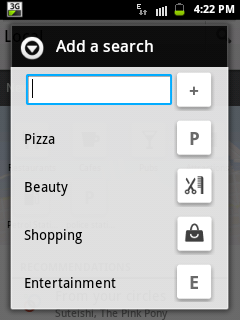
You can search for local places on google maps in the area where you live or currently standing.Just click the menu and click ‘Local’.You will be taken to another page where you will see options for restaurants,pubs and attaractions.Also you can add your own local search just click the menu and select ‘Add a search’.You can select from the list or can enter your favourite search if it is not in the list.

Google Maps Local Android
                  Add Search


4.Public Transport
For people not having their own vehicle can still use google maps for public transport.The guiding directions for public transport is also very good.You have to do the same thing just goto the the directions and enter your source and destination then select the ‘bus’ icon in middle.Select your mode of transport like bus,tram,train or undergroung etc and click ‘Get directions’.Below is an example for public transport taken from New York United States to Brooklyn New York United States.

Public TransitGmaps Android


5.Send Your Location
You can send your location to others via google maps.Just click on the blue triangle a box will appear again click this white box.Scroll down and click ‘Send location to others’.When you click this a number of sharing options will appear like message,facebook,google+,gmail etc.Select by which method you want to share your location with others.It is very useful suppose if you stuck in nowhere then this app can save your life by sending your location to others.

Useful Trick

When you send your location to others suppose via message then google maps will send the address of that place and a web link which is your map location.So question arises how others will get the same location on their android device’s google maps app to reach you fast.They need to do one thing that copy the link that google maps has sent you.It will be like mail.google.co.uk/some values.You need to copy this link and paste it in the default inbuilt android browser.Click go to run the link.When you click go you will see a popup in the browser ‘Complete action using’.Select ‘Maps’ from the list.When you select it your phone’s gmaps app will open it will show the exact location where your sender friend currently is.Then you can get driving directions to that place from your location with gps support.It can help the needy in time.

Google Maps Android

Google maps for android is a very cool app it simplifies your journey and saves much time.Share this wonderful post with your friends.


How To Use Google Maps On Android:Tutorial

How To Create Pdf Files Using Google Chrome

How To Create Pdf Files Using Google Chrome Creating pdf files with this tutorial is as easy as creating a word document.This tutorial will let you to know how to create pdf files,convert other files like text,doc files and images to pdf format.We will discuss two aspects of this tutorial.First tutorial is about saving any web page as a pdf and I also wrote about this that how to do it on android,so if you find it interesting on android then check it here.The first aspect is complete now the second one is how to create your own pdf files which should include images and your favourite stuff.The best part is that you wont be needing adobe.com to create pdf files online,you can do it offline while using google chrome only,yes right google chrome.Don’t be amazed as this tutorial will make these things utter.So lets start with the first one,I mean saving web pages as pdf.

Save web pages as pdf files using google chrome : this task is just simple.To save your favourite web page as pdf follow the steps below.
  • Just press ctrl+p,this command is for printing the web page and can be invoked by clicking the wrench icon on the top right below close button in the browser.
  • A print dialogue opens and you will see on the top left “Destination”.
  • Click the “change” button and another dialogue box opens.
  • You can select “save as PDF” and choose your destination to save the file.Also you can save the file as xps document writer.
Creating pdf files using google chrome : in this task you will learn to create your own pdf files.I will tell you that how to convert doc files and text files into pdf files and also you will be creating your own pdf files.So suppose you have a doc file like I do and you want to convert it into pdf,then you should follow the below mentioned steps.
  • open that doc file and click “save as”.After clicking it click “other formats” and save the same file as “web page” by selecting from “Save as type” drop down list.
  
save as web page
  • now you have saved the file as web page now open it in google chrome and repeat the steps to save the web page as pdf which has been discussed in aspect one.

7 Handy Tricks For Samsung Galaxy Y S-5360 Android Phone

Previously I wrote about some tips and tricks about samsung galaxy y.That tricks were useful and every galaxy y user should know them. Here are some more tips regarding galaxy y S-5360 android phone.

Check out the updated article here for Top 10 Handy Tips, Tricks & Hidden Features for Samsung One UI. Read Article →

1.Share Android Apps On Galaxy Y
This is an interesting trick proved very useful on galaxy y.You have to do one thing just open the menu and press the options key on the left side of galaxy y.You will see two options,the first one is 'edit' and other one is 'share app via'.Click on 'share app via'.When you click on this a list of existing apps on your device will open.You can select which apps you want to share,select them and click 'done'.After clicking the mode of sharing will appear,you will see options whether to share apps via bluetooth,via gmail,via facebook,via email etc.Select bluetooth if you want to share these apps with other android devices.This sharing will send the link to other users from where they can download it.


2.How To Backup Android Apps On Galaxy Y
This trick was discussed in previous post for galaxy y taking backup of your wonderful android apps is a good job.By having a backup of your existing android apps you won't need to re-download them from android market aka play store.To create a backup of your existing android apps on galaxy y you first have to download an app called 'android assisstant' from the google play store.After installing it you can easily backup your android apps on the sd/memory card.

3.How To Get The Default Gingerbread Lockscreen On Galaxy Y
Galaxy y is an action packed smartphone at a very low price,but you can see that there is no default gingerbread lockscreen in it.To get the default gingerbread lockscreen in galaxy y you have to download an app called 'widget locker'.Widget locker is not free in google play store.

Widget Locker Download

This app will give you more than 4 lockscreens including the default gingerbread lockscreen,iphone lockscreen and moto rockr etc.You can set sounds for locking and unlocking also you can select multiple lockscreens to stay on the screen.When widget locker is running you will see it icon on the top of the screen.You can hide it so the lockscreen will look like pre-installed one.


gingerbread lock screen galaxy y

4.How To View And Extract Rar Files On Galaxy Y
Rar files can sometimes become a mess if there is no software installed on your pc like winrar.You can't open a rar file on a pc unless you install winrar.However you can view and extract rar files on any android device including galaxy y.For this you have to first download an app called 'androzip'.After installing this you can easily view rar files on galaxy y and extract them on your phone and then can easily transfer the extracted files to your pc.This app is like winrar we use on pc.Also you can backup your apps and can create zip archives on your galaxy y using this app.You can long press on any folder to create a zip of that folder and single click on any file to make a zip file.These zip files will be stored to the sd/memory card.

5.Tune Up Your Galaxy Y
Tuning your galaxy y will give good performance.You should clear cache files and unwanted data on a daily basis to avoid wastage of RAM and storage.Keeping clean your device from unwanted files will boost its performance.You can download 'android assisstant' which will do the job for you.This app has an quick boost option which will immediately free up the RAM on galaxy y and save it from wastage,also it clears the cache and history of apps stored on the phone.You can proceed as follows to clean your phone off cache files,it also acts as a rom manager.You don't need to download advanced task killer for this. To clean your galaxy y from inside check this article.

    
  • open android assisstant.You will see an option 'quick boost' on the main page.Click it to release memory used by the apss.
  • now click tools.You will see 'cache cleaner' and 'system clean'.Click these tabs one by one and clean all the cache and history.
  • this app allows you an option of multiple installation and uninstallation at a same time.You can click 'batch installer' and 'batch uninstaller' on the same page for this process.
  • this app can create backups of your favourite android apps.
  • you can move apps from phone to sd/memory card with this app and much more.
6.How To Change Message and Incoming Call Ringtone On Galaxy Y
Most users of this phone complain that they are unable to change the message and incoming call ringtone on galaxy y but it is not so.We can select any ringtone for both messages and calls.

For incoming calls there are two tricks:


Trick 1 : go to music player and play your favourite ringtone or music and then press the option key.You will see an option of  'set as ringtone'.Select this option your favourite ringtone will be set as incoming call ringtone on galaxy y.By this method you can set any tone as ringtone.

Trick 2 : go to setting click sound and then click phone ringtone and select your ringtone and you are done.

For Messages


go to settings>sound>notification ringtone and select your tone from the list.You will see limited ringtones here and there is no browse option to select your favourite ringtone from memory card.If you want your favourite ringtone to set as message tone you have to first save them in a folder on memory card called "media>audio>notifications".You can put many ringtones here of your choice and after putting you will see them in the list in notification ringtone selection list.

7.How To Record Incoming Calls On Galaxy Y
As there is no pre built application for galaxy y to record calls.But you can download 'call recorder' from play store to record incoming calls on your android device.This app works in background and automatically records and saves them on memory card.It provides three formats for voice recording i.e. 3gp,wav and amr.Select your favourite format from setting menu.

Call Recorder apk Download


WARNING : This app may sometime hangs the phone during active call session.So if you encouter this disable the notification option from the settings of this app and you will not see the notification icon on the top of the screen.Share it if you like it.Be social.