play ps1 games on android
Showing posts with label fpse. Show all posts

Best Free Emulators to Play Sony PlayStation [PS1/PSX] Games on Android

Sony PlayStation also known as the PS1, PSONE, PSX was the most popular gaming console in the 1990s. It was later discontinued in the year 2006 but it has over 23 years old legacy that led to the development of many popular gaming consoles today. Well you can't find and buy a real PS1 console today because there development was ceased long ago by Sony.


But you can emulate PS1 games on your Android smartphone and PC (Windows 10). Currently there are two best PS1 emulators available for Android. These are ePSXe and FPSe. Check ePSXe tutorial below.

 ePSXe Android tutorial

Both these PS1 emulators for Android are highly compatible with most Android phones and PlayStation Roms ISO games. But there is only one problem with these emulators that prevent Android users from using them. The problem is that these emulators are not free in Google Play store. You have to buy any of these PS1 ISO emulator to enjoy PS1 games on Android. But most Android users don't feel like buying these emulators and end up downloading malicious APKs of these apps. We don't recommend anyone to download Android apps from unknown sources.

So, if you don't want to purchase ePSXe or FPSe and still want to play PS1/PSX games on your Android phone then we will teach you how you can do it. In this tutorial we will be discussing two best free Sony PlayStation emulators for Android.

Two Best Free Emulators to Play Sony PlayStation [PS1/PSX] Games on Android

  • ClassicBoy
  • Matsu Player : [Update: Matsu Player has been removed from Google Play Store and it is no longer downloadable or accessible]

How to Play Sony PS1 Games on Android With ClassicBoy Multi Console Emulator

ClassicBoy is a free multi console emulator for Android. It can easily let you play games from popular consoles like PS1, NES, SNES, N64, Sega Genesis, and Neo-Geo. But will discuss only Sony PlayStation games on it. ClassicBoy emulator is free to download from Google Play store but it may show ads while you use it. So keep the data connection off on your phone while playing. ClassicBoy offers additional paid features but the free version also doesn't have any game playing limitation. So there is no need to buy these additional features and you can continue using the free version without any problem.

  • Download and install the ClassicBoy PS1 emulator from the Google Play store.
  • Make sure you have at least one PS1 game ISO or BIN file to start playing. You can check this tutorial -- download PS1 ISO games.
  • After you download the copy the ISO or BIN file to a folder named 'PS1' on your phone's internal storage. The directory looks like '/storage/emulated/0/PS1'.
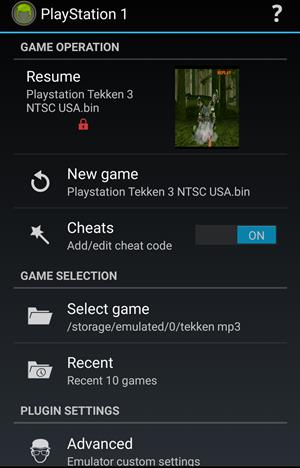
  • Open the ClassicBoy app and tap 'PlayStation 1'.

  • Tap 'Select game' and keep tapping 'Parent folder' unless you see 'Current DIR: /storage/emulated/0' written in blue on the top of the popup. Select the 'PS1' folder and then tap the game ISO or BIN file to select it.
 
  • Tap the 'OFF' button next to 'Cheats' and turn it 'ON'. Then tap 'Cheats' and enable the cheat codes that you want to use in the PS1 game. You can also add GameShark codes.
  • Tap 'New game' to start the game. From here you can start playing the game without any customizations and in default mode.
tekken 3 android
  • Now exit the game by tapping the back button and selecting 'Exit'.
  • Tap 'Advanced' and make sure 'Touchscreen' is set to 'ON'. Now tap 'Touchscreen'. You will see the controller buttons. Just drag and drop the buttons anywhere you want on the screen. This way you can customize the controller buttons.
  • Long tap any button and increase the scaling to increase the button size. Tap the back button and select 'OK' to save your settings.
  • In On-screen D-pad mode select 'Digital D-pad' and in On-screen D-pad directions select '8-way'.

How to Use Cheats in ClassicBoy

ClassicBoy automatically loads the cheats for a particular PS1 game. You only have to select and activate certain cheats. You can also add GameShark cheat codes if you know any. To use cheats in ClassicBoy first open the app and select 'PlayStation 1'. Make sure 'Cheats' are set to 'ON' and game is already selected, then tap 'Cheats'. You will see a list of cheats for that game. Just put a check on every cheat that you can want to activate. Tap return and start playing the PS1 games with cheats enabled.

How to Connect a USB Joystick or Keyboard

You can also connect a USB keyboard or Android joystick to play PS1 games in ClassicBoy. Follow the steps below to connect a USB controller to Android.
  • Use an OTG cable to connect the keyboard. Both the Wireless and wired keyboards work on Android.
  • After connecting the keyboard open the ClassicBoy emulator and tap the 'Settings' icon just next to the shopping cart. In Global settings tap 'Controller'.
  • Now tap 'Player 1' and it should be enabled.
  • When you tap it then the game input mapper will open. Touch any key on the screen. A popup will open. Press any key on the keyboard to assign. Repeat the process for all the key.
  • You will be able to play games with keyboard now.

How to Play Sony PS1 Games on Android With Matsu Player

Matsu player is another free emulator for PS1. It is a multi platform emulator just like ClassicBoy and is good at emulating PS1 games absolutely free. Check the tutorial below to use Matsu player for playing PS1 games on Android.
  • Download and install Matsu player from Google Play Store.
  • Copy the PS1 ISO or bin game file to your phone’s internal storage.
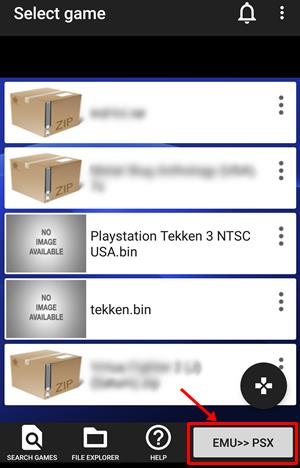
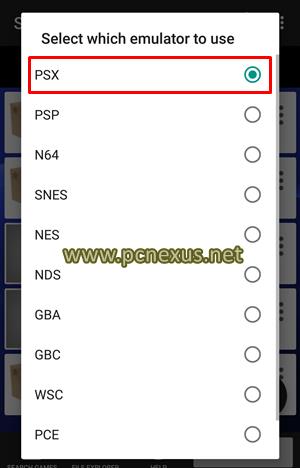
  • Open the Matsu player app and tap the ‘EMU>>’ button. From the list select ‘PSX’.
 
  • Tap ‘SEARCH GAMES’ and put a check on ‘Internal storage’ and ‘External storage’. Tap ‘OK’. Wait till the emulator finds your PS1 games.
  • When the game search finishes a list of games will be returned. Tap the PS1 game that you want to play. Then tap ‘New game’ to start palying. If bios warning pops up tap ‘CONTINUE’.
  • The game by default runs in portrait mode. Enable auto rotate in Android settings and rotate the phone to play the game in landscape mode.
  • Before properly playing the game we first have to make correct settings. Tap the hamburger menu in the top right corner and select ‘Quit game’ to go back. Save your game before quitting by tapping ‘SAVE’.
  • Now tap ‘Advanced settings’ and scroll down to the end and enable ‘Enable Cheats’. Then go back.
  • Now tap ‘Edit Layout’ then tap ‘Layout Landscape’.
  • Now a controls editor will open. Just touch any button and drop it anywhere on the screen as per your convenience.
  • Touch a button and then swipe up and down over the knob (four arrows) to increase or decrease the button size. Finally tap the Android back button and select ‘Exit and save’.
  • Scroll down and tap ‘Game screen size’. Choose the option which best suits your phone’s screen.
  • You can also use a VR headset to play PS1 games in Matsu player. You can also use Occulus Rift or Samsung Gear VR. Tap ‘VR Settings’ and put a check on ‘Enable VR Mode’. Increase or decrease the ‘VR screen size’ as per your needs.
Save and Load Game State in Matsu Player

While playing a game tap the hamburger menu in the top right corner and select ‘Save state’. Then select the slot to save your current game state and progress. If you want to load that saved game state anytime tap the menu again and select ‘Load state’ then select the save state slot that you want to load.

Add PS1/PSX Cheat Codes in Matsu Player

While playing a game tap the hamburger menu in the top right corner and select ‘Cheats’. Tap the plus button and add a cheat code if you know any. Enter the code and tap ‘NEXT’ to add and activate the cheat for the game.

Conclusion

So these were two best free PS1 emulators for Android. You can play most PS1 games on these two PS1 emulators. However if you want a standalone PS1 android emulator then you can go for ePSXe which is a paid app.

How To Play Playstation [PS1/PSX] Games On Android

Hello friends previously I wrote about playing cps1 and mame games on android. That post proved useful to many android gaming enthusiasts. We provided step by step procedure to play mame games in that post. However android is not limited to only CPS1 or MAME and we can even play Playstation 1 that is PS1, PSONE or PSX games on it. Yes you heard right PS1 games on android. You might be taking it lightly because you are thinking that how it is possible to emulate PS1 hardware on android which includes some of the best games of all time and even played today. But at the end of this post you will believe that it is possible to play PS1 games on android. Recently I have written about playing PSP games on android.

⚠️ Important Update This article has gone very old by today's standards.
Kindly follow the updated article for — How to Play PlayStation [PS1/PSX] Games On Android with DuckStation.

Before playing any PS1 game on android you should have atleast one android phone, a PS1 game rom(in this post I will be using tekken 3 playstation1 rom), SCPH1001 Bin File and FPse emulator for android. 

Tekken 3 Playstation1 Rom 

FPSE 0.10.57 Playstation PS1 old emulator for android apk. 

SCPH1001.BIN
: download from Google

➜ Updated Tutorial : This tutorial is limited to android 4.3 Jellybean only, if you want to play it on android KitKat, Android Lollipop and Android Marshmallow or Android Nougat 7.1 then use this ePSXE Tutorial.

tekken 3 android fpse

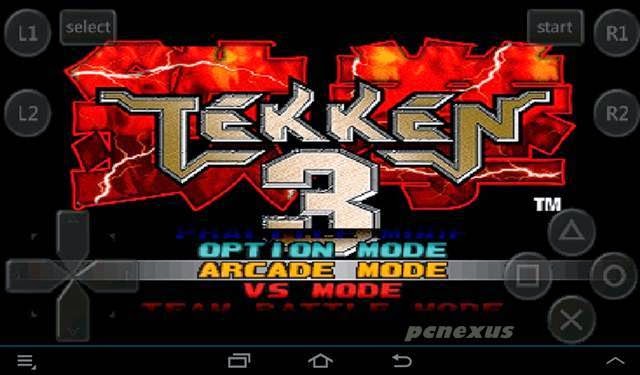
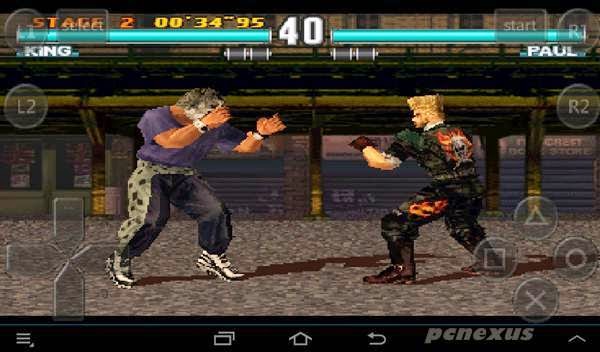
This tutorial will teach you how to play Tekken 3 on android and it is also a PS1 game. Before going to procedure lets have a short bio of this game. Tekken 3 is a fighting game developed by Namco for the Namco system 12 and was released in 1997. It was released for Playstation in 1998. Tekken 3 is considered as one of the best games of all times and is still played today. Tekken 3 is 3D game in which players can move around the third axis this is the newest feature of it that was missing in its previous versions. This game is the role model for every fighting game. Some most influencing characters of tekken 3 are Paul Phoenix, King, Nina Williams, Forest Law, Ling Xiaoyu, Heihachi Mishima and Ogre.


king vs paul in tekken 3 fpse

Now lets move to the instructions to play Tekken 3 on android. Follow all the instructions carefully and do not miss any instruction. I am using Samsung galaxy Y S5360 android phone to run Tekken 3 on it but you can play it on any Samsung android device or other android devices. So lets play Tekken 3 on android.


How To Play Playstation [PS1/PSX] Games On Android Phones And Tablets


  • Download all the files from  the links provided to you that is the FPSE emulator, SCPH1001 file and tekken 3 rom.
  • Install FPse emulator apk on your android phone and copy the tekken 3 rom and SCPH1001.BIN file directly to your phone’s memory card. If your phone doesn’t allow it then goto Settings>Applications>Unknown sources and check it then again install FPse. This time it will install.
  • Now open FPse your sd card’s files will open in it like a file explorer. Click your phone’s menu button and move to settings>SYSTEM>Bios loading>sdcard>SCPH1001.BIN. Now you have set the bios settings for FPSE without setting SCPH1001.BIN it won’t run. Uncheck the 'HLE mode' and click 'Default config save' to save bios settings.
fpse settings

  • Now tap menu button of your phone and choose 'Quit', then tap 'Restart'. This step is necessary because if you do not restart fpse then bios settings would not take effect and you can not save or load games without bios setup.
  • During restart the fpse app may get crashed. But don't worry its normal. To check if bios is successfully setup, launch the game and tap menu then tap 'Save', if you see save slots then bios is properly installed, if it gives bios warning then reuse the step above.
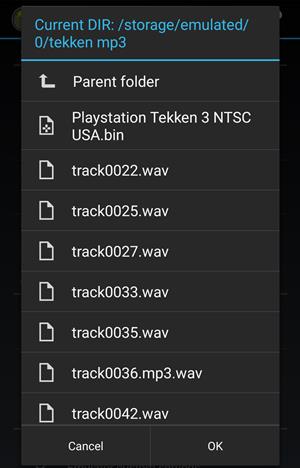
  • Make a folder on sdcard named 'PSONE' and put the Tekken 3 rom file in it. Now you have to load the game. FPSE will ask you to load a game ISO or binary file (.bin) which has a file format of (.bin). It will be like Playstation Tekken 3 NTSC USA.bin. That's it you have to click this file, see the image below. When you click this file the tekken 3 game will start playing. But you will see only the game running with no controls on screen.
  • There is no need to use pocket iso because it highly compresses the ps1 roms and removes all the game audio and videos. I won't recommend to use pocket iso because after using pocket iso you will not enjoy the games at their best because there will be no background fighting music and no game videos.
loading the game in fpse

  • To play the game fully you have to make optimal settings for FPse emulator for android. I am giving the instructions to setup FPse.

Settings For FPse Emulator For Playing Tekken 3 On Android

When game starts running after the 5th step above then goto following directory click menu>settings>INPUT>Touchscreen. Now you are here in this directory and have to make several settings which are given below.


  • Transparency : Click it and select “Disabled”.
  • Buttons Configuration : Scroll down and find these below and put a check mark against them.
  • Draw button 2(L1-L2) : put a check on it.
  • Draw button 3(R1-R2) :put a check on it.
  • Draw button 4(Start) : check it.
  • Draw button 5(Select) : check it.

➜ Now Press the back button and select “VIDEO”. Here we also have to make several configurations.

                                 
    fpse options

Note : Step 3 & 4 are only for single core android phones. Skip these steps if you have a dual or quad core android phone.

➜ Framelimiter : Do not put a check on it. Checking it will slow down tekken 3 gameplay.

➜ Frameskip : if you select no frameskip in this then game will run a little slow but you can use all  the player moves. But game’s background music will be like hell and hang because galaxy y is not a dual core processor android phone so it can’t handle gameplay with background music. You can disable the background music from game’s menu by moving to Tekken 3>OPTION MODE>GAME OPTION>BGM SELECT>SILENT>EXIT>SAVE . If you do this you will be able to play tekken 3 at full frames without background music.

If you select frameskip to 40fps then you will be able to play tekken 3 with background music. If you are using a quad core, octa-core android phone like Galaxy S8, then it can handle the game without any problem. But if game hangs then try skipping the frames. Select how many frames you want to skip and select best value for frame skipping at which game and music will play with smoothness. 40 fps skipping is optimal for Samsung galaxy Y S5360.


  • Frameskip fix : check it. If your phone is dual or quad core then no need to check it.
  • Screen size : Fullscreen
  • Screen Orientation : Auto. If you enable this then you will be able to play ps1 games on android in landscape or portrait mode by turning the phone.
➜ Click menu>save>OK.
➜ Now you are all set and enjoy your Tekken 3 on android.
➜ Also you can set L1-L2,R1-R2 buttons as a combination of two buttons. This is tekken 3 game setting not for FPSE. For this you have to go tekken 3 OPTION MODE>KEY CONFIGURATION>SETTING>L1.When you press L1 a combination of single and two buttons will open.Keep pressing L1 and move the up/down controller and select LK+RK then release the button. The procedure is same for L2,R1,R2.
➜ After doing this EXIT>MEMORY CARD>START>CARD SAVE>START>START>SAVE OK>EXIT>EXIT>ARCADE MODE.

I have installed and played following ps1 games on android with FPse emulator with optimal settings on galaxy y but if you have a dual core processor or an octa core processor android phone like galaxy s4, Samsung galaxy s3, galaxy note 2, galaxy S5, galaxy note 3, galaxy note 10.1,galaxy s2, galaxy tab 3, galaxy s advance, samsung galaxy tab 2, HTC one X, Moto G, Moto X, Droid Maxx and droid DNA etc then it will not hang on this phones. I have played following PS1 game on android.

  • Tekken 3
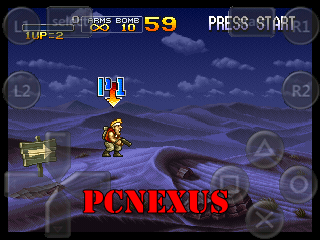
  • Metal Slug Super Vehicle001
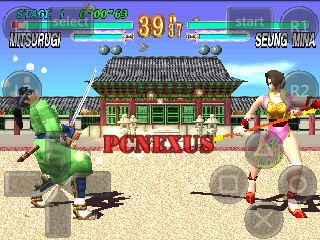
  • Soul Blade
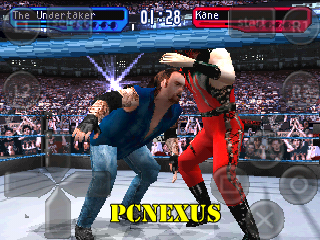
  • SmackDown 2 Know Your Role
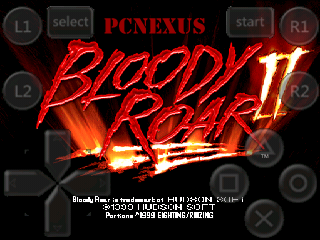
  • Bloody Roar 2
  • Final Fantasy 1-8
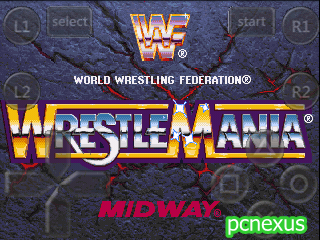
  • WWF Wrestlemania The Arcade Game
But when you play Tekken 3 on android then you will see only few players. You have to unlock them by playing the game. But you don't need to unlock because I have unlocked all the players of Tekken 3 for you. You just have to download the memory cards.

➜ Load And Save A Game

Read Play Sony PlayStation [PS2] Games On Android
With fpse you can save your game so later you can continue from where you left it. But before saving the game make sure that you have set up bios file correctly, that I told in previous steps above. To load a playstation game on fpse you first need to save it. Follow the steps below.

  • To save any game any time, click the menu button and select save. A list of 5 saving slots will open. Choose any slot to save your game state.
  • To load any saved game click load and choose the state you previously saved.
  • You can save up to 5 different game states. To save new states if the slots are full, click on any slot to over write it.

load/save a state

➜ Tekken 3 Memory Cards Download

After downloading the memory cards you have to install them in fpse emulator. First of all download the cards and place them directly in your android phone's sdcard. Now proceed as follows.
  • Open fpse emulator and click menu button on your phone and goto "Settings".
  • In settings select "SYSTEM".
  • Scroll down to find "Memory Card1". Click it and a file explorer will open. You have to select "sdcard" and locate this file "slot1.mcd". Click this file.And you are done.
  • Now click "Memory Card2". Again select "sdcard" and find "slot2.mcd". Click this file and your memory card setup for Tekken 3 is finished.
  • Now click the menu button on your phone and click "Save". Then a popup will show, click ok.
  • Now when you play Tekken 3 on android you will see all 21 players.

tekken 3 all players in fpse

If you are using an android tablet then you can use a computer keyboard to play playstation games on your android tablet.Follow the steps below.

➜ Playing FPSE Games On Android Phone/Tablet With Keyboard

  • First read the tutorial here for connecting a keyboard to your android tablet/phone.
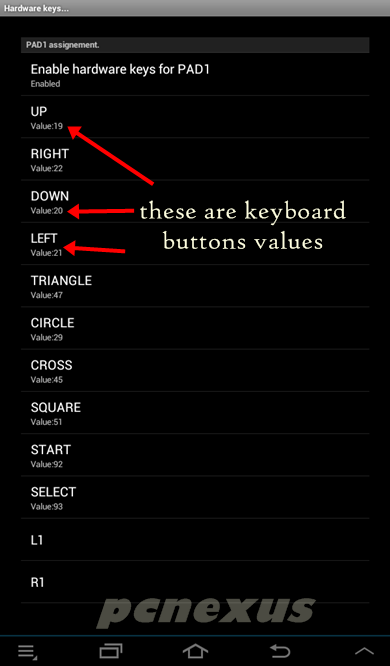
  • Open fpse and click menu>Settings.
  • Then select Input. Now select Hardware keys.
  • You will see all the buttons here. Tap the button on phone's screen and then press a hardware keyboard key to assign to it.

gamepad settings

➜ Setup Two Players In FPSE

In FPse two players can play at the same time. Suppose your are playing tekken 3 game in fpse then two players can play the game simultaneously by challenging each other. For this one player will use the phone touchscreen to play while other player will use a keyboard or supported gamed connected via USB OTG or bluetooth to the phone. You have to follow the steps below to setup controls for second player.

  • First of all read the just above section in which I have taught to setup keyboard via OTG.
  • Now goto 'Menu>Settings>Input>Hardware keys'.
  • Scroll down and find 'PAD 2 assignment'.
  • Now assign keys from keyboard by tapping the button on phone's screen then pressing a keyboard key.
  • Assign all the buttons.
  • Now play the game with two players.

two players challenge in tekken 3 fpse android

➜ FPSE vs ePSXE


There is an another app for android that can play PSone games on android and that is epsxe. ePSXe is a better PS1 emulator than FPSE. The comparison is given below.

  • FPSE has a license check problem. The older version is better than the newer one when it comes to emulation. But older version doesn't work on Android 5.0 Lollipop and above. ePSXe works great on android 5.0 and above.
  • The cheat support in FPSE is pathetic while ePSXe automatically downloads cheats.
  • ePSXe support multiplayer while FPSE doesn't.
  • If you think FPSE is not working on your phone then try this ePSXe tutorial.


➜ Screenshots

PS1 Bloody Roar 2 On Android FPse

bloody roar 2 android fpse

PS1 WWF Smackdown 2 Know Your Role For Android

wwf smackdown 2 on android

PS1 Metal Slug X Super Vehicle001 For Android

metal slug x on fpse

PS1 Soul Blade On Android FPse Emulator

sould blade ps1 on android fpse

WWF Wrestlemania The Arcade Game PS1

wwf wrestlemania arcade fpse    

Share this wonderful post if you like it on facebook and google plus because you won't find an excellent article about playing playstation games on android so well like we did here on pcnexus. I think I have covered the topic in detail, if you find some problems then feel free to ask via comments. 

Also Read Following Tutorials

1. Play PSP games on android with PPSSPP
2. Play PS2 games on android with Play PS2 emulator
3. Complete android retro gaming tutorial - Read here