play ps1 games on android
Showing posts with label epsxe. Show all posts

Best Free Emulators to Play Sony PlayStation [PS1/PSX] Games on Android

Sony PlayStation also known as the PS1, PSONE, PSX was the most popular gaming console in the 1990s. It was later discontinued in the year 2006 but it has over 23 years old legacy that led to the development of many popular gaming consoles today. Well you can't find and buy a real PS1 console today because there development was ceased long ago by Sony.


But you can emulate PS1 games on your Android smartphone and PC (Windows 10). Currently there are two best PS1 emulators available for Android. These are ePSXe and FPSe. Check ePSXe tutorial below.

 ePSXe Android tutorial

Both these PS1 emulators for Android are highly compatible with most Android phones and PlayStation Roms ISO games. But there is only one problem with these emulators that prevent Android users from using them. The problem is that these emulators are not free in Google Play store. You have to buy any of these PS1 ISO emulator to enjoy PS1 games on Android. But most Android users don't feel like buying these emulators and end up downloading malicious APKs of these apps. We don't recommend anyone to download Android apps from unknown sources.

So, if you don't want to purchase ePSXe or FPSe and still want to play PS1/PSX games on your Android phone then we will teach you how you can do it. In this tutorial we will be discussing two best free Sony PlayStation emulators for Android.

Two Best Free Emulators to Play Sony PlayStation [PS1/PSX] Games on Android

  • ClassicBoy
  • Matsu Player : [Update: Matsu Player has been removed from Google Play Store and it is no longer downloadable or accessible]

How to Play Sony PS1 Games on Android With ClassicBoy Multi Console Emulator

ClassicBoy is a free multi console emulator for Android. It can easily let you play games from popular consoles like PS1, NES, SNES, N64, Sega Genesis, and Neo-Geo. But will discuss only Sony PlayStation games on it. ClassicBoy emulator is free to download from Google Play store but it may show ads while you use it. So keep the data connection off on your phone while playing. ClassicBoy offers additional paid features but the free version also doesn't have any game playing limitation. So there is no need to buy these additional features and you can continue using the free version without any problem.

  • Download and install the ClassicBoy PS1 emulator from the Google Play store.
  • Make sure you have at least one PS1 game ISO or BIN file to start playing. You can check this tutorial -- download PS1 ISO games.
  • After you download the copy the ISO or BIN file to a folder named 'PS1' on your phone's internal storage. The directory looks like '/storage/emulated/0/PS1'.
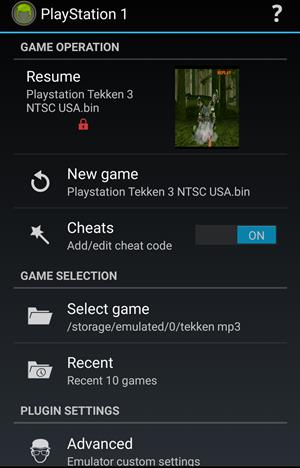
  • Open the ClassicBoy app and tap 'PlayStation 1'.

  • Tap 'Select game' and keep tapping 'Parent folder' unless you see 'Current DIR: /storage/emulated/0' written in blue on the top of the popup. Select the 'PS1' folder and then tap the game ISO or BIN file to select it.
 
  • Tap the 'OFF' button next to 'Cheats' and turn it 'ON'. Then tap 'Cheats' and enable the cheat codes that you want to use in the PS1 game. You can also add GameShark codes.
  • Tap 'New game' to start the game. From here you can start playing the game without any customizations and in default mode.
tekken 3 android
  • Now exit the game by tapping the back button and selecting 'Exit'.
  • Tap 'Advanced' and make sure 'Touchscreen' is set to 'ON'. Now tap 'Touchscreen'. You will see the controller buttons. Just drag and drop the buttons anywhere you want on the screen. This way you can customize the controller buttons.
  • Long tap any button and increase the scaling to increase the button size. Tap the back button and select 'OK' to save your settings.
  • In On-screen D-pad mode select 'Digital D-pad' and in On-screen D-pad directions select '8-way'.

How to Use Cheats in ClassicBoy

ClassicBoy automatically loads the cheats for a particular PS1 game. You only have to select and activate certain cheats. You can also add GameShark cheat codes if you know any. To use cheats in ClassicBoy first open the app and select 'PlayStation 1'. Make sure 'Cheats' are set to 'ON' and game is already selected, then tap 'Cheats'. You will see a list of cheats for that game. Just put a check on every cheat that you can want to activate. Tap return and start playing the PS1 games with cheats enabled.

How to Connect a USB Joystick or Keyboard

You can also connect a USB keyboard or Android joystick to play PS1 games in ClassicBoy. Follow the steps below to connect a USB controller to Android.
  • Use an OTG cable to connect the keyboard. Both the Wireless and wired keyboards work on Android.
  • After connecting the keyboard open the ClassicBoy emulator and tap the 'Settings' icon just next to the shopping cart. In Global settings tap 'Controller'.
  • Now tap 'Player 1' and it should be enabled.
  • When you tap it then the game input mapper will open. Touch any key on the screen. A popup will open. Press any key on the keyboard to assign. Repeat the process for all the key.
  • You will be able to play games with keyboard now.

How to Play Sony PS1 Games on Android With Matsu Player

Matsu player is another free emulator for PS1. It is a multi platform emulator just like ClassicBoy and is good at emulating PS1 games absolutely free. Check the tutorial below to use Matsu player for playing PS1 games on Android.
  • Download and install Matsu player from Google Play Store.
  • Copy the PS1 ISO or bin game file to your phone’s internal storage.
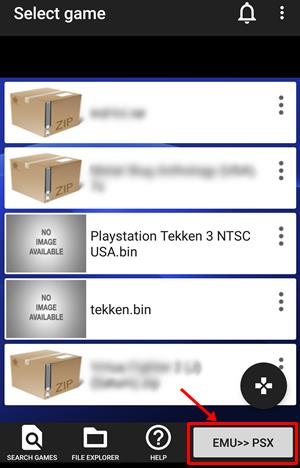
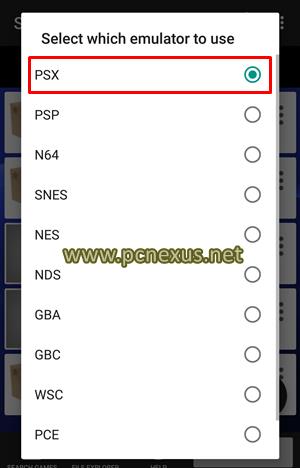
  • Open the Matsu player app and tap the ‘EMU>>’ button. From the list select ‘PSX’.
 
  • Tap ‘SEARCH GAMES’ and put a check on ‘Internal storage’ and ‘External storage’. Tap ‘OK’. Wait till the emulator finds your PS1 games.
  • When the game search finishes a list of games will be returned. Tap the PS1 game that you want to play. Then tap ‘New game’ to start palying. If bios warning pops up tap ‘CONTINUE’.
  • The game by default runs in portrait mode. Enable auto rotate in Android settings and rotate the phone to play the game in landscape mode.
  • Before properly playing the game we first have to make correct settings. Tap the hamburger menu in the top right corner and select ‘Quit game’ to go back. Save your game before quitting by tapping ‘SAVE’.
  • Now tap ‘Advanced settings’ and scroll down to the end and enable ‘Enable Cheats’. Then go back.
  • Now tap ‘Edit Layout’ then tap ‘Layout Landscape’.
  • Now a controls editor will open. Just touch any button and drop it anywhere on the screen as per your convenience.
  • Touch a button and then swipe up and down over the knob (four arrows) to increase or decrease the button size. Finally tap the Android back button and select ‘Exit and save’.
  • Scroll down and tap ‘Game screen size’. Choose the option which best suits your phone’s screen.
  • You can also use a VR headset to play PS1 games in Matsu player. You can also use Occulus Rift or Samsung Gear VR. Tap ‘VR Settings’ and put a check on ‘Enable VR Mode’. Increase or decrease the ‘VR screen size’ as per your needs.

Save and Load Game State in Matsu Player

While playing a game tap the hamburger menu in the top right corner and select ‘Save state’. Then select the slot to save your current game state and progress. If you want to load that saved game state anytime tap the menu again and select ‘Load state’ then select the save state slot that you want to load.

Add PS1/PSX Cheat Codes in Matsu Player

While playing a game tap the hamburger menu in the top right corner and select ‘Cheats’. Tap the plus button and add a cheat code if you know any. Enter the code and tap ‘NEXT’ to add and activate the cheat for the game.

Conclusion

So these were two best free PS1 emulators for Android. You can play most PS1 games on these two PS1 emulators. However if you want a standalone PS1 android emulator then you can go for ePSXe which is a paid app.

How To Play Road Rash Game On Android

Road Rash which is now an old school game was a popular motorcycle racing that was first released in 1991 by electronic arts video games company. Several versions of the game came on different gaming platforms from 1991 to 2003. Out of which the most popular version is the road rash 95. I have previously written an article on playing road rash on Windows 7 64-bit without color problem, read article. That article proved useful and many users enjoying this old game on their newer computers because of that article.


However this game is still not working on Windows 10 computers and the color problem still exists. So, if you are unable to play it on your PC then why don't you try it on your android device. Actually the road rash 95 game was separately released for the Sony PlayStation PS1/PSX console. And you can play this game on your android phone or tablet with ePSXe PS1 emulator for android with same gaming experience but with extra features like exclusive in game footage. The game features five levels, the city, the peninsula, pacific coast highway, Sierra Nevada and Napa valley.

Requirements

Note: The ePSXe app is not free to download. You have to purchase it to play this game.

How To Play Road Rash Game On Android

  • Download and install the ePSXe emulator app.
  • Download the game rom and the BIOS file.
  • Go to epsxe folder on sdcard (internal storage) and paste the bios file in 'bios' folder and game rom in 'isos' folder. 
  • Now launch the ePSXe app.
  • Tap 'Run Game'. The app will automatically search your phone's storage for PS1 game roms.
  • Tap the game to start playing.

Now you can run the game easily. But for optimal performance you have to configure the ePSXe app. Configuring will allow you to set gamepad controls, use cheat codes, play multiplayer and playing games from USB OTG. For this you have to follow the two articles below.

Follow The Tutorials Below

If you liked the article then please share it.

ePSXE Android: How To Use Cheats In PlayStation [PS1/PSX] Games

When it comes to emulate Playstation [PS1/PSX] games on android cell phones then ePSXE is the best app for the purpose. Playstation was launched back in 1994 and has some of the award winning gaming titles that are still in demand for remastering on newer PlayStation 4. I am a huge fan of this gaming console and used to play games on it in my childhood, but unfortunately, I never had PSONE.

Years later I discovered that Sony Playstation games can be played on PC and android cell phones. So, I wrote articles on emulating PS1 games on Windows PC and Android Phones. These articles are very helpful to people who are searching for the right tutorial to play PS1 games on smartphones.

Currently, there are two best PS1 emulators for android. One is FPSE and another is ePSXE. If you have an older smartphone running android [2.3 – 4.3] then FPSE is the app that you should use. Please read FPSE tutorial. But if your phone is running android [5.0 – 6.0] Lollipop to Marshmallow then ePSXE is the app for you because it can handle octa-core android smartphones to give smooth gaming experience over FPSE.

I am in a favour of ePSXE because it is easy to use and configure. It’s ability to automatically download cheats for games is remarkable. ePSXE android cheats can be applied during game play for immediate effect while other emulators may not let you do so.

ePSXE Android: How To Use Cheats In PlayStation [PS1/PSX] Games


I will be using Tekken 3 game and will show you how to apply cheats on it. I am assuming that you read my previous article on using and configuring ePSXE on android. If not then go here.

  • Launch any game. Tap the menu or back button to access options.
  • Here tap ‘Cheat Codes’. A popup will open stating ‘No cheat codes found for game’.

  • Tap Download. Wait till you see “Cheat Codes downloaded”.
  • Now again go to ‘Cheat code’ option and see the complete list here.
  • There is a checkbox in front of every cheat, put a check on it then tap ‘Apply’.
epsxe android cheats


Recommended Cheats For Tekken 3

Below is a list of some cheats that I recommend to you for playing Tekken 3 on android.

  • Infinite Health P1: Your player’s health will be infinite. It will be immortal and can’t be defeated by anyone.
  • Absolutely Everything Unlocked: Use this cheat to unlock everything in Tekken 3 like the ‘Theater Mode’, ‘Tekken Ball Mode’, ‘All Players’.
  • Infinite Supercharge: Defeat your opponent in one hit.
  • Rest of the cheats you can check yourself.


Creating Cheat File For ePSXE Android

Sometimes it may happen that the downloading of cheats may not work or the emulator can’t find GameShark codes for the game you are playing. In this case, you have to manually create a cheat file and save it with original game code name in ‘Internal Storage>ePSXE>Cheats’.

The format for the cheats is given below.

#Description
300A961E 008C

The first line gives the description, the second is the cheat code itself.  A complete cheat code file will look like this below. Save this file as a text file having the .txt format.


Naming A Cheat File

Now here comes the tricky part and the entire working of the file depends on this part only. You can’t name your cheat file just anything and wish to work with ePSXE. Every Playstation game has a region code that starts either with ‘SLUS’ or ‘SCES’. So Tekken 3’s SLUS code is ‘SLUS-00402’. So, your cheat code file name will be ‘SLUS_004.02’ and save this file as text.  Naming is simple, just replace the hyphen with an underscore and put a dot after first three digits then save it as .txt. Now paste this cheat file in ‘Internal Storage>ePSXE>Cheats.’ Open the game and enjoy. You can search SLUS-codes of your games on Google.


If you liked the article then please share it.

ePSXe Android : Play PlayStation [PS1/PSX] Games On Android

ePSXe is a PlayStation, PS1, PSone or PSX emulator for android. It lets you play PS1 games on your android phone or tablet. I have already written about playing psone games on android with FPSE, but most of the users are finding it hard to configure. Yes, FPSE emulator is a little bit hard to configure since it requires many settings to be rightly configured. But after making the right settings you will get the real PlayStation games experience on your android phone or tablet. Games in ePSXe run smoother than FPSE.
⚠️ Important Update This article has gone very old by today's standards.
Kindly follow the updated article for — How to Play PlayStation [PS1/PSX] Games On Android with DuckStation.


epsxe android tutorial

If you feel that you are finding fpse hard to configure then anytime you can move to ePSXe. ePSXe is currently the best PS1 emulator for android. Because it works without lags and is highly recommended for high-end smartphones those with quad-core and octa-core CPUs. ePSXe for android has brought the same PlayStation [PS1/PSX] legacy back on android.


Downloads Required

  • ePSXe: The app is not free to download in Google Play Store. So, I will not post links here. You should purchase this app or ask Google to provide you for free if possible.
  • PlayStation [PS1/PSX] Roms, Download Here.
  • PS1 BIOS SCPH1001.bin

Play Sony PlayStation [PS1/PSX] Games On Android With ePSXe Emulator


Here is a video tutorial below which you can watch for quick learning or can use the tutorial below.


  • Download and install the ePSXe emulator app.
  • Download any playstation rom and the compulsory bios.
  • Go to epsxe folder on sdcard (internal storage) and paste the bios in 'bios' folder and game rom in 'isos' folder. 
  • Tap 'Run Game'. The app will automatically search your phone's storage for PS1 game roms.
  • Tap the game that you want to run.
  • Start playing. 
  • Read Tekken 3 game on PC/laptop.


Browse Games From Sdcard Or External Drive (USB OTG)

ePSXe can automatically search your phone's internal storage, SDcard or USB storage for PlayStation games and ISOs. This also saves a lot of time since you don't have to manually load the game from the file directory. It doesn't matter where you put the games whether, on SDcard, internal storage or external USB storage, ePSXe will scan the entire storage to find the games. To let this happen follow the steps below

Important Note: I prefer using a USB OTG drive to play PS1 games through it because I can put many ISOs on it. You can put one PS1 rom in SDcard, one in internal storage and one in external storage. Now follow the steps below.
  • Open the app then tap 'Run Game'.
  • Tap the 'Refresh' button on top right.
  • A popup will appear asking for scanning the games.
  • Tap 'ALL' and wait for few seconds.

  • When this option is selected then epsxe will scan the SDcard, internal storage and USB drive (if connected) at the same time.
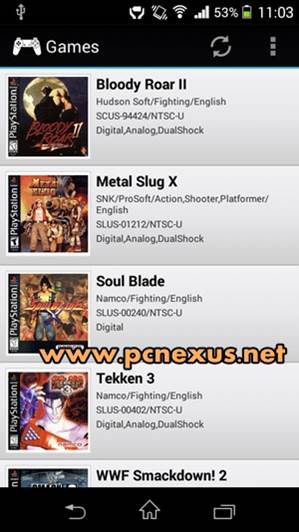
  • Finally the list of games will be displayed.
  • Initially you may not see game cover arts, just connect your phone to Wi-Fi or internet and relaunch the app.
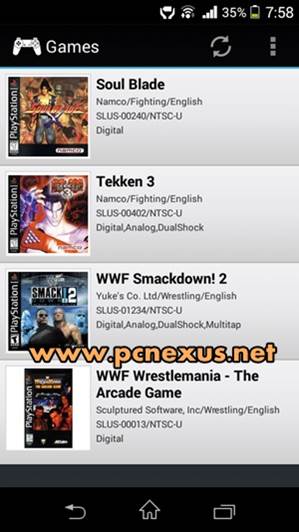
  • Now you will see game information and region code also in games list. See the images below.
epsxe android games list    


Create Game Shortcut On Home Screen

For quick game playing, you can create a game shortcut to home screen. A shortcut can quickly launch the game without actually opening the game and selecting. This is also suitable if you have many games in epsxe. To create a game shortcut follow the steps below.
  • Open the app and tap 'Run Game'. A list will open.
  • Long tap on any game. A popup will open asking you to create a shortcut.
  • You can also name the shortcut if you want. Finally tap 'Yes, Large'.
  • Go to home screen and see the shortcut.
  • Tap this game shortcut to launch it anytime.


Settings For ePSXe


1. Autosave: When this feature is enabled then the games will autosave when you exit the app. To enable it go to 'Preferences', scroll down and find 'Autosave on EXIT'. Tap to enable.
2. CPU: Disable all settings in CPU preferences like frameskip, show FPS and MME (Autodetect).
3. Screen Orientation: It should be 'Landscape'.
4. Screen Ratio: User 'Stretch' for full screen or else '4:3'.
5. Video Renderer: In this option select 'Hardware (faster+smoother)'.


Note: You can use a cheat to unlock everything in the Tekken 3 game. There is no need to use memory cards if you use cheats. Please scroll down to the cheats sections.

Player Input

If two player wants to play at a time then you need a supported joystick or keyboard. You need to connect the keyboard via OTG to your android and the set the buttons for the second player. To do this follow the steps below.

  • Connect the USB keyboard/joystick to android via OTG.
  • Open 'Preferences' and go to 'Player 2' tap it and select the joystick in 'Select Gamepad' option.
  • Now tap 'Player 2 map buttons'.
  • Tap 'Up' then press a button on keyboard to assign it.
  • Similarly setup all the buttons.
  • Now two players can play the game simultaneously.

Note
: 'Player 1' can also use the keyboard to play games. The setup process is same as explained above.

Two Players One Phone

ePSXe has a built in split screen feature for two players so that 2 players can play simultaneously. This feature is not useful for phones which support less than 10 multi-touchscreen points. You can run a benchmark test on your phone or tablet to check the multi touch on your phone. To use the split screen function follow the steps below.

  • Go to 'Preferences>INPUT PREFERENCES>Number of Players'. Here select '2 players (split mode)'.
  • The go to the main screen tap 'Run Game' then select your game. You will see a split screen with two gamepads.
  • You can see the horizontal split on a 4 inch screen phone. This looks garbled. Only 'SplitVert' will work on smaller screens.


  • Tap the back key and tap 'SplitVert' if the horizontal split is not working correctly.


  • Basically 'SplitHorz1' and 'SplitHorz2' will not work properly on phones having screens less than 5 inches.

Note: If it is difficult to share the phone's screen then you can use your TV screen to play the game. But your server phone should have MHL support. Connect the phone to TV's HDMI port by using a MHL cable and enjoy ePSXe games on a large TV screen.


Customize Gamepad

ePSXe has default gamepad layout in which the LR buttons are very small. So on a larger screen like that of a Galaxy S7, android tablets the buttons will look too small to register an input from the touch. So you may find that the buttons do not work sometimes when tapping. To solve this problem we have to increase the buttons size according to the screen's size for the best gameplay experience.

  • Open the app and go to 'Preferences>TouchScreen Gamepad'. It can be found in 'INPUT PREFERENCES'.
  • Tap 'Pad Skin' and select 'Pure White - Digital'.
  • Tap 'Transparency on skins' and select '100/100'.
  • Vibration on touchscreen should be disabled.
  • Here tap 'Pad1 Format Editor'. You will see a gamepad editor like this.

  • The buttons with RED marks mean that they are not visible on screen while playing. 
  • To individually increase the size of any button first tap it so that a green box encloses it then tap the plus '+' button on top to increase the size. Similarly use the '-' button to decrease size.
  • Long tap any button and drag it anywhere on the screen then drop it anywhere on the screen for your convenience.
  • Head over to the LR buttons. First tap the 'L2' button once then use the '+' button to increase its size. Similarly do it for L1, R1, R2 buttons.
  • Now after increasing the size long tap the 'L2' button and drop it slightly away from 'L1' so that there is enough space between them. Similarly do it for R2. Finally tap 'Save & Exit' a popup will open tap 'Yes, save and quit'.

Memory Cards

  • Go to 'Preferences>MEMCARDS PREFERENCES'. Here tap 'Memcards File Mode' and select 'shared by all games' if you are playing only one PS1 game otherwise choose 'individual by game (in hle force)' if you are playing multiple games so that game data is stored separately.
  • Tap 'Memcard1 file' and select 'epsxe000.mcr'. Then tap 'Memcard2 file' and choose 'epsxe001.mcr'.

Note: If you don't want to use memory cards then you can use cheats to unlock everything in the game. Please read the epsxe cheats tutorial give below.


How to Use Cheats in ePSXe

ePSXE automatically downloads cheats for any PS1 game on android. All you have to do is to go to Options and tap 'Cheat Codes'. Then tap 'Download'. Please Read How to apply cheats in ePSXE android.


ePSXe Multiplayer Settings

ePSXe has a dedicated support for multiplayer gaming. But the multiplayer feature of epsxe is not the same as with any other game. epsxe has 'Client' and 'Server' setup which lets two players to play simultaneously over Wi-Fi. However both the player should share the same screen but they can use separate android phones as gamepads. To configure epsxe multiplayer follow the steps below.
  • You should have two android phones with ePSXe installed.
  • Connect both the android phones to the same Wi-Fi network.
  • Now open the app on one phone and tap the 'back' key and choose 'Run as Server'.
  • Then tap the game you want to load.
  • Immediately after the game launches a 'Server IP' will appear on your phone. Please note down this address. It will be like 'Server IP: 192.162.10.1'.
  • Now on the second phone open the app and tap the 'back' key and choose 'Run as Client'.
  • You will need to enter the IP address that you noted above. Enter this address and tap 'ok'.
  • Now two players can play the game simultaneously. The game will run on 'Server' phone only, the client phone will only show gamepad.
  • The multiplayer feature is tested on Tekken 3 game and it works great without any delay.
  • Tekken 3 can be played in multiplayer mode in epsxe.

ePSXe vs Free PS1 Android Emulators

ePSXe is a paid PS1 Android emulator. So most people won't buy it from the Google Play store. However if you don't want to buy ePSXe paid version then you can still play PS1 games on Android for free. ePSXe has two alternative emulators that are absolutely free to use. These two emulators are ClassicBoy and Matsu Player. So, if you are looking for free and satisfactory PS1 Android emulators then you can check out ClassicBoy or Matsu Player. Check their tutorial below.


ePSXe vs FPSE

FPSE newer version app has sluggish game play. FPSE 0.10.57 has smooth performance and works flawlessly in phones running android 4.3 Jellybean. Also, there is no problem of license check in this version but it doesn't work in android 4.4 or above. ePSXE is the best PS1 emulator for high-end phones running android M and android N, it can handle octa-core CPU phones very easily. If you want to setup FPSE on android then read this FPSE tutorial.

Screenshots

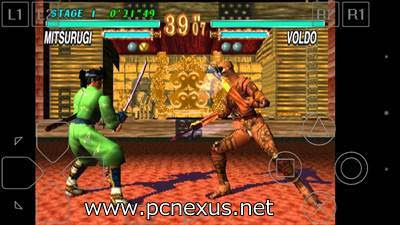
I have tested WWF Smackdown 2 Know Your role, Soul Blade, WWF Wrestlemania and Tekken 3, Bloody Roar 2 and Metal Slug X Super Vehicle 001 on epsxe android PS1 emulator.

wwf smackdown 2 epsxe
WWF SmackDown 2: Know Your Role
soul blade epsxe android
Soul Blade

WWF WrestleMania The Arcade Game

tekken 3 android ps1
Tekken 3 On ePSXe

bloody roar 2 android epsxe
Bloody Roar 2 ePSXe android
metal slug x on android ps1 emulator
Metal Slug X

Metal Slug 1-7 All Games

ePSXe only supports Metal Slug X. But if you want to play all metal slug games on your android then you should try out the PPSSPP emulator. Metal Slug has a total of 7 different games and you can play six of them in a single game known as the 'Metal Slug Anthology'. Metal Slug 7 is also available for PSP. Read PPSSPP android tutorial.


Road Rash Game in ePSXe

You can also play road rash game in ePSXe. Read road rash game on android.

Why ePSXe Is The Best PlayStation [PS1/PSX] Emulator For Android

Following reasons make ePSXe the best PlayStation [PS1/PSX] emulator for android phones.

  • Easiest PS1 emulator to configure.
  • Built in cheat support. Just download anytime and no need to manually add cheats.
  • Supports lower and high end android phones like Galaxy S7.
  • Automatically search for PS1 ISOs, BIN and CUE files from internal storage, SDcard or USB storage (OTG drive). This saves a lot of time.
  • Multiplayer option is very good.

Other Games to Play

You can play other emulator games on your android phone. You can play NES, SNES, PS2, Sega Genesis, MAME, CPS1, CPS2, GBA, NeoGeo, DOS and PSP games on your android. Read the complete tutorial for retro games on android.

Now read Play PlayStation [PS2] Games on android

Please share the article if you liked it and subscribe to our newsletter.

How To Play Tekken 3 Game On PC/Laptop With Joystick

If you are a fan of classic playstation ps1/psx games then you may be willing to play them on your windows pc. Playstation ps1/psx games can be played on pc or laptop by using a playstation ps1/psx emulator. If you have Tekken 3 game disc then you can also play them in the emulator. If you have a USB joystick then you can enjoy ps1 games even more because of the same experience as you feel on a Playstation. But this is not the limit you can even connect your ps3 controller to your pc/laptop which comes with a USB cable to play games, but you need to install drivers for this. In this tutorial you will learn to play tekken 3 ps1/psx game on windows computer/laptop with epsxe emulator and a usb joystick.

Requirements

  • ePSXe emulator for windows Download
  • Playstation PS1/PSX cds or roms.
  • Two usb joysticks for two players or a ps2 controller with usb adapter or a ps3 controller with usb cable.We are using USB joysticks with rumble motors which lest us feel vibrations during gameplay.
  • Download Tekken 3 ISO Rom from internet.
  • Windows 7 or Windows 8 PC/Laptop.


Play Tekken 3 Game On Computer/Laptops With ePSXe Emulator

Note: This is a PC tutorial for Tekken 3 if you want to play it on your android phones then see this article

Configure Video Plugin

  • Open ePSXe and goto Config>Video. From the drop down list select “P.E.Op.S. Soft Driver 1.18”. Then click Configure. Here you will see video controls. Select “Fullscreen Mode” to run the games in fullscreen other wise choose “Window mode” to run it in a small window. Also you can specify your resolution. Also choose Color depth to 32 bit. Then click OK,then OK.
epsxe settings

epsxe video plugin

Configure BIOS

  • To configure bios goto Config>Bios.A prompt box will open. Click “Select” and locate the bios file SCPH1001.bin. You can find this file in ePSXe>bios>SCPH1001.bin. Locate this file and select it then click OK.

Configure Memory Cards

  • Memory cards are in ePSXe>memcards folder. To configure memory cards goto Config>Memory Cards. A prompt box will open,you will see two different memory cards location here. Click select and choose each memory card in different slots.

Settings To Setup USB Joysticks

  • Connect your USB joystick or ps3 controller to pc and install its driver. When it is ready to use you will see a notification in the system tray that your device is ready to use. Do not disconnect it now.
  • Open ePSXe and click “Config”. Then select “Game Pad”. Then click "Port 1" and then select "Pad 1". A gamepad setting wizard will open with a dualshock controller with all button specifications. From the drop down list select “SCPH-1200 DualShock”.
  • Now this is time to configure the buttons and analog stick of your pc joystick. The default buttons are set to keyboard. We need to put pc joystick buttons in this setting wizard instead of keyboard keys. Below is the image of joystick before setting the keys.
  • To assign the buttons first click the buttons with mouse then press the buttons of your joystick. Assign buttons exactly according to the controller layout. Below is the image of the gamepad after setting it up completely. Assign buttons as shown in the image below.
epsxe joystick configuration

  • Now we have to enable vibrations. You will see several options just next to the controller setup. Click “Type” below the “Rumble” option and select “DX joy1”. Under “Big Motor” select “Constant” and under “Small Motor” select “Sine”. Then click OK.
  • If you have another controller then connect it and repeat the above process for it.But this time goto Config>Game Pad>Port 2>Pad 2. Now setup buttons,six axis controller and the motors for the vibration for the second gamepad.Click OK. For gamepad 2 under “Rumble” select “DX joy2” and motor settings is same.
  • Now click “File” and select “Run ISO”. Then locate the ps1 rom bin/iso/img file select it and click open. If you have an original playstation game cd then insert it in cd/dvd drive then click “File” in ePSXe and select “Run CDROM”. Now enjoy Tekken 3 game with a joystick on your PC.

Note : The USB joystick can be used to play any emualtor games like nes, snes, CPS1, sega genesis and neogeo.

ScreenShots Of Tekken 3 Game On Windows PC


Tekken 3 On Windows 7

tekken 3 on pc/laptop

Hope you like the post. Please give 2 minutes to share if you like it. Now read Play Tekken 3 On Android

How To Play Playstation [PS1/PSX] Games On Windows PC With A Dualshock Controller

How To Play Playstation PS1/PSX Games On Windows PC With A Dualshock Controller If you are a fan of classic playstation ps1/psx games then you may be willing to play them on your windows pc.Playstation ps1/psx games can be played on a windows pc by using a playstation ps1/psx emulator.If you have playstation cds then you can also play them in the emulator.If you have a usb dualshock controller then you can enjoy ps1 games even more because of the same experience as you feel on a playstation.But this is not the limit you can even connect your ps3 controller to your pc which comes with a usb cable to play games,but you need to install drivers for this.In this tutorial you will learn to play ps1/psx games on windows pc with epsxe emulator and a usb dualshock pc gamepad.

Requirements
1.ePSXe emulator for windows Download
2.Playstation PS1/PSX cds or roms.
3.A dualshock usb pc gamepad or a ps2 controller with usb adapter or a ps3 controller with usb cable.We are using dualshock controllers because you will feel vibrations and rumbles during gameplay.

Play Playstation Games On Windows PC With ePSXe Emulator
In this tutorial I will show you how to play some famous ps1 games on windows.These games include tekken 3,wwf smackdown 2 know your role,soul blade and bloody roar 2.I will teach you to play all these games on windows.I am providing you the download links of some of the ps1 games mentioned above,you can download if you want.If you already have them then there is no need to download them.
Now after downloading ePSXe emulator and a ps1 rom follow the instruction below step by step.You can watch the video first then can read the instructions later.


Configure Video Plugin
1.Open ePSXe and goto Config>Video.From the drop down list select “P.E.Op.S. Soft Driver 1.18”.Then click Configure.Here you will see video controls.Select “Fullscreen Mode” to run the games in fullscreen other wise choose “Window mode” to run it in a small window.Also you can specify your resolution.Also choose Color depth to 32 bit.Then click OK,then OK.


Configure BIOS
1.To configure bios goto Config>Bios.A prompt box will open.Click “Select” and locate the bios file SCPH1001.bin.You can find this file in ePSXe>bios>SCPH1001.bin.Locate this file and select it then click OK.


Configure Memory Cards
1.Memory cards are in ePSXe>memcards folder.To configure memory cards goto Config>Memory Cards.A prompt box will open,you will see two different memory cards location here.Click select and choose each memory card in different slots.


Settings To Setup Dual Shock Controllers


  • Connect your dualshock pc usb gamepad or ps3 controller to pc and install its driver.When it is ready to use you will see a notification in the system tray that your device is ready to use.Do not disconnect it now.
  • Open ePSXe and click “Config”.Then select “Game Pad”.Then click "Port 1" and then select "Pad 1".A gamepad setting wizard will open with a dualshock controller with all button specifications.From the drop down list select “SCPH-1200 DualShock”.
  • Now this is time to configure the buttons and analog stick of your pc gamepad.The default buttons are set to keyboard.We need to put pc gamepad buttons in this setting wizard instead of keyboard keys.Below is the image of gamepad before setting the keys to pc gamepad.


  • To assign the buttons first click the buttons with mouse then press the buttons of your gamepad.Assign buttons exactly according to the controller layout.Below is the image of the gamepad after setting it up completely.Assign buttons as shown in the image below.

  • Now we have to enable vibrations.You will see several options just next to the controller setup.Click “Type” below the “Rumble” option and select “DX joy1”.Under “Big Motor” select “Constant” and under “Small Motor” select “Sine”.Then click OK.
  • If you have another controller then connect it and repeat the above process for it.But this time goto Config>Game Pad>Port 2>Pad 2.Now setup buttons,six axis controller and the motors for the vibration for the second gamepad.Click OK.For gamepad 2 under “Rumble” select “DX joy2” and motor settings is same.
  • Now click “File” and select “Run ISO”.Then locate the ps1 rom bin/iso/img file select it and click open.If you have an original playstation game cd then insert it in cd/dvd drive then click “File” in ePSXe and select “Run CDROM”.Now enjoy playstation ps1/psx games with a dualshock vibration gamepad on windows pc.
Note : The dualshock controller can be used to play any emualtor games like nes,snes,CPS1,sega genesis and neogeo.

ScreenShots Of Playstation PS1/PSX Games On Windows PC
Tekken 3 On Windows 7


Bloody Roar 2 PS1 On Windows PC


WWF Smackdown 2 Know Your Role PS1 On Windows


Hope you like the post.Please give 2 minutes to share if you like it.