play ps1 games on android
Showing posts with label xiaomi. Show all posts

How to Use The Hidden Screen Recorder in Xiaomi MIUI

Android screen recording is a wonderful feature for Android smartphones. A few years ago Android screen recording wasn't that easy. Because at that time the Android screen recording feature wanted your phone to be rooted. So, it was a very complex process as first you have to root your phone and then had to find a suitable Android screen recording app.

But since the launch of Android 5.0 Lollipop, we do have Android screen recording apps that don't require your phone to be rooted. You can record your Android phone screen with quality apps like AZ screen recorder. Now you can use your non-rooted phone to record its screen for gameplay and making tutorials. So it is quite a wonderful feature.


Following this trend smartphone company like Xiaomi has started pushing a screen recording feature update in its smartphones. If you own a Xiaomi phone which is running MIUI 8.0 or above then you can use the hidden screen recording feature on it.

There is a reason why I am calling this a hidden screen recorder in Xiaomi phones. This is because the MIUI screen recorder is available in 'Tools' folder and is not visible among apps by default. So Xiaomi phone users you don't need to install a third-party Android screen recorder because your phone has it already, but it's a basic one.

How to Use The Inbuilt and Hidden Screen recorder in MIUI Xiaomi Phones

  • On your phone go to the 'Tools' folder and tap 'Screen Recorder' app.
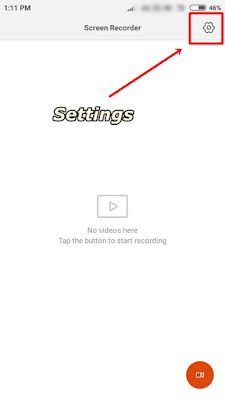
  • The app will open. Tap the 'Settings' button in the top right corner.


  • Tap 'Resolution' and select your desired higher or lower resolution.
  • Then tap 'Video quality' and select the desired quality.
  • Set the 'Orientation' to 'Auto'.
  • In 'Sound Source' select MIC if you want to record your own voice. Otherwise, select 'System sounds' if you want to record internal audio. In Android internal audio recording, the MIC will be disabled.
  • Check the 'Frame Rate' options if you want to customize them or leave the default settings.
  • Scroll down and enable touch gestures if you want to show your viewers on where you are touching the screen.
  • After changing all the settings go to the main screen and tap the red 'Recording' button in the bottom left corner. On tapping that red button the app will exit to apps home screen and you will see again see a red round recording button with a 'Start' label.
mi screen recorder internal audio
  • Tap 'Start' to start recording your Xiaomi phone's screen. The recording button will show the time and you can drag and drop it anywhere on the screen.
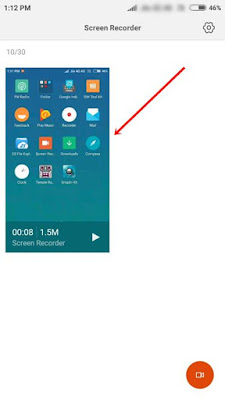
  • When you want to finish you can tap the red stop button. The recorded video will be saved. Go to the same screen recording app in 'Tools' and the recorded video will be there. You can play that video in the media player, share it, and upload on YouTube.
xiaomi screen recorder

  • Tap any recorded video to open the options for it. Then tap the 'Edit' button.


  • The MIUI screen recorder also provides a tiny built-in video editor which lets you edit your recorded screen videos.
  • Tapping the 'Edit' button will open a tiny video editor. You'll have options like 'Trim', 'Filter', 'Text', and 'Audio'.

  • With these editing options, you can add background music to your video. Add text watermark, add video filter and can trim unwanted parts of the video.

What is Android Internal Audio Recording?

Suppose you are playing a game on your Android. The game has audio which you hear from the speaker. This sound comes from within the game's audio files. If you want to record this game with its sound then we will call it Android internal audio recording. This type of recording doesn't use the phone's MIC that's why it is always free from external sounds and noises. Currently, third-party Android screen recording apps don't support internal audio recording. But the MIUI screen recorder is fully capable of recording internal Android audio.

If you own a non-Xiaomi phone and want to clearly record internal audio while screen recording then check this detailed tutorial.

If you liked the article then please take two minutes to share it.

8 Best Reasons to Buy Xiaomi Pocophone F1

Are you an Android flagship lover? Then you may not think twice before buying the Xiaomi Pocophone F1. Xiaomi has just released its latest Pocophone F1 with a flagship hardware. Xiaomi Pocophone F1 would be the cheapest Android smartphone with Qualcomm Snapdragon 845 after One Plus 6. Before Pocophone you could have only seen the Snapdragon 845 in phones like Vivo Nex, One Plus 6, Samsung Galaxy S9, S9+ and Galaxy Note 9. But Xiaomi has done it and brought a flagship smartphone in a mid-range budget. Xiaomi has launched the Pocophone F1 globally and it is about to go on a flash sale in India very soon.

So, if you are looking for a budget flagship Android smartphone with Snapdragon 845 then Xiaomi Pocophone F1 should be your first choice. Make such a statement is not enough so in this post we will tell you some important things about this phone which will you decide whether to buy the Xiaomi Pocophone F1 or not.

8 Best Reasons to Buy Xiaomi Pocophone F1


Here are the 8 best reasons which will make anyone to buy this phone at a budget price.

1. Chipset: 

Xiaomi Pocophone F1 houses a Qualcomm Snapdragon 845 chipset which is the latest CPU/chipset for Android smartphones. Android de flagship smartphones like Samsung Galaxy S9, S9+, Note 9, One Plus 6 are all using this chipset. So Pocophone F1 offers fast flagship performance that fits easily in anyone's budget. The phone features an octa-core CPU (4x2.8 GHz Kryo 385 Gold & 4x1.8 GHz Kryo 385 Silver). This flagship hardware can easily handle heavy apps, games, and multitasking.

2. RAM and Storage: 

Xiaomi Pocophone F1 comes with lots of storage and RAM. It has two variants one is the UFS2.1 256GB variant with 8GB LPDDR4x RAM and another one is the 128GB variant with 6GB LPDDR4x RAM. That much of storage will eliminate your habit of switching memory cards in the phone. And the massive RAM will always make sure that your phone doesn't lag in any condition.

3. Liquid Cooling:

Xiaomi Pocophone F1 is the first smartphone to have a liquid cooling copper heat pipe at a budget price. No matter how long you run your gaming sessions on this phone it will remain cool and will perform without any lag. Most Android phones start to lag when they heat up while gaming. But for MI Pocophone F1 overheating is not an issue at all.

4. Large Battery:

Today Android phones mostly come with a 3000mAh battery. But taking into consideration the usage patterns of different Android smartphone users the 3000mAh rating seems tiny. But Pocophone also shines in the battery department as it has a 4000mAh battery with Qualcomm 3.0 fast charging support. It has a big battery so you should also invest in a good power bank with fast charging support. You can buy Mi Power Bank 2i and can charge your Pocophone on the go.

Read: Mi Power Bank 2i 10000mAh Review

5. Camera: 

The Xiaomi Pocophone F1 has a dual camera setup. On the rear, you can find a 12MP and a 5MP camera with large pixel and dual pixel autofocus. The AI dual cameras have features like Portrait mode with background blurring, Single-tone flash, HDR imaging, Low light enhancement, Face recognition, AI Beautify, Panorama mode, EIS for video shooting, AI dirt detection and Burst mode. The selfie camera is 20MP with portrait mode and AI face recognition. Pocophone has got an infrared camera on the front which makes face unlock easily even in the dark. The primary dual camera records 4K, 1080p, and 720p videos all at 30fps and slow-motion video at 240fps (720p & 1080p).

6. Full View Display:

Pocophone F1 has an 18.7:9 full view edge-to-edge display with Corning Gorilla Glass protection. The screen resolution is FHD+ with 403 PPI and has features like reading mode, sunlight display, color temperature adjustment and night display.

7. Price: 

The base model of Pocophone F1 is priced at 20,999 rupees and 329 Euros in Europe which is a very nice deal for such a flagship smartphone. This is one of the main reasons which will make you buy this phone. The Pocophone will also be available in the US and in these states Chile, Mexico, Colombia, and Uruguay.

8. Latest Android OS Versions

The Mi Pocophone runs the latest Android OS Android 8.1 Oreo with the latest MIUI 9.6 UI. It will surely be upgraded to Android 9.0 Pie.

So, these are 7 best reasons to buy the Xiaomi Pocophone F1. If you liked the article then please take two minutes to share it.

Xiaomi Standard Adapter (9V 2A) Review: A Cheap Versatile Fast Charger

Quick Charge, introduced in 2013 and now has become a mobile charging standard for almost every Android, and iPhone. Big smartphone batteries have been around us since the Quick Charge wasn't actually introduced. At that time a 4000 mAh battery took more than 4 hours to charge completely with a normal USB charger

With the introduction of Qualcomm's Quick Charge, you can also refer it as Fast Charging or Rapid Charging. But they all mean the same thing. For fast charging, we need a fast charger that charges a compatible phone's battery at almost double the voltage a normal charger can provide. As a result, the battery gets charged really fast saving a lot of time.

mi fast charger qc 3.0

The good thing about Quick Charge is that if your fast charger is Qualcomm certified then you can use it to fast charge any compatible smartphone without needing to buy a separate adapter. Qualcomm certified fast chargers are quite expensive but if you are looking for ultra cheap fast charger then check out the Xiaomi standard adapter which only costs 449₹ Rupees. The Xiaomi standard fast charger is Qualcomm 3.0 certified and works with almost every android smartphone which supports the quick charge. So, in this post, we are going to review the Xiaomi MI fast charger with its pros and cons.

Xiaomi Fast Charger Review (9V 2A)

1. Build Quality: The charger's build quality is decent and it doesn't look cheap for the price of 449₹. It has got a single USB out port and the plug design may vary according to the country. But I have the Indian variant and UK variant will have a different plug design. The power adapter comes in a tiny white box. The USB cable is not supplied with it.

Xiaomi Standard Adapter Review 9V 2A

2. Output Voltage: The Xiaomi fast charger provides charging at three different voltages. The outputs are given below.

5V 3A: Can be used for almost any mobile phone that has a micro USB charging port. Don't worry about the 3A (ampere) high current as your phone will only draw necessary current. Suppose if your phone's requirement is 1A (ampere) then it can't draw 3A. So it is quite safe to charge any phone with MI charger.

➜ 9V 2A: This output will automatically get activated when you connect a Qualcomm certified phone. This is a fast charging output and will only work with a compatible phone.

➜ 12V 1.5A: Well this can be considered as a fast charging output but there is no phone available yet which supports this rating. This output can be used to charge lithium-ion batteries that have a 12V requirement.

3. Safety Feature: The MI fast charger is safe from overheating as its temperature won't go above 30 degrees Celcius.

Testing the Charging Capability of MI Fast Charger

We used a Xiaomi MI Power Bank 2i 10000mAh and charged it with this adapter. It only took 4.2 hours to completely charge this power bank. So, it is quite fast for a 10000mAh power bank at just 449₹. And it is compatible with most Android smartphones. You can buy Xiaomi fast charger from the link below.


MI Standard Fast Charger Pros

  • Supports three types of DC output. 5V 3A, 9V 2A, and 12V 1.5A.
  • Compatible with most Android, iPhones, and iPads.
  • Comes with a safety feature and temperature remains controlled and doesn't go beyond 30-degree Celcius.
  • Cheapest Qualcomm 3.0 certified charger available for smartphones and power banks.

So, if you are looking for a cheap and versatile fast charger which is Qualcomm certified then you can go for this. And if you liked the article then please share it.

Mi Power Bank 2i 10000mAh Review: Best Power Bank With Fast Charging

When it comes to power banks then most people find it hard to find a suitable one. Before purchasing a power bank like Mi Power Bank 2i one should take care of its safety, charging capacity, price, and the claims it makes about charging many smartphones. In today's world power banks have become a necessity if you own a smartphone with a big battery. Because power is something that won't be readily available everywhere if you travel a lot. Android smartphones consume a lot of battery especially the ones that run stock Android OS. Because these android smartphones don't have a significant power saving mode or ultra power saving mode.

And when you are shooting videos on your smartphone be it an iPhone, Samsung Galaxy, or OnePlus then the battery will discharge quickly because of the camera. So what will you do when your phone's battery gets exhausted and there is no availability of power nearby to you. Whenever you travel then you should use your phone less often for taking photos or videos. You can also carry a separate feature phone which will at least keep you in contact with your friends and family while traveling. But in case of an emergency, you should possess a power bank.

Buying a power bank is not enough because what's the use of a power bank that takes hours to charge your phone. Today most android and almost every modern iOS device support fast charging. Most modern smartphones support Qualcomm Quick Charge 3.0 which quickly charges a smartphone battery from 0 to 100 percent. If your smartphone supports Qualcomm Quick Charge 2.0 or 3.0 or even any kind of fast charging or quick charging, then buying normal power banks with no quick charging support would be a waste of time.

So, forget all kinds of power bank and check out the Xiaomi's Mi Power Bank 2i. It is the only reliable power bank that is cheap, safe, and has a fast charging support. A power bank with a fast charging support? Yes, you heard right. The Mi Power Bank 2i supports two-way fast charging. This means it can fast charge itself with a compatible fast charger and fast charge any smartphone which has fast charging support. Isn't it nice? you tell. The Xiaomi Mi Power Bank 2i comes in two variants which have 10000mAh and 20000mAh capacity. But in this post, we will talk about the 10000mAh variant and give you its review, price, specifications, and safety tips.

Mi Power Bank 2i 10000mAh: Reasons to buy

  • Dual USB output. Charges two smartphones at the same time. Please note that while charging two devices simultaneously the fast charging won't work.
  • Large battery capacity of 10000mAh. 
  • Two-way fast charging support for smartphones and the power bank itself. You can simultaneously charge the power bank and can still charge your phones, gadgets with it.
  • Low power charging mode for low power gadgets like a smartwatch, Bluetooth, fitness bands etc.
  • Contains flat lithium-ion battery cells which are also used in smartphones. These flat lithium-ion batteries have a longer life as compared to the 18650 cells which are found in most power banks. If a single 18650 cell fails then the entire power bank will fail. But there is no such issue with the Mi Power Bank 2i.
  • 4 LED indicators show the estimate of battery percentage remaining. One LED indicators correspond to 25% of Power Bank charge.
  • Have built-in safety measures to protect your smartphone from overheating, overcurrent, overdischarge, short circuit and overvoltage.

➜ Download Mi Power Bank 2i User Manual PDF - Download

Mi Power Bank 2i 10000mAh Review


What's in the box?

You get a nicely packed power bank with a flat USB cable and a users manual. That's all you get in the box.

Mi power bank 2i safety

Mi Power Bank 2i Design

It features an aluminum metal frame with a scratch resistant surface. It is 14.2mm thin and weighs only 245g grams. That much weight isn't heavy to carry and you can put it in your pocket or backpack. It has two USB type A slots on the front which both supports fast charging. A separate micro USB port is given for charging the Mi Power Bank 2i. The micro USB port supports fast charging which reduces power bank's charging time.

Mi power bank 2i review

You can also find a power check button on the front panel. On pressing this power check button the LEDs will start to glow. There are a total of 4 LEDs and each single LED light denotes 25 percent of battery backup. So 4 LED lights denote 100 percent of battery backup. This power bank doesn't have any switch off button. You can't switch it off but the LEDs will stop blinking after few seconds. You can check the following image to get an idea of battery percentage in Mi Power Bank 2i.

Mi power bank 2i tips and tricks

Mi Power Bank 2i Charging Capacity

As per Xiaomi's claims, the 10000 mAh variant of Mi Power Bank 2i can provide a maximum output of 6500 mAh. This is the reason why most people doubt its mAh capacity. The power bank has 2 lithium-ion batteries of 5000mAh each connected in series. But actually, I managed to get an output of 8100mAh while charging a 3000mAh phone battery. Technically it should charge a 3000mAh battery at least 3.3 times to fully utilize its 10000mAh. But it is practically not allowed. This might be because of the circuit which saves some mAh (say 1000mAh on each battery) to protect the power bank batteries from getting seriously discharged.

Mi power bank 2i 10000mAh

Experts say that if a lithium-ion battery gets discharged to less than 2.5 volts per cell then it is almost dead. At this point, the charger can't charge the battery. Only a battery booster may help. So, to avoid such situation the power bank's circuit might be saving 2000mAh (or more on each battery) to prevent serious discharge cycles.

As per my testing, I managed to charge an Android smartphone with a 3000 mAh battery exactly 2.7 times. You can understand by checking the following data.

1. First time: Charged to 100 percent
2. Second time: Charged to 100 percent
3. Third time: Charged to 71 percent

So from the above data, it is clear that the Mi Power Bank 2i is capable of giving 81 percent of its total charging capacity (10000mAh) which charges a 3000mAh phone exactly 2.7 times. While charging, the supplied USB cable was used. And no heating was administered. Considering its performance I can suggest anyone to blindly go for this power bank which costs only 899₹ rupees.

Note: When you charge two mobile phones at the same time from this power bank then fast charging will not work. It can charge two devices simultaneously but at normal charging rate. Fast charging works only for one device at any time connected to any of the USB port.


Time Taken to Charge Mi Power Bank 2i

Mi Power Bank 2i may take anywhere between 4 to 6 hours depending on the charger you are using. Xiaomi recommends 9V 2A charger to charge this power bank. Using a 5V 1A standard charger will take more than 6 hours to charge it completely. Also, there is a risk of incorrect charging, damage, and fire while using the non-recommended chargers.

It is not a good idea to waste 6+ hours in charging this massive power bank. So I recommend buying a separate Xiaomi 9V 2A fast charger for this power bank. This fast charger will charge this power bank in around 4.2 hours. This Xiaomi 9V 2A power adapter costs only 499 rupees and will save a lot of time. To greatly reduce the charging you can also use a 12V 1A charger. But it is hard to find such charger. You can buy this power adapter from the link below.


Time Taken to Charge Smartphones/Devices With Mi Power Bank 2i

There is not much discussion needed here. The Mi Power Bank 2i will work as a portable power adapter for smartphones and low power devices. So, if your phone supports fast charging/quick charging then it will get charged quickly. Pressing the power check button 2 times will enable the low power mode which is suitable for charging low power devices. The output values of Mi Power Bank 2i is as follows.

Standard Output: 5.1V 2.4A
Fast Charging Output #1: 9V 1.6A
Fast Charging Output #2: 12V 1.25A

The standard output of this power bank is 5.1 volts and 2.4 amperes which is more than enough to charge most smartphones much faster than their original power adapters. Because standard adapters have only 5 volts 1-ampere output but Mi Power Bank 2i is giving twice the current at the same voltage. However, charging time will still greatly depend on device's power input feed. If a phone is not capable of taking more than 1 ampere then charging time won't have much difference as compared to its original charger.

Because of three charging outputs, the Mi Power Bank 2i gives an option to charge a wide variety of smartphones and other devices that have different power requirements in volts.

Mi Power Bank 2i Low/High Power Mode

When you are charging your smartphones or iPhones then you don't have to do anything special. But if you want to charge your smartwatch, fitness band, Bluetooth headset, or any other low power device which have a battery capacity less than 500mAh then you have to use low power mode. To enter low power mode simply press the power check button two times. After pressing the buttons two times the LED lights will blink one by one which means that low power mode is activated. Press the power check button anytime to exit the low power mode.

Mi Power Bank 2i Safety Tips

With a power bank comes safety precautions that you shouldn't ignore at any cost. There have been cases where the power banks got exploded without giving any warning. This happens because of incorrect usage and charging habits. Here are some tips to safely use your new Mi Power Bank 2i.

  • Use only recommended charger. This recommended charger will not only charge the batteries faster but it will also protect the power bank from overheating, short circuit, overvoltage or any kind of electrical damage. You should buy the Xioami 9V 2A adapter.
  • If you are carrying your power bank in your pocket or a backpack then don't put any metal object with it like coins, keys, or any other metal object. A metal contact with USB terminal can cause explosion or fire.
  • Never ever leave the USB cable connected to the power bank. This may result in a fire if the USB cable comes in contact with another metal object.
  • Avoid putting the power bank with your clothes in your cupboard. Never keep it near your data backup devices like hard drives, laptops, or computers. Put the power bank in a ventilated and isolated area where you can see it anytime.
  • Don't put the power bank near water. Also never immerse it in water. This may result in immediate explosion or fire.
  • Only use the supplied USB cable for charging purpose. Don't use low quality and long USB cables as they have a high electrical resistance which increases charging time.
  • Never put the power bank near you while charging and sleeping.

Should You Buy Mi Power Bank 2i

Of course, if you are looking for a portable supercharger then Mi Power Bank 2i is highly recommended. This is because it supports fast charging, has good quality lithium-ion cells, has 9 layers of circuit-chip protection. And you have two options while buying this. You can either buy the 10000mAh variant or the 20000mAh variant depending on your charging needs while traveling. You can buy any of these from the links given below. The price has dropped recently.

Buy Mi Power Bank 2i 10000mAh - 799₹  rupees
Buy Mi Power Bank 2i 20000mAh - 1499₹  rupees

Verify Product With Xiaomi

You can also verify your Mi Power Bank 2i with Xiaomi and check if it is genuine or not. Every Mi power bank comes with a unique 20-digit code printed on the back of the retail box. To reveal the code you first have to scratch it. After getting the code go to http://www.mi.com/verify

Enter your 20-digit code here to get the details of your product.

Verdict

Just like smartphones power banks have become a necessity today. This is a perfect portable power backup solution for your smartphone if you move out of your house every day. Situations may arise like when you forget to charge your phone while leaving your office to go home. In this situation, a power bank will save you and you can charge the phone in the way back to your home. Its a must have gadget and can be used in emergencies when your phone's battery dies and you don't have any power outlet or charger near you. The Mi Power Bank 2i also saves time because it supports two-way fast charging.

A 3000 mAh phone can last for a day if you use it for calling and a little bit of internet only. In case of an emergency enable ultra power saving mode on your phone and keep the power bank with you fully charged. I'll bet you will definitely know the worth of having a reliable power backup with you in an emergency. If you want a reliable power bank then don't think too much the Xiaomi's Mi Power Bank 2i would be the ultimate choice for any smartphone user.

If you liked the article then do take 2 minutes to share it.

Xiaomi Redmi 4A Tips, Tricks, and Hidden Secrets

Xiaomi Redmi 4A is the ultimate budget android phone which offers some high-quality hardware and software features. We have recently reviewed the Xiaomi Redmi 4A and found that it is the best value for money android phone, considering it is also supported by important Android software like VPNs. At such a low price of 5,999 INR we were impressed by its camera performance, satisfactory gaming performance, a decent battery backup, HD screen and most of all the MIUI v8. So this android smartphone is also an ideal option for first-time buyers. The phone runs the Qualcomm Snapdragon 425 chipset which is a 1.4 GHz quad-core CPU. The CPU is powerful enough to handle multitasking and app switching smoothly. You can also find a unique feature on this phone known as the 'Dual apps' which lets your run two android apps on the same phone.

It runs the MIUI v8 UI over android 6.0 Marshmallow. MIUI comes with pre-installed themes and wallpapers and gives you many options to customize your phone's home screen. MIUI is not like stock android UI there is a lot more to learn about the MIUI. The Xiaomi's MIUI provides some good quality features that you should know in order to get the best out of your Redmi 4A phone. So in this post, we will talk about tips, tricks and hidden secrets in Xiaomi Redmi 4A. Read Xiaomi Redmi 4A review and unboxing.


Xiaomi Redmi 4A Tips, Tricks, and Hidden Secrets


1. Take Screenshots

There are three ways to take screenshots on Xiaomi Redmi 4A. The most basic method is by pressing and holding the volume down and power button at the same for a second. The second option can be found in the quick toggles section. Swipe down the notification panel and find the 'Screenshot' button. Tap this button to capture a screenshot. The third option is a swipe gesture which will let you capture a screenshot with a three finger swipe on the screen from top to bottom. To enable swipe gesture go to 'Settings>SYSTEM & DEVICE>Additional settings>Screenshot'. Here enable "Slide three fingers to take a screenshot". The screenshots are stored in 'Storage>DCIM>Screenshots' folder. Use the gallery app or built-in file manager to access these screenshots.

2. Enable Reading Mode

Xiaomi Redmi 4A comes with a pre-installed read mode app which is a system level app. By enabling the 'Read mode' you can reduce the eye strain while using the phone in the dark. To enable read mode simply swipe down the notification panel and tap 'Read mode' to enable it instantly. To customize it go to 'Settings>PERSONAL>Display>Reading mode'. Here you can find an option for scheduling the read mode for auto start and auto stop at the desired time. You can also increase or decrease the read mode screen filter's strength. In the 'SETTINGS' you can select whether to use the read mode for all apps or for certain apps only.

3. Wake screen with double tap

You may have noticed that in most android phones whenever the screen gets off then to wake it up again you need to press the power button. But in Redmi 4A you can wake the screen by just double tapping it without pressing the power button. This feature was present in Nokia's resistive touchscreen phones some years ago. To enable this feature go to 'Settings>PERSONAL>Display>SYSTEM>Double tap screen to wake'.

4. Change wallpapers

Xiaomi Redmi 4A comes with some high-quality wallpapers. There is also an option to download more wallpapers from the MI store. To change or download wallpapers go to 'Settings>PERSONAL>Wallpaper'. Here you will see two options to change the wallpapers. You can change the wallpapers for lock screen and home screen from here. Tap the 'Change' button then apply the wallpapers from offline mode. If you want to download wallpapers then tap either 'Lock screen' or 'Home screen' in Wallpaper. Then tap 'Online' to access the store.


5. Change themes

You can change themes on your Xiaomi Redmi 4A. There are five pre-installed themes. You can download new themes from the Mi store. For this, you will need an MI account. After creating the account go to 'Settings>ACCOUNT>MI Account'. Sign in with your credentials now go to 'Settings>PERSONAL>Themes'. Tap 'Get more themes for free'. You can download and apply themes now.

6. Download wallpapers, fonts, and ringtones

You can download wallpapers, fonts, and ringtones from MI store. Just go to 'Settings>PERSONAL>Themes'. Then tap 'Get more themes for free'. From here you can download many wallpapers, fonts, and ringtones of your choice.

7. Customize audio effects settings

The music quality of Xiaomi Redmi 4A is too good. The built-in equalizer is fully customizable. The music player app offers sound effects based on the type of the earphones you are using. However, the majority of earphones supported are from Xiaomi only but these sound effects work on any 3.5mm headset. To customize audio effects open the music player app then play any song. Make sure that you have connected the 3.5mm headset. Now tap the menu button (three dots) on the top right corner. From the list select 'Headphone'. Tap 'Equalizer' to customize it. Also, enable 'MI Sound Enhancer'. Now below this option choose the headphones type. For most songs, the 'Youth Edition' setting works the best. You can access the same settings by going to 'Settings>PERSONAL>Sound & Vibration>SYSTEM>Audio settings'.


8. Setup privacy protection password

The privacy protection password protects your messages, photos, files, notes and child mode. To enable the privacy protection password go to 'Settings>SYSTEM & DEVICE>Lock screen & password>Privacy protection password'.

9. Set lock screen shortcuts

On the lock screen, you can set app shortcuts on left and right. Go to 'Settings>SYSTEM & DEVICE>Lock screen & password>LOCK SCREEN>Lock screen shortcuts'. Under 'Left' tap 'App' and select the app which you want to use as a left shortcut on the lock screen. Do the same thing for the right shortcut.

10. Enable pocket mode

Pocket mode locks touch gestures when placed in a pocket. To enable this feature go to 'Settings>SYSTEM & DEVICE>Lock screen & password>Advanced settings>'. Enable 'Pocket mode' from here.

11. Wake lock screen for notifications

Whenever a notification appears the lock screen will wake up if you enable this feature. To enable this feature go to 'Settings>SYSTEM & DEVICE>Lock screen & password>LOCK SCREEN'. Enable 'Wake lock screen for notifications'.

12. Show notification icons in status bar

By default, notification icons do not show up in the status bar. You have to enable notification icons in the status bar by going to 'Settings>SYSTEM & DEVICE>Notifications & status bar'. Under 'STATUS BAR' enable 'Show notification icons'.

13. Show internet connection speed

You can see the internet connection speed on your Xiaomi Redmi 4A in real time in the status bar. Just go to 'Settings>SYSTEM & DEVICE>Notifications & status bar'. Under 'STATUS BAR' enable 'Show connection speed'. This feature will show the connection speed of any network that your phone is connected to like 2G/3G/4G/Wi-Fi.

14. Show/hide network carrier name

If you want to hide the network carrier name then it will create more room for various app notification icons. To show or hide network carrier name go to 'Settings>SYSTEM & DEVICE>Notifications & status bar'. Under 'STATUS BAR' enable 'Show carrier name'. If this option is disabled then the carrier name will not be shown in the status bar.

15. Edit network carrier name

You can also edit network carrier name and change it to any name that you want. You can also show your name instead of the carrier network. To edit the carrier name go to 'Settings>SYSTEM & DEVICE>Notifications & status bar'. Under 'STATUS BAR' tap 'Edit carrier name'. Now enter names for 'SIM 1' and 'SIM 2'. Then go back and it is done.

16. Show battery percentage

By default, battery percentage is not visible in Xiaomi Redmi 4A. But you can enable it by going to 'Settings>SYSTEM & DEVICE>Notifications & status bar'. Under 'STATUS BAR' tap the 'Battery indicator' option and select 'Percentage'. The other way to show the battery indicator is the 'Top bar' and another one is 'Graphical'. In the top bar, the phone will display a green line on the top of the status bar instead of the percentage. While in 'Graphical' it will only show the battery icon.

17. Use second space

A second space is a guest mode feature on android. When you enable this mode then the phone will create a second space different from your original account. This can be found in 'Settings'.

18. Randomly change color of notification panel

The notification panel can randomly change colors. This can be done by setting up the weather widget. Swipe down the notification panel and tap 'Get weather info'. Set your location and it is done. The notification panel will now change colors according to the weather in your area. To remove the weather info just tap the 'temperature' in the notification panel. It will open up the weather info page. Now tap the menu button on top right corner and select 'Edit locations'. Tap the 'Edit' button on top right. Now tap the red button just before your current location's name to delete it.

19. Use cache cleaner

Xiaomi Redmi 4A has a built-in cache cleaner. Just go to 'Settings>SYSTEM & DEVICE>Storage'. Find 'Cleaner' and tap it to launch. With cleaner, you can remove junk files created by all other apps on your phone.

20. Use lite mode

Lite mode completely simplifies the way you use your Xiaomi Redmi 4A. In the lite mode, you will be given options to call, message, view gallery and change settings. Lite mode is very easy to use. Lite mode can be found in settings and requires a reboot.

xiaomi lite mode

21. Enable child mode

In child mode, you can restrict several apps from accessing by your children. To enable it go to 'Settings>SYSTEM & DEVICE>Additional settings'. Here enable child mode. Now it will ask you to setup the 'Privacy protection password'. Set it up then go back and under 'ACCESSIBLE APPS' only enable those apps that you want to grant access to your child. Only those apps will appear on the home screen for that you have granted access.

22. Use quick ball

The quick ball offers on-screen navigation buttons so you don't need to use the physical keys. However, the physical keys work along with the quick ball. The quick ball has four buttons home, recent apps, back, screenshot and lock. To enable quick ball go to 'Settings>SYSTEM & DEVICE>Additional settings'. Tap 'Quick ball'. You can also assign shortcuts to quick ball buttons. Tap 'Select shortcuts' and select the button which you want to assign a shortcut. You can assign shortcuts like 'Wi-Fi', 'Bluetooth', 'Enter one-handed mode' or simply launch a selected app with one tap on the button.

23. Customize notification light

The Xiaomi Redmi 4A comes with a notification light under the home buttons. You can customize its colors for notifications like calls, SMS and app notifications. Go to 'Settings>SYSTEM & DEVICE>Additional settings>Notification light' and customize the settings here.

24. Backup system settings and app data

Having a data backup is the most crucial thing for and android user. Xiaomi's MIUI provides a built-in app, settings, and data backup solution which will locally take backups of your data. This will not backup files or photos. This will only backup app data. Go to  'Settings>SYSTEM & DEVICE>Additional settings>Backup & reset'. Tap 'Local backups' and then tap 'Backup'. Select the apps that you want to backup. By default data of all apps is backed app.

25. Use MI mover

You can use MI mover app to transfer data from your old phone to your new Xiaomi Redmi 4A. This app will transfer files, photos, and videos.

26. Unlock developer options

To unlock 'Developer options' on Xiaomi Redmi 4A first go to the 'About phone'. Here find 'MIUI version' and tap it several times to unlock developer options. Developer options can be found in 'Additional settings'.

27. Access system apps settings in one place

To access system apps settings at one place go to 'Settings>APP SETTINGS>System apps'. Here you can access the settings of all the system apps like camera, phone app, messaging, gallery etc.

28. Configure dual apps

You can use two same android apps on Xiaomi Redmi 4A with the dual apps feature. With this dual apps feature you can install two WhatsApp messenger apps with dual SIM or two Facebook accounts, Instagram accounts. Read the Xiaomi Redmi 4A Dual Apps tutorial.

29. Use built-in app lock

Xiaomi Redmi devices come with pre-installed system level app lock. With this, you can lock your apps without needing to download any third party app. To use the app lock go to 'Settings>APP SETTINGS>App lock'. You will first need to set a password before locking the apps.

30. Enter engineering mode

Engineering mode lets you test the hardware of your Xiaomi Redmi 4A phone. It is used to detect problems in the hardware. To enter engineering mode on your Redmi 4A first to the 'About phone' and here tap the 'Kernel version' several times. Now tap 'SINGLE ITEM TEST'. It will show the list of all hardware components at one place. Tap any hardware component to test it.

31. Change screen transition effect

You can apply different home screen transition effects. To change screen transitions long tap the recent apps button. Select 'Effects'. Select any screen transition effect to apply. Swipe left or right to access more effects.

32. Create a new home screen

Xiaomi's MIUI doesn't have an app drawer. So all the apps are placed on different home screens. To create a new home screen first long tap the recent apps button. Now keep swiping right to left unless you see a 'plus' icon in the middle of the screen. Tap this 'plus' button to create a new home screen. You can add or move apps to this newly created home screen.

33. Boost RAM/memory

You can free up memory/RAM on your Xiaomi Redmi 4A by pressing the recent apps key. On pressing this key a list of running apps will open. Tap the cross mark button to release RAM and stop unnecessary apps.

34. Hide photos in the gallery

To hide photos in the gallery app first sign in with your MI account. Then open the gallery app and select the photos then tap the 'Hide' button. These photos may be uploaded to MI cloud so do check it if you do not want to save them to MI cloud.

35. Use scanner app

The pre-installed scanner app lets you scan a QR code, a business card or scan a document. This is a very useful app because anytime we may need to scan someone's business card. After scanning the business card the details can be saved as a contact your phone. Do note that while scanning, some information may be misinterpreted like email IDs or names. But, you can correct them manually.

36. Connect USB OTG drive

Xiaomi Redmi 4A fully supports USB OTG drives. The stock file manager is very good and gives an option to manage the files on a USB OTG drive. Connect the USB OTG drive to your phone and open the file manager app. Look for the USB icon in the file manager to manage files on the OTG drive.

37. Uninstall apps quickly

To uninstall apps quickly long tap any app and drag it to the bin icon on the top of all apps. After dragging the app to the bin it will ask you to uninstall it.

38. Use one handed mode

You can use your Xiaomi Redmi 4A in one handed mode if you find the screen large to work with. The one handed mode can bring down the screen size from 5 inches to 4 or 3.5 inches. To enable one handed mode go to 'Settings>SYSTEM & DEVICE>Additional settings'. Find and tap 'One-handed mode'. Enable it and select the screen size either 4 inches or 3.5 inches. Now to enter the one handed mode just swipe over the navigation buttons from left to right. A popup will open asking you to enter the one handed mode.

39. Block unwanted calls and messages

You can block calls and SMS messages from specific numbers. These numbers also include promotional calls or messages. To block a number open the phone app. The tap the menu button just left to the dialer button and select 'Blocklist'. Then tap the 'Settings' icon on top right. Under 'BLOCKLIST' tap 'Blocked numbers'. Now tap 'Add' and add the number to block it. You can also directly block any number from the call history by just long tapping and selecting 'Block'.

40. Use built-in call recording

Xiaomi Redmi 4A comes with built-in call recording function. The call recording app is very good and records calls clearly. You don't need to download any other call recording app for your Xiaomi Redmi 4A. To enable call recording go to 'Settings>System apps>Phone>Call recording'. Enable 'Record calls automatically'. Recorded calls are saved to 'Storage>MIUI/sound_recorder/call_rec' on your phone's internal storage. You can also stop call recording during an active call by tapping the record button.


41. Customize incoming call settings

Xiaomi Redmi 4A gives you several options just like the Moto Actions app. If you go to 'Settings>System apps>Phone>Incoming call settings' then you will find some options here. These options include 'Flip to silence ringer', 'Quiet ringer when lifted', 'Flash when ringing', 'Proximity sensor', and 'Mute first ring'. So you can use these actions to silence the ringer, quiet the ringer or enable/disable the proximity sensor.

42. Enable voice call auto answer

If you want your phone to auto pickup your calls then go to 'Settings>System apps>Phone>Auto answer'. Tap it and enable the 'Auto-answer' option. Now, whenever you receive a call it will be auto answered.

43. Change dial pad touch tones to piano keys

You can set the dial pad touch tones to piano keys by going to 'Settings>System apps>Phone>Advanced settings>Dial pad touch tones'. In 'Tones' select 'Piano keys'.

44. Change missed call reminder duration

If you missed a call on your phone then your phone can notify you many times instead of just 2-3 times. Go to the 'Settings>System apps>Phone>Advanced settings>Missed call reminders'. Here select the number of times you want to get notified of missed calls.

45. Use SIP calling

A SIP call requires an active internet connection to send the voice data to the receiver. To setup SIP call on Xiaomi 4A first, open the phone app and then tap the options button left to the dialer button. Tap 'Settings'. Scroll down and select 'Advanced settings'. Then scroll down and tap 'SIP settings'. Here you will need to enter details of your SIP account. Read how to setup SIP call on android.

46. Use built-in virus scanner

The Xiaomi Redmi 4A comes with pre-installed antivirus app. This is a system level app and cannot be uninstalled. This app uses software SDKs from the clean master, AVL, Tencent, and Avast software. You can receive antivirus definition updates from any of the antivirus makers listed. This antivirus app also has options to clean junk files, manage battery life, restrict data usage and blocklist. This security app automatically fixes security issues.

47. Use MI remote app

The MI remote app can be used to convert your Xiaomi Redmi 4A into a universal remote control for all your electronic devices like TV, AC, DVD player or AV receiver. You can use your Xiaomi Redmi 4A to control these devices by using the built-in IR blaster. Read our detailed IR Blaster tutorial.

48. Set alarm to ring even when the phone is powered off

In android phones alarm doesn't ring when the phone is switched off. This happens because the alarm app also gets stopped when the phone switches off. But in Xiaomi Redmi 4A you can set alarm to ring even when the phone is powered off. To enable this feature open the clock app. Now tap the menu button (three dots) on the top right corner. Enable 'Alarm will ring after powered off'.

49. Use front camera to predict your age

The selfie camera of Xiaomi Redmi 4A predicts your age by analyzing the facial expressions. The face detection setting should be enabled. The enable this feature go to 'Settings>APP SETTINGS>System apps'. Tap 'Camera' and make sure that face detection is enabled. Now, whenever you take a selfie shot then the front camera will show your age.

50. Use hidden unit converter in the calculator app

There's a hidden unit converter in the Xiaomi Redmi 4A's calculator. To access the hidden unit converter open the calculator app and tap the apps button on top left corner.

51. Share Wi-Fi password with a QR code

You can share the password of the Wi-Fi network to which your phone is connected. To share Wi-Fi password with any other android user go to 'Settings>NETWORK>Wi-Fi'. Make sure you have connected the phone to Wi-Fi network. Now tap the connected Wi-Fi network and it will open up a QR code. Scan this QR code with a scanner app on any other android phone to configure the Wi-Fi.

So these were 51 tips, tricks, and hidden secrets for Xiaomi Redmi 4A. If you liked this post then please share it.

Xiaomi Redmi 4A Gets Its First Software Update With Bug Fixes and Stability Improvements

Good news, Xiaomi Redmi 4A has just received its first software update. The update is not android 7.0 Nougat but is the update for the Xiaomi's MIUI. The latest MIUI carries a build number V8.2.6.0.MCCMIDL and is stable having a size of 617 MB. This latest update fixes various bugs related to the lockscreen, status bar, notifications bar, home screen and the virus scanner app. The changelog is quite big and we will post it once we update the phone completely. So stay tuned for more.

To update your Redmi 4A go to 'Settings>APP SETTINGS>About phone>System updates'. Let us know if you have received the OTA notification. This new update also install the February 2017 android security patch and comes with two new apps Google Duo and Mi Picks.

MIUI V8.2.6.0MCCMIDL redmi 4A

Xiaomi Redmi 4A Review: Best Budget Android Smartphone With Awesome Features

Xiaomi just launched the Redmi 4A, which is a budget android smartphone priced at only 5,999 INR. Redmi 4A is Xiaomi's first budget android smartphone to come under 6000 rupees. The ultimate selling point of a budget android smartphone is low price and great features. The Redmi 4A offers a set of decent features that you want in a budget android phone. A budget android smartphone cannot be better than this when you have to consider the design, features, and price. The only reason why you would be buying the Redmi 4A is its low price and power packed software and hardware features.

In this post, we will be reviewing and unboxing the Xiaomi Redmi 4A and will also tell you whether you should buy this phone or not.

Xiaomi Redmi 4A Review: Best Budget Android Smartphone With Awesome Features

What's In The Box


The retail box of Redmi 4A is white in color and is very compact in size. On the top of the box, 4A is written. So after unboxing the retail pack, we get the handset with a USB cable, SIM tray ejecting tool, quick start guides and a charger with a rating of 5V-1A. We are not getting any earphones or headphones with this phone. Read Xiaomi Redmi 4A tips, tricks and hidden secrets.

xiaomi redmi 4A unboxing and review

Xiaomi Redmi 4A Build Quality

  • The phone is entirely made up of polycarbonate plastic. The back cover is not removable. The build quality of Xiaomi Redmi 4A is decent besides having the plastic frame. The in hand grip of this phone is very good and doesn't attract many fingerprints.

xiaomi redmi 4A 
  • The phone easily fits in a pocket and you can use it without a back cover. The phone weighs 131 grams only and is very light to hold in hand.
  • The screen is protected by some 2.5D curved glass. So the screen will prevent scratches. But it is mandatory to install a tempered glass screen protector.
  • Overall the build quality is decent at such a low price. The phone is quite slim and looks premium.

Xiaomi Redmi 4A Build Quality

  • Coming to the front part of the phone you will see a big earpiece, front camera for selfies, light sensor and proximity sensor.

  • At the top, a secondary noise cancellation mic and a 3.5 mm headset jack can be found with an IR (Infrared) Blaster sensor. Read IR Blaster tutorial.

  • At the bottom, you can see a micro USB port for data cable and battery charging with the primary microphone.

  • Just above the USB port, you can find three touch capacitive buttons which do not have any backlight. Just below the home button, a notification LED is given.

xiaomi redmi 4A notification LED

  • The volume rocker and the power button are present on the right side of the handset.

  • Coming to the back part, the 13 MP rear camera with single LED flash can be seen.

  • At the bottom, you can find a dedicated loudspeaker which is an added advantage on this phone because most phones only provide a single speaker for earpiece and loudspeaker function.

  • On the left side of the phone, you can easily locate the SIM tray which can be removed with the help of the tool provided in the box.
redmi 4A sim ejecting tool

  • The Redmi 4A has a hybrid SIM slot. So you can either use two SIMs or one SIM or a microSD card at a time. The battery is non-removable.
redmi 4A hybrid sim tray

Xiaomi Redmi 4A Unboxing and Video Review

You can find an unboxing and review video for Xiaomi Redmi 4A in Hindi. This is a detailed video so do check it below on our YouTube channel.


Xiaomi Redmi 4A Hardware Specifications

1. CPU and RAM

Xiaomi Redmi 4A runs the Qualcomm Snapdragon 425 chipset which is a 64-bit 1.4 GHz quad-core CPU paired with 2 GB RAM. The CPU is good enough for multitasking. Almost about 1 GB of RAM is always free if you don't install many apps. The chipset has sensors like accelerometer, light sensor, gyro sensor, magnetic sensor, and compass. Having the gyro sensor makes this phone suitable for enjoying the VR content on a VR headset. Also, the compass makes navigation easy in Google Maps. This is good to note that we are getting gyro and compass (magnetometer) in this phone.

2. GPU

This phone has Adreno 308 GPU. The Adreno 308 is an entry-level GPU which can also run heavy android games but with frame loss.


3. Screen

The Redmi 4A equips a 5 inch HD IPS touchscreen with a resolution of 1280x720 pixels. The PPI density is 296. The screen clarity is good and viewing angles are perfect. The phone also has built-in "Read mode" which helps to reduce eye strain while using the phone in the dark. Because of an HD screen, the battery performance is greatly increased. The screen is protected by a 2.5D curved glass protection. Installing a tempered glass screen protector is mandatory for this phone. The screen’s superior color production can be seen while watching a Full HD (1920x1080) video. There is an option in the 'Settings' which will let you change the screen's color temperature between warm and cool. The screen also supports double tap to wake it up.

4. Camera

The main camera is 13 MP with a single LED flash and autofocus feature. The selfie camera is 5 MP. Both the cameras are of f/2.2 aperture. The cameras do not have any image stabilization technology. So, while capturing photos make sure not to shake or move the phone.

5. Battery

Xiaomi Redmi 4A has a 3000 mAh non-removable Li-ion polymer battery. The phone doesn't support fast charging. The USB charger's rating is 5V-1A which can take anywhere between 1.5-2 hours to fully charge the battery from 0-100%. While charging the phone no heating is encountered. A notification LED below the home button lights up in red color while charging.

6. Connectivity

Xiaomi Redmi 4A has all the basic connectivity options like the Wi-Fi (2.4 GHz only), Bluetooth 4.1, portable hotpsot, USB and Bluetooth tethering, Dual 4G SIM and USB OTG support. The phone supports 4G/LTE in both SIM slots but only one SIM will work in 4G at a time the other will work in 3G/WCDMA. It also supports VoLTE. The GPS location services are managed by BDS, AGPS, and GLONASS. It also has FM radio with recording support.

7. Android OS

It runs android 6.0.1 Marshmallow OS with December security patch. Android Nougat update will not come to this phone. The phone comes with some pre-installed apps that you can uninstall easily. Bloatware apps are not found on Xiaomi Redmi 4A which is a good thing.

8. MIUI v8

It runs the MIUI v8 user interface above the android OS. We can customize the MIUI v8 with custom themes and wallpapers all provided by Xiaomi. The good thing about MIUI v8 is that we get all the useful apps pre-installed on the phone. These apps include a music player, and advanced file manager app, a scanner app, an advanced calculator, security app, built-in read mode, built-in app and privacy lock. So we don't need to install third party apps most of the time.


9. OEM Apps

Xiaomi Redmi 4A is coming with some OEM android apps. These high-quality apps include a file manager, music player, calculator, voice recorder, antivirus, and scanner app.

10. Loudspeaker Sound and Call Quality

The Redmi 4A has a dedicated loudspeaker which is very loud and clear. Call quality is also very good and is free from noise. The call dialer app is good enough and automatically tells the country location of the phone numbers that you type, but they are always not correct especially when you are dialing a mobile number within your country. The calling app interface is nice with useful buttons like hold, speaker, disable mic and add a new call (conference call), call recording, add note and a direct video call. The direct video call will only work with Xiaomi Redmi phones. If you make a direct video call from your Redmi phone to a non-Redmi phone then the call will be converted to a voice call.


The call settings let you set up IP dialing, unwanted call blocking, and SIP calling. You also have an option to block spam and fake calls by using the Xiaomi's caller ID. So overall the features are beyond our expectations in a budget android phone.

11. Earphones Sound Quality

The earphones sound quality is awesome if you use high-quality earphones either from Sony or Sennheiser. The Xiaomi Redmi 4A doesn't rely upon Google play music and has its own music player app. So at this price range, I can say that the music sound quality of Xiaomi Redmi 4A is even better than Moto G4 Plus and Moto G5 Plus.

Xiaomi Redmi 4A Camera Quality

The Redmi 4A has a 13 MP rear camera with f/2.2 aperture and single LED flash. The front camera is 5 MP with f/2.2 aperture. The selfie camera is just like the one that you find in most phones which come at a price between 12,000-15,000 INR. So the selfie camera is very good and takes good selfies in indoor lighting conditions. Low light photography is not good on this phone. But if you turn on the HDR then the low light images will improve a little bit but comes out to be grainy. The camera captures a lot more detail while using the flash in the night. In sunlight, the images come with high fidelity colors.

xiaomi redmi 4A camera sample photo
Daylight Photo with HDR Mode
➜ See the above image in full resolution - check here

Low light photo with HDR
➜ See the above image in full resolution - check here

xiaomi redmi 4A low light photography
Low light photo without HDR
➜ See the above image in full resolution - check here

Photo with LED flash
➜ See the above image in full resolution - check here

The camera app is also very good and easy to use. On opening the camera app will give you options like the HDR mode, enable or disable flash, real-time photo filters, camera modes, camera switch, gallery shortcuts and button to switch to video camera. You can access the camera settings by first tapping the 'Mode's button then tapping the 'Settings' icon on the top right. The camera mode includes panorama, timer, audio, manual mode, straighten, beautify, HHT and scene. The video camera can record 'Full HD' videos at 30 fps. You can also record videos in the dark or at night by enabling the flash torch. The camera supports 8X digital zoom.


At this price range, the camera is superb and has very good autofocus. The camera focuses objects accurately even in low light which helps it to take sharp and detailed images. But make sure while taking photos do not shake the phone otherwise the photos will become blurry. This is because Xiaomi Redmi 4A's camera doesn't have any image stabilization technology. At just 5,999 rupees the camera is offering some high-quality features except the EIS or OIS. If not considering the image stabilization and low light photography on this phone then you can take some high-quality photos in daylight and even in the night with LED flash. But keep your phone steady while capturing photos.

Xiaomi Redmi 4A Gaming Performance

The Xiaomi Redmi 4A houses the Qualcomm Snapdragon 425 chipset which is actually not meant for heavy gaming. If you are an average gamer then this phone will not disappoint you. You can enjoy games like temple run, Super Mario Run without any lag or performance issues. But when we played some heavy games like the NOVA Legacy and NFS No Limits then we encountered some frame drops. These heavy games are still playable but with low frames and graphics. Heating issues were not found while gaming. Check the gaming review of this phone below.


Retro Gaming On Xiaomi Redmi 4A

Apart from regular android gaming I am a great fan of retro games like NES, SNES, Playstation, DOS, CPS1, MAME. I play these games on Redmi 4A and they run very smooth without hiccups and lags. You can read the tutorials below to play these retro games on your phone.


Xiaomi Redmi 4A Heating Issues

Before buying an android phone we always think about the heating level of that phone. A phone that heats up quickly is not the choice of an android user. But Xiaomi Redmi 4A doesn't heat up. The Snapdragon 425 chipset is a battery friendly chipset and doesn't produce much heat. Even while gaming, we noticed that the phone was cool. A little heat was felt while using the 4G/LTE for download. This heat is perfectly normal and you won't even notice this heat. So the Xiaomi Redmi 4A is completely free from overheating issues.


Xiaomi Redmi 4A Pros

  • 64-bit 1.4 GHz CPU with Qualcomm Snapdragon 425 chipset. This is a mid-range chipset good for nice battery backup and powerful performance at low cost.
  • Gaming on the Xiaomi Redmi 4A is satisfactory with Adreno 308 GPU.
  • 2 GB RAM is enough for multitasking.
  • The phone has a unique feature know as dual apps which lets you run two same android apps on the phone. With this feature, I can run two WhatsApp on Redmi 4A with dual SIMs.
  • Camera takes sharp photos in daylight.
  • 3030/3120 mAh battery is capable of providing more than a day's backup with normal usage.
  • IR Blaster and the MI Remote app can work as a universal remote for all your electronic devices like TV, AC, DVD player, AV receiver and set top box.
  • A notification light makes things easier on an android phone. You will never miss important notifications on this phone because the LED notification light will keep notifying you unless you see it.
  • Good call quality, music quality, and loudspeaker sound quality.
  • Comes with some pre-installed OEM apps like the file manager, music player, voice recorder and scanner app.

Xiaomi Redmi 4A Cons

  • Hybrid SIM slot: For most buyers, this hybrid SIM slot may become a problem as they can't use two SIM cards along with a microSD card. But instead of using a sd card you can use a USB OTG drive which can be used to transfer data quickly from the phone. You can also watch movies and listen to songs directly from the OTG drive. So hybrid SIM slot is not a problem in Xiaomi phones because they are making their phones with it since a long time now.
  • Navigation keys do not have any backlight. So you may feel some inconvenience while using the phone in the dark. But over time you will get used to using the keys in the dark.

What You Should Not Expect From This Phone

Xiaomi Redmi 4A is an entry level budget android phone which offers some good features at a low price. You are getting more than what you are paying. So at this price point, you should not expect a fingerprint sensor, fast charging, camera with image stabilization, android nougat 7.0, and full HD screen. If these specifications are your prime requirements then you can go for Redmi 3S Prime.

Why Should You Buy Xiaomi Redmi 4A

You should definitely buy this phone if you are extremely low on budget and want some good features in an android phone. This phone is a complete android phone with all the essential features that you want in an android phone. The Redmi 4A offers good cameras, nice build quality, dual apps feature, a big battery, superior sound and music quality, direct video call support and some OEM android apps. You can also use this phone as your secondary android phone.

Where To Buy

Xiaomi Redmi 4A is an Amazon.in exclusive phone. The phone is being sold via a flash sale that hardly lasts 2-3 minutes. So if you are planning to buy the Redmi 4A then log in to your amazon account and when sale starts add the phone to your cart and checkout immediately. You only have maximum 10 seconds to purchase this phone.

Verdict

Overall the Xiaomi Redmi 4A is the only budget android smartphone till date that you can purchase at a low price of rupees 5,999. Being a budget android phone it provides some good features that can't be found in other android smartphones. The best feature of this phone is the ability to run two WhatsApp accounts with dual SIM. This feature can't be found in any other android phone. This phone also has good camera configuration if you don't consider image stabilization or low light photography at such a low price.

The Xiaomi Redmi 4A is providing great features that you can't even expect at this price range from any other android smartphone. This phone provides a premium android experience, entertainment, gaming and good photography at low cost. So, if you are planning to buy this phone then it would be an okay decision.

If you liked the article then please share it.