play ps1 games on android
Showing posts with label vpn. Show all posts

AVG Secure VPN Review: Simple, Unlimited, And Easy VPN For Hiding Your IP

AVG, the name is known for antivirus products and has been around us since 1991. AVG is known for its top-notch PC security software. AVG Technologies was working independently until it was bought by Avast Software in July 2016. Apart from antivirus products, AVG does have a VPN service that you might not be aware of. This VPN service is known as AVG Secure VPN and is similar in functionality to Avast SecureLine.


What is a VPN? A Quick Note

VPN stands for Virtual Private Network which is an extension of the private network across public networks. This security technology is handled by the VPN server which is located at a remote location. On using a VPN all of the internet traffic generated on the user's end gets encrypted and passes through the ISP's server to reach the VPN server where it gets decrypted. Thus VPN provides us a secure tunnel to use the internet. The main function of a virtual private network server is to encrypt the internet traffic so that no one can see what you were searching or what websites you were visiting. On using VPN even your ISP can't know about your online activity.


Why VPN Is Essential In 2018?

In 2018, we will be consuming more internet data. Whenever you make a search on the internet then that information will go to your ISP's DNS server which will show you results for that search in return. So your ISP knows everything you do on the internet.

Your ISP keeps that information for years and may make a profile of you based on your searching habits. They can actually sell your data to third parties. However, if they somehow don't sell your data the risk of a data breach will always be there. So, if you don't want your internet history to be recorded by your ISP or any other websites then you should use a VPN.

A VPN hides your original IP address and assigns you a private IP address. The same address is used by many other users who use the same service. So, your original identity gets shielded and nobody can track you with that private IP address.

It is not just limited to hiding your original IP address. With a VPN you can unblock websites that are not available in your country.

AVG Secure VPN Pros:

  • Easy to use and simple interface.
  • No confusing settings.
  • Cheap VPN service and available separately for Android, Mac, Windows, and iOS.
  • Allows P2P networking (torrenting) but only in Windows 10 and Mac.
  • It uses Bank-grade encryption for encrypting the internet traffic.
  • No data logging policy. They don't actively monitor your online activities. Check AVG acceptable use policy
  • The Windows and the Mac version comes with a 30-day trial period which is enough to test it and decide whether to buy it or not.
  • Also comes with a 30-day money back guarantee but not sure about Android and iOS apps. Because for an active trial you need to purchase it and you can cancel the service anytime during the trial period. The trial period is 7 or 14 days depending on your purchase.

AVG Secure VPN Cons

  • Doesn't provide a multi-platform license. So, one license will be valid for one device only.
  • Doesn't have many servers. Most VPN servers are US-based.
  • Almost no settings to configure the VPN.
  • Not a good choice if you want to secure more than one device with a single license.
  • For Android and iOS, you have to purchase the service for starting your trial. You can cancel anytime during the trial period though.

AVG Secure VPN Price

AVG Secure VPN for Android costs around $20 for a year. The same service for Mac and Windows 10 costs around $59.99 a year in the US. However, the price will be different in different countries. In developing countries, the price is as low as $37 a year for Windows 10. Price list for Android is given below.

Should You Buy AVG Secure VPN?

You should only buy this VPN service if you want a cheap and easy to use VPN. If you want to secure only one device then go for this. If you are okay with its 30 VPN servers then you can buy it. 30 servers are technically enough to provide you online security. If you want a multi-platform VPN service then you can just make a Google search to find one. You can read more about a multi-platform VPN named ExpressVPN.

Does AVG Secure VPN Secures Against DNS Leak?

When your VPN fails to encrypt your device's DNS queries even though the rest of the internet traffic is encrypted then this situation is known as DNS leak. If the DNS gets leaked then your ISP can see your browsing history. At this point, there is no use of using a VPN. But actually, this is a browser related issue. The DNS leak issue is most common with browsers that use WebRTC. Examples of such browsers are chrome and firefox.

We tested many servers of AVG Secure VPN and found that none of the servers were leaking our DNS requests. But we didn't test all the servers. So it doesn't matter which VPN you are using you may see DNS leaks. To test for DNS leaks simply follow the steps below.
  • Connect to any VPN server in the app or client.
  • Go to https://www.ipleak.net
  • Let it check for DNS leaks.
  • If after the analysis you see your real IP address and ISP name on that page then your VPN is leaking your DNS requests.
  • If you don't see your real IP address then your internet traffic is totally encrypted without any DNS leaks.
  • You can test multiple servers of the same VPN to check which are leaking your device's DNS requests and which are not.

How To Use AVG Secure VPN On Android

  • Download and install the app from this Google Play Store link.
  • Open the app and tap 'START FREE TRIAL'. Scroll down and select either a 7-day or a 14-day trial plan.
  • Whatever plan you choose you will be billed for that on your payment method.
  • But don't worry you can cancel the subscription in your Google Play account and take refund before the trial period ends.
  • I used a voucher that AVG Technologies sent me for activating my VPN service. The activation was quick and is valid for a year.
  • After activating the subscription you will see the main app screen with a red button in the center. Below you can see an option to change the VPN server location. You can choose your favorite server from the list of 30 locations worldwide.
avg secure vpn review
  • Just tap the red button to activate the VPN. To check for DNS leaks go to ipleak.net.
  • Tap the 'Settings' icon in the top right corner.
  • Here you can see your 'Subscription' details. Make sure 'Auto reconnect' and 'Unsecure Wi-Fi notification' is enabled.
  • Tap 'Data settings' to disable third-party analytics and crash reporting. You should disable these options if you don't want to share your app usage details.

How To Use AVG Secure VPN On Windows 10

  • Download and install the AVG Secure VPN software for Windows 10 from this link.
  • After installing the software open it. You will see the main software screen like this below.
avg secure vpn windows 10 review
  • Click 'Change location' and select a location of your choice. You can also select P2P servers for torrenting.

  • After selecting the desired server click the large grey button to enable the VPN connection.
  • There are no settings to configure in the Windows version of this VPN client except for auto connect for unsecured Wi-Fi networks.
  • The AVG Secure VPN works with just one click or one tap. The entire process is secured and automated. 
  • After installing the VPN software you can use it for 30 days.

Final Verdict

AVG Secure VPN is an easy to use and unlimited VPN. If you are looking for a cheap VPN solution for a single device then AVG Secure VPN is a considerable option. When we talk about a VPN then talking only about the list of servers would not be fair.

For a VPN to be called best or excellent one should know about its logging policy, its encryption techniques, customer support, refund policy, and price. AVG Secure VPN passes all these aspects. It is cheap, comes with 30-day money back guarantee (PC/Mac only), and doesn't log your data. And the service can be bought for just $20 yearly in most developing countries. $20 a year is not a high price for securing your online privacy on your Android phone.

The only major problem with AVG Secure VPN is that it is currently not coming as a multi-platform service. So if you have more than one device like phone, PC, and Mac computer then you have to buy it separately for all these three devices. In this case it won't be considered as a cost effective VPN service.

This VPN is good only if you want to save money and secure a single device. Because there is no point of buying a multi-platform license from any other provider if you want to use it on one device only.

How to Setup the Built-in Windows 10 VPN

Windows 10 has a built-in VPN client that can create a virtual private network connection for your PC or laptop. Well, most users are confused over the Windows 10 VPN and consider it as a service. But Microsoft isn't providing any free VPN service in Windows 10 and whatever you are seeing is just an official Windows VPN client. This is a client software that was also present in Windows 7/8. But in Windows 10 Microsoft has made it easier to setup. A VPN service and a client software both are different things. A client software uses the VPN services to create a Virtual Private Network. The Windows 10 VPN client is much easier to use with the PPTP/L2TP/IPSec/SSTP and IKEv2 protocols.

If you want to setup a virtual private network connection on your Windows 10 machine then you have to purchase the best VPN service. We recommend ExpressVPN which can secure 3 devices at a time and comes with a 30-day money back guarantee. The good thing about ExpressVPN is that it can be setup on almost every gadget that has a possibility to setup a Virtual Private Network. It also works with gaming consoles and all the benefits come with unlimited bandwidth. You can buy ExpressVPN by going to this link - Get ExpressVPN Now

What is a VPN?

'Virtual Private Network' which is an extension of the private network across public networks. This security technology is handled by the SSL VPN server which is located at a remote location. On using this network all of the internet traffic generated on the user's end gets encrypted and passes through the ISP's server to reach the VPN server where it gets decrypted. Thus VPN provides us a secure way to use the internet. The main function of a virtual private network server is to encrypt the internet traffic so that no one can see what you were searching or what websites you were visiting.

vpn diagram

Another benefit of using a VPN is that you can connect to unsecured public Wi-Fi networks without bothering about IP leaks and bypass internet censorship. Since VPN masks your IP address and encrypts your internet traffic you can freely connect to unsecured open Wi-Fi networks at public places like hotels and airports. It also lets you access content that is not available in your country.

Source: Avast SecureLine Review

How to Setup the Built-in Windows 10 VPN

To use the Windows 10 VPN you will need a valid subscription to one of the popular VPN service provides. We highly recommend ExpressVPN and we use it in this tutorial to configure the Windows 10 private network.

  • Firstly I would obtain username, password, location specific VPN server address (like America, Europe, Asia etc.), and pre-shared key.
  • I will go to my ExpressVPN account and click on 'Set up ExpressVPN'.
  • Then I will select 'Manual Config'. The manual configure will work on most devices that support L2TP/PPTP/IPSec protocols. After clicking it I will click on the 'PPTP & L2TP-IPSec' tab.

  • Now it will provide my username, password, pre-shared key and VPN server location addresses of different countries. I have to choose one address.
  • Now I have got the necessary details and now we will setup the Windows 10 VPN network.
  • Go to 'Settings>Network & Internet>VPN'. Click 'Add a VPN connection'.
  • Click 'VPN provider' and select 'Windows (built-in)'.

windows 10 vpn setup

  • Enter a name for your private network connection.
  • Then enter the server address of VPN location in 'Server name or address'.
  • Then select 'VPN type'. Select 'L2TP/IPSec with pre-shared key'.
  • Now enter the 'Pre-shared key'.
  • Under 'Type of sign-in info' select 'User name and password'.
  • Then finally enter your username and password.
  • Put a check mark on 'Remember my sign-in info'. If you don't check this then Windows will ask for username and password every time you connect to this network.
  • To connect to this virtual private network just click it to open the options and click 'Connect' as shown in step 7 above.
  • You can also connect by clicking the Wi-Fi/network icon in system tray taskbar. Here just click the VPN you just created on the top and click 'Connect'.
If you liked the article then please share it.

How To Setup VPN (PPTP/L2TP/IPSec) In Android Settings

Android has a built in support for PPTP/L2TP/IPSec VPN. Most of us might have never noticed this feature in our android phones. But it is an extremely useful and the easiest way to setup VPN on android smartphone. For this you don't have to download any app. You just need the VPN server address, user name and password. You can use a free L2TP VPN server but I will not recommend these free services as they are not secure enough. You should buy a  VPN server service from ExpressVPN, you buy their service for one device and it works on all your devices like router, PS4, XBOX, MAC, Windows, DNS etc. You can read ExpressVPN for android review.


A VPN is an encrypted tunnel between your computer/phone and the VPN server. All the information you send/receive will go through this 256-bit encrypted tunnel so that nobody can see your IP address or location. You can also use this service to watch Geo locked content on YouTube, NetFlix or Hulu.

How To Setup A Virtual Private Network VPN (PPTP/L2TP/IPSec) In Android Settings

  • If you are using a free VPN PPTP/L2TP then use it at your own risk. Search VPNGate in Google and you will see all the required tutorial for free stuff.
  • I personally recommend ExpressVPN, after purchasing they will send you list of all services including the PPTP/L2TP settings via email.
  • Grab the L2TP/PPTP settings from the email.
  • Now go to 'Settings>Wireless & networks>VPN'.
  • Tap the '+' button and enter 'Name' and 'Server address'. Then tap 'Save'. The profile will be created.
l2tp android
  • Now tap this this profile and enter user 'Username' and 'Password'. Check 'Save account information' so that you don't need to login again and again. Finally tap 'Connect'.
  • When its connected a notification will appear in the notification panel with a 'Key' icon.
  • To disconnect tap the 'Key' in notification panel then tap 'Disconnect'.

If you liked the article then take 2 minutes to share it.

ExpressVPN Review: Best VPN For Android to Anonymize Online Identity

ExpressVPN is a British Virgin Islands-based VPN service provider with over 100 servers in 78 locations worldwide. ExpressVPN provides services to protect your online identity on your phone, desktops, and even gaming consoles. With growing internet network the online threats are also increasing and each time you connect to the internet you are in an unknown world. So to stay protected while being online one should use a VPN.

VPN (Virtual Private Network) is an encrypted secure tunnel which lies between your device and VPN service. Whatever information you are sending/receiving on your device will pass through this encrypted tunnel only preventing hackers from getting into your system and ISPs from tracking you. However, anonymizing oneself is not necessary always if one is browsing only reputed sites with SSL connections. However, VPN comes into play when you don’t want to let others see your internet activity.


If you use a VPN then you can safely browse on unsecured Wi-Fi networks also because the information will be totally encrypted. There are many apps available on the market today but it's difficult to choose the best one. If you have never used any VPN app till yet then you can consider using ExpressVPN for android. Before purchasing, you can try it for a full day that will let you decide whether to buy it or not.

ExpressVPN App Review: Protect Your Identity On Android

1. Buy Once Use Everywhere: If you buy ExpressVPN for your android phone then you can use it on every other device you have. These devices include the desktops, iPhones, MAC OSX, PS4, XBOX, DNS, PPTP/L2TP on android etc. With the help of PPTP protocols, you can use the inbuilt VPN in android settings see here.

2. Unblock Geo Locked Content: If you live in a country which has some Geo-locked content then using ExpressVPN will solve the problem. For example, you reside outside of USA and want to watch Netflix or Hulu videos then you can use the USA based proxy in the app to access the content.

3. Speed Test: ExpressVPN has a built in server speed test which tests the ping of a particular best VPN server. The server which returns lower ping values to give higher browsing speeds. Connecting to a VPN server definitely reduces browsing/downloading speeds. But it mostly depends on your network bandwidth. Also connecting to a server nearest to your country will give better speed than others located in farther countries.

4. Excellent Help/Tutorial Articles: Once you buy ExpressVPN, you will receive an email on your registered mail that contains a unique link. This link gives you access to all support articles on how you can setup ExpressVPN on android, iOS, Windows 10, MAC, PS4, XBOX, DNS, android PPTP/L2TP. You don’t have to buy it separately for each of your devices. Please also note that the unique link also contains usernames, server addresses and different passwords for all the supported devices. Make sure not to share these credentials with anyone outside your knowledge. You can simultaneously use their service on a phone and a desktop computer.

5. Money Back Guarantee: ExpressVPN comes with a 30-day money back guarantee so if you are not satisfied with their service you can get your money back. You just need to contact the customer service to initiate a return.

How To Setup ExpressVPN On Android Phones

  • Download the app from here and install it.
  • If you have not bought the license key then open the app, enter your email and start your one day trial.
  • If you have bought the license then sign in with username and password that you receive on your email address.
  • After signing in you will see three tabs in the app, ‘Recommended’, ‘Favorites’, ‘All’.
  • The ‘Recommended’ tab automatically displays a list of VPN servers that you can use to connect.
  • You can see a white start in front of every country’s flag. You can touch this star and that location will be visible in your ‘Favorites’ bar.
  • Tap the ‘ALL’ tab to select your desired VPN server from a list of 100 servers in 78 locations worldwide.
  • Tap the ‘Clock’ icon next to search to run a ping test. The server with lowest ping value will deliver best speeds.
  • Go to ‘Menu>Settings>Set preferred protocol’. Either choose ‘TCP’ or ‘UDP’ and check which protocol is giving better speed.
  • Go to ‘My Account’ in options to see your subscription details. It will show the validity of your account.
  • Now select your desired VPN server from the list and tap it. A popup will appear. Put a check on ‘I trust this application’ and tap ‘OK’.
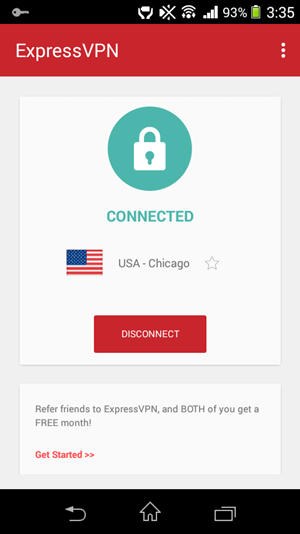
  • The app will now connect you to that VPN server. A key icon can be seen in the notifications panel. You can tap it anytime to disconnect.

Why Should You Buy ExpressVPN

I have used many VPN software and apps like Hide-My-IP, Opera Max and Avast SecureLine. All of these apps are good at what they are offering. But these software services should be bought separately for every device you use. However, you can use ExpressVPN across all your devices including gaming consoles. Some strong reasons why you should buy it are as follows.

  • You need to purchase it once to use across all devices. This is a value for money package which comes with a 30-day money back guarantee.
  • Also comes with an L2TP/PPTP/IPSec configuration so that you can use it even without the app or Windows client. Android, Windows, and MAC have built in PPTP/L2TP/IPSec configuration.
  • Gives you more control over configuring your VPN service like choosing the server, protocol and use it on different devices.
  • Simple to use and doesn’t have confusing options.
  • Very good for high-speed Wi-Fi networks. The speed drop is small. 
  • Watch Geo-locked NetFlix and Hulu videos.
  • 256-bit encryption ensures the highest security even when using open Wi-Fi hotspots.
  • Unlimited bandwidth allows you to send /receive unlimited data without restrictions.
  • Your personal data is not stored anywhere and they also don’t log your activities.

Plans And Pricing

If you have finally decided to buy ExpressVPN then there are three flexible plans which are monthly, half yearly and yearly. For one month it will only cost you $12.95, while if you buy it for half yearly subscription then it will cost you $9.99 per month and for a yearly subscription, it is $8.32 per month as of now. There are various payment options available like a credit card, PayPal, bitcoin, and paymentwall. Please go to the link below to buy anytime.


If you liked the article then please share it.

Hide My IP - Best VPN Software For MAC And Windows PC

What is vpn, A VPN is an extension of Private Network that provides an encrypted security tunnel between your android device and the VPN server to send and receive information, so that no one can pry upon your network activity. A VPN is created by establishing a virtual point-to-point connection through the use of dedicated connections, virtual tunneling protocols, or traffic encryption. Major implementations of VPNs include OpenVPN and IPsec.

hide my ip 6.0


VPN is best suited for unsecured Open WiFi networks that can compromise your personal data anytime you connect to them. Employees of an Organization should also use the company's VPN in order to access the intranet, to prevent security breaches. VPN services are not free, but they are also not much costly. Cost depends on the type of the device you are using. Currently a popular VPN service is Avast VPN which costs you around $45 per year. Yes it is costly. But if are looking for a free VPN service then Hide My IP PC/MAC VPN is the best choice, because it is most easiest to configure and its license is valid for lifetime, no yearly renewals required.

Is Your PC Safe


Few years ago when computer security came into existence, experts recommended use of antiviruses and internet security suits to protect our PCs and MACs from viruses and spyware. Yes, antivirus software greatly help to reduce the damage caused by viruses, but again these security software doesn't have control over your network identity until you buy their VPN service. Such antivirus software can not protect your network identity and your computer's IP address is publicly available to be seen by anybody. Anybody can find your location from the email you sent with your original IP address.

Once your IP gets compromised then your PC becomes more vulnerable to online threats. Hiding your IP behind a VPN is the best way to protect your network identity, since nobody can see your original IP.

With a VPN like Hide My IP you can access blocked websites, hide your IP address, surf anonymously on the web and can send anonymous emails to anybody without getting tracked. If you want that nobody can track your online activity then you should install the Hide My IP PC VPN software for PC and MAC.

Click the image below to download or buy it at $29 whose license is valid for lifetime.


How To Use The Hide My IP VPN For MAC OSX And Windows PC


  • Download and install the VPN software by clicking the image above.
  • Open the program and click 'Hide My IP' button. Your original IP address will be instantly hidden and VPN will be activated.


hide my ip pc vpn

  • Put a check mark on 'Require US Based IP', if you want.
  • You can select the required proxy server.
  • The trial version is valid for seven days. I recommend you buy the product, check it out here.


Advantages Of Hide My IP VPN For PC/MAC

  • Easy to use software.
  • Provides you a list of 90 worldwide proxy servers.
  • Does not slow down your browsing experience.
  • Best VPN software for hiding your IP and provide security even on public and open Wi-Fi networks.
  • There is an app for android also. Check Hide My IP android VPN.
  • Comes with 30-Day money back guarantee.
  • You can use this VPN with all internet programs on your PC or MAC.

If you have any questions feel free to ask via comments.

Hide My IP - Best VPN Android App To Anonymize Your Identity

We live in a World surrounded by network of networks called the Internet. Today Internet has become the basic need of every human being. By means of Internet we connect to other computers worldwide for sharing information. Every computer or any android device using the Internet has an IP address which uniquely identifies your device on the network. Two device can not have same IP address. By default your IP address is unsecure which means if any hacker gets to know your IP, be it of your computer or android, he can track your online activity and intercept your information before it reach to the desired server and can roll back malicious instructions back to you in order to hack your personal info.

However it is also not easy to find one's IP address if you have not shared with anyone, but there are many tools available that can scan your wireless routers to find your IP address, there make, model and configuration settings. If your network is wired then you should not worry much, but being online on a wireless network opens gates to many security risks. But one should not worry much if they are using a dynamic IP instead of static IP.

How To Protect Your Android Phone From IP Tracking


To protect your android IP address, you should use a VPN service. A VPN service is best known for anonymizing your identity on the internet, so that nobody can know your original location. A VPN also provides an encrypted tunnel to send an receive information between your device and VPN server. For this purpose you should use Hide My IP VPN app.

What Is A VPN


What is vpn, A VPN is an extension of Private Network that provides an encrypted security tunnel between your android device and the VPN server to send and receive information, so that no one can pry upon your network activity. A VPN is created by establishing a virtual point-to-point connection through the use of dedicated connections, virtual tunneling protocols, or traffic encryption. Major implementations of VPNs include OpenVPN and IPsec.

VPN is best suited for unsecured Open WiFi networks that can compromise your personal data anytime you connect to them. Employees of an Organization should also use the company's VPN in order to access the intranet, to prevent security breaches.

VPN services are not free, but they are also not much costly. Cost depends on the type of the device you are using. Currently a popular VPN service is Avast VPN which costs you around $20 per year. Yes it is costly. But if are looking for a free VPN service then Hide My IP android app VPN is the best choice, because it is most easiest to configure, includes an option to use your own proxy server and an inbuilt network data monitor. Currently no app in play store is that much easy to use.

Hide My IP - Best VPN Android App To Anonymize Your Identity


Hide My IP is a Free Android VPN app that secures your android phone from malicious threats and phishing attacks by providing an encrypted tunnel between your device and the Hide My IP servers. This encrypted tunnel cannot be forged by hackers or attackers. If they somehow get this encrypted data then they need to run it on Hide My IP servers, for this they have to hack the Hide My IP servers, which is practically impossible, therefore the encrypted information is totally unusable for hackers. So, if you are using this app then you are on the safe side.

  • Download Hide My IP android app. Download Link.
  • After installing the app, open it and tap 'Connect'.
hide my ip vpn app

  • A popup will open asking your permission to create a VPN profile on your android phone. Check 'I trust this application' and tap 'OK'.
  • Wait for few seconds.
  • If it does not connect automatically then close the app.
  • Now relaunch the app and tap any of the VPN servers from the list to connect automatically.
  • You can see a key in the android status bar, which indicates that the VPN is active on your android.
  • Tap 'Menu>Verify IP' and open the link in a browser to see your anonymized location and IP address.

Enable Network Monitor/Meter In Hide My IP Android VPN App

While you are connected to the VPN server you can measure your internet data traffic from within the app. The app shows the received and sent internet traffic data by means of a real-time 2D graph. To enable the network meter graph, just open 'Menu>Show Graph'. However you can view the network speed, downloaded and uploaded data details in status bar without enabling the graph.

hide my ip network monitor

Setup Your Own Proxy Server In Hide My IP VPN App

You are given an option to setup your own proxy server, if you think that the proxy server is much more secure. To enter the proxy details just tap 'Menu>Settings'. Here check the 'Proxy Setup' and enter the 'Proxy Host', "Proxy Port", 'Username' and 'Password'. Finally tap 'Save'. 

Choose Between TCP and UDP Internet Protocols

You can choose which internet protocol to use for the VPN connection either TCP or UDP. UDP is faster than TCP because it does not check for packet errors. But TCP is more reliable. Its your call which protocol to use. but by default you should use 'TCP'. To select go to 'Menu>Settings' and select your desired protocol.

How To Buy The Hide My IP Pro Version

The Hide My IP pro version provides lifetime access to all VPN locations. To buy the pro version just follow the steps below.
  • Open 'Menu' and tap 'Upgrade'. Choose a payment option either 'Google-in-app Purchase' or 'Buy on hide-my-ip.com' and tap 'Continue'.
  • Enter your credit card details to checkout. Also do not forget to mention your email address where you will be receiving your license code.
  • After getting the license code. Go to 'Menu>Unlock'. Enter license code.
  • Now you have a lifetime access to all VPN locations.
  • You can buy 1 month license at $2.95, 3 months license at $7.95 and lifetime license at $29.95.

hide my ip vpn subscription option

Note : If you are not seeing any 'Upgrade' or 'Unlock' option in 'Menu' then you can not buy the pro version, because it may be totally free in your country for a limited time. Also you can use all the VPN servers in the app free of cost.

Features Of Hide My IP VPN For Android


  • Easy to use, connect and configure.
  • Provides a wide range of high speed VPN servers without compromising network speeds.
  • Provides an option to setup own proxy server. Currently no other android VPN app have this feature.
  • Have an inbuilt network meter. This feature is also not found in other apps.
  • Protects your online identity and secures your activity even on public open Wi-Fi.
  • You have an option to choose between 'TCP' and 'UDP' protocols for your VPN internet connection.
  • It is totally free from ads.
  • There is no limit of time, speed and bandwidth.
  • There is no registration required and no personal information is asked by the app.
  • No root access required.

Verdict


Hide My IP VPN app for android is the best app for anonymizing your identity on internet. The app is light weight and can be configured quickly. Unlike other VPN apps that require your email or Google+, Facebook or Twitter profiles, Hide My IP works without registration this makes this app more customer centric as we are not forced to share our personal profiles. The app does not slow down your internet speed and provides a great free VPN solution for your android phone and tablet.

I have previously used Avast SecureLine, and Opera Max both of them are good. But Hide My IP is the more reliable VPN app for android because it does not crash, does not stop working after 7 days like Avast SecureLine and does not slow down your network like Opera Max.

This is the best android VPN app that you can install on your phone without any issues in order to get the best network security and anonymizing your IP address.

Opera Max For Android: Free Mobile Data Management And VPN App

Opera Max for android is a free mobile data management and VPN app that shrinks text, images and videos on almost any app on mobile data connections, as well as Wi-Fi. This app lets you save your mobile and Wi-Fi data up to 50%. Opera Max also provides free VPN for android, read more about VPN. When you connect to the internet via Opera Max VPN then the servers at Opera compress the data that you send and receive on your android, be it a video, image or text. The Opera Max VPN lets you access pages faster because it compresses the data so that your android phone will have to download fewer data at a faster rate.

opera max

You can permanently block apps that waste your precious Mobile data in the background, by giving the complete control of your mobile data to this app. There are many apps on Play Store that claims to save data but they do not. Opera has developed some useful android apps that are saving our mobile and Wi-Fi data since a decade, remember the Opera Mini browser. One thing I like about Opera Max that it saves our phone’s mobile data and provides a free VPN too. I have tried Avast SecureLine VPN for android, that is good but is not free.

How To Use Opera Max On Android

  • Download and install the app from this link.
  • Take the quick introduction ad move to the ‘Mobile usage’.
  • Here you will see mobile data usage and saved data.
  • Tap the ‘Menu’ icon on top left and enable ‘Wi-Fi usage’ too.

opera max on android

  • If you to block an app so that it can’t use your android phone’s internet or Wi-Fi, then go to ‘Menu>Blocked apps’.

blocked apps

  • Slide up or down the list of apps on the left panel and touch any app that you want to block.
  • After blocking the app will not be able to use any mobile data.
  • Remember to block the same app on Wi-Fi as well. Tap the Wi-Fi tab in the ‘Blocked apps’ section and repeat the same procedure above.
  • To unblock the app, just touch the blocked app.
  • To block all apps at once tap the ‘Three vertical dots’ on top right and tap ‘Block all’. Repeat the same procedure to ublock all apps at once.
  • To view app with high data savings, go to ‘Menu>Settings>Help>Apps with high savings’.

If You Can’t See Any Data Savings

Opera Max saves data on text, images, and videos transferred over normal web connections. Opera Max can't compress binary or encrypted data, for example, app installation or updates through Google Play or traffic on your bank or email applications. But, if you use other apps like WhatsApp, Instagram or NetFlix, you’ll start to see savings.

Apps That Use Encrypted Data

Opera Max doesn’t compress internet traffic from apps that use encrypted data like the Facebook app, YouTube app, Data Saver mode in chrome and HTTPS connections.

Why Use Opera Max On Android

Opera Software is known to save mobile and Wi-Fi data on any phone including the android, windows phone, iOS and basic Java phones through the Opera Mini. Now Opera Max is the ultimate app to save data, block apps that consume data and provides a free VPN for android. Unrooted android phone’s with a lot of bloatware wastes too much data in the background, with Opera Max you can block all bloatware apps and save your mobile data and Wi-Fi data. The VPN is by default active and you can see a key in the notifications bar.

➜ Free vs Paid VPN

Opera Max is a free VPN service so you don't have any control over it. You can't select the VPN server of your choice there by you can't access geo-locked content for a specific country. Like you can't watch American NetFlix from Australia or Canada. For this you will need a paid VPN service that will give you more location to connect. Paid VPNs also provide unlimited data transfer and 5 simultaneous connections from multiple devices including your iPhone, android, PC, MAC computer or a gaming console like PlayStation 4 or XBOX One. You can read some of our paid VPN reviews below.


If you liked the article then please share it.

Download Avast SecureLine VPN For Android

Avast SecureLine is a vpn app for android which anonymizes your android phone’s IP address on the network. Android is the most used mobile operating system and hence many security risks will always be present around it. Malicious email links and website forms can easily track your network activity and can steal your sensitive info without your concern. There are many free antivirus app available for android like Avast, Kaspersky, Netquin, Panda etc. But these antivirus apps are just useful tools that can’t completely protect your identity on the internet.

Avast Mobile Security has inbuilt firewall that can block malicious links and phishing attacks but to use it your android phone must be rooted. And a rooted phone becomes more vulnerable to viruses and spam attacks.

avast secureline vpn

So, if you don’t want to root your phone then there is still an option with which you can protect your identity on the internet. You can download and install Avast SecureLine VPN app for android which will completely hide your original identity from being pryed upon. It is a paid app and you can avail the VPN services for just $19 dollars per year. It comes with a 7 days free trial. This is my Avast VPN review.

How Does Avast SecureLine VPN App Works

➜ Please read this updated Avast SecureLine Review.

When you install and activate the avast vpn app on your android phone then it creates a secure, encrypted tunnel between your android and avast servers. This encrypted tunnel is the only medium with which you can transmit internet traffic. This tunnel is highly secured and encrypted so that nobody can interfere in it.

Your original IP address becomes invisible behind avast vpn servers and if you lookup your phone’s IP then it will show some other location that is different from your country. Basically avast SecureLine VPN uses vpn from many countries like USA(Dallas, Miami, New York, Salt Lake City, Seattle etc), UK, Canada, CZ, London, Tokyo and Melbourne. So if you are using Avast VPN then you IP address will point to one of these listed countries and states.

How To Install And Activate Avast SecureLine VPN For Android

  • Download and Install Avast android VPN App.
  • After installation open it and tap ‘Next’ then tap ‘Continue to app’.
  • Now tap ‘CONNECT’. Tap ‘Optimal location’ to choose your desired location for VPN.
  • A warning will appear on the screen. Check ‘I trust this application’ and tap ‘OK’
  • Another popup will open when you are connected, tap ‘Close’.
  • Now avast SecureLine VPN is activated on your android cell phone and your original IP is hidden.
  • You can start browsing internet on any browser without risking your security.
  • If you are on an unsecured open Wi-Fi then activate avast VPN first and forget about any risks.
  • Visit any IP locating website and check your anonymized android IP address.
avast vpn changed IP


Enable Automatic Unsecured Wi-Fi Protection

When this feature is enabled then Avast VPN will automatically activate itself and secure the open Wi-Fi networks before you connect to them. To enable this feature follow the steps below.

  • Tap ‘Menu>Connection Rules’.
  • Here tap ‘Unsecured Wi-Fi networks’.
  • Tap ‘Ask what to do’ and choose ‘Turn on Avast SecureLine’.
  • You can also set your ‘Optimal location’.
  • Finally tap ‘Done’ on top right.
  • Now whenever your android connects with an open Wi-Fi then the avast vpn will activate automatically and anonymize you.

Advantages

  • Good VPN app for android.
  • Hides your IP address on network.
  • Secures unsecured Wi-Fi networks.
  • Works for all android apps like Whatsapp, Netflix etc.
  • No need to setup separate proxy server.

Note: Please read this in depth review of Avast SecureLine 2016.

If you liked the article please share it.