play ps1 games on android
Showing posts with label galaxy s6. Show all posts

How To Install Android 6.0 Beta On Samsung Galaxy S6 And Galaxy S6 Edge

Samsung has released the android 6.0 beta for the Galaxy S6 and the Galaxy S6 Edge. This firmware is not the final release and is in the testing phase. Samsung UK is sending invites to Galaxy S6 and S6 Edge users to get their new android 6.0 tested. If you want to become an android 6.0 beta tester then you should install the android 6.0 beta firmware on your Galaxy S6. As per the guidelines, this beta firmware testing program is only available in the UK. But don't worry if you reside outside UK then we have an alternative procedure for you which will make you the official tester of the android 6.0 beta firmware for Galaxy S6 and Galaxy S6 Edge.

Before you begin installing the firmware. However, this is an official update so you will not lose any data. But you should take a backup of your data because you don't want to lose it. Well, the process is pretty easy, you have to install an app and fill out the registration details. Within 24 hours you may get the update if Samsung selects you.

This tutorial employs the use of ODIN flashing tool. So you should be aware of using it. Make sure that your phone is charged to at least 60%. You can read this tutorial about using ODIN.

How To Install Android 6.0 Beta On Samsung Galaxy S6 And Galaxy S6 Edge


For UK Users Only

  1. Make sure that your device's model should be SM-G920F or SM-G925F
  2. Your phone's firmware should have a BTU product code otherwise you will not get the update. You can install this app to check the BTU code.
  3. Now after checking the BTU code, download and install the Galaxy Care app from the play store.
  4. Open the app and follow the on-screen instructions.
  5. Keep swiping until you see "Participate Galaxy Beta Program" and tap 'Join'.


  6. Finally tap the 'Registration' button at the bottom and agree to license terms.
  7. That's it, you may receive the android 6.0 beta OTA on your phone within the next 24 hours.

For Non-UK Users

If you live outside of UK or your Galaxy device doesn't have the BTU code then you have to first flash the BTU file on your phone before you can get the android 6.0 beta.
  • Your phone model should be SM-G920F or SM-G925F and it should be unlocked.
  • Download the BTU code for Galaxy S6 and Galaxy S6 Edge.
  • Flash the file using ODIN.
  • Now follow the 'Step 3' and onwards in the 'UK Users Only' section above.
  • You can get the android 6.0 beta OTA update within 24 hours.

If you do not get the android 6.0 beta update even after following this tutorial then Samsung may not have chosen you. But you should try the above tutorial to become a beta tester for Samsung.

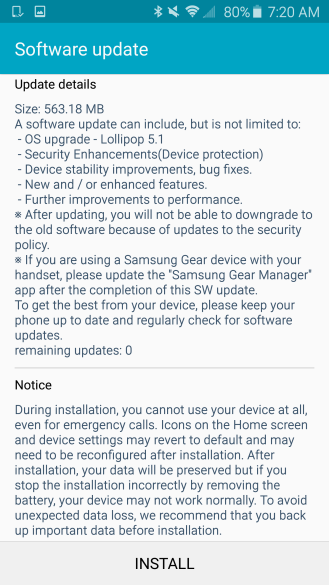
Manually Update T-Mobile Galaxy S6 To Android 5.1.1 G920TUVU2COF8 OS

T-Mobile USA has released the official android 5.1.1 Lollipop G920TUVU2COF8 update for the Samsung Galaxy S6 SM-G920T. This is minor maintenance update which improves battery performance and comes with various bug fixes and performance improvements. If you are updating your T-Mobile Galaxy S6 via OTA then update size would be around 103 MB. However if you are upgrading from firmware build number OCG to OF8 then you have to download 631 MB via OTA.


However if you haven't received the OTA notification then you can update your T-Mobile Galaxy S6 to latest android 5.1.1 Lollipop G920TUVU2COF8 firmware by using ODIN. ODIN is the official firmware flashing tool designed by Samsung for Galaxy smartphones.

Firmware Details

Model : SM-G920T
Model Name : GALAXY S6
Country : USA (T-Mobile)
Version : Android 5.1.1
Changelist : 90673209
Build date : Fri, 17 Jul 2015 11:09:02 +0000
Product code : TMB
PDA : G920TUVU2COF8
CSC  : G920TTMB2COF8

Downloads Required


Before You Start

  • This tutorial is meant to be only applied on T-Mobile Galaxy S6 SM-G920T
  • If you phone is rooted and custom recovery is installed then after flashing the device's root access will be revoked and custom recovery will be replaced with stock recovery.
  • Backup all of your data stored in the internal storage of the phone and save a copy to your computer.
  • You can backup app data by using app data backup and restore apps.
  • Enable 'USB Debugging' in developer options.
  • If 'Developer options' is not visible then go to 'Settings>About device'. Here tap the 'Build number' 10 times to unlock the 'Developer options'.
  • As I said that this is an official update guide so you won't loose any data, but still you have to backup data, in case if something goes wrong then you have the data backup.
  • The tablet's battery should be charged to 60% or above.

Manually Update T-Mobile Galaxy S6 SM-G920T To Official Android 5.1.1 Lollipop G920TUVU2COF8 Firmware


  • Download and install Samsung USB drivers from above link.
  • Download odin and T-Mobile Galaxy S6 ROM and extract them in separate folders on desktop.
  • You need to create a free account at Sammobile to download the ROM.
  • Now switch off your Galaxy S6 and reboot it in download mode by pressing 'Home+Power+Volume Down' key at the same time.
  • Release the buttons when the phone vibrates.
  • Press volume up button when you see a warning page. Now you have entered in odin mode.
  • Now launch odin.exe on your pc.
  • Connect the phone to computer via USB cable.
  • Let odin recognize the phone.
  • When it is identified by odin the field under <ID:COM> in odin will turn blue and you will see a message "<ID:0/016> Added".
  • Make sure that only "Auto Reboot", and "F.Reset Time" options should be checked. Do not change other settings of ODIN.
  • Now check 'AP' and click it and select the firmware file G920TUVU2COF8 tar.md5 Android 5.1.1 file from the folder where you saved it.
  • Wait for few seconds till ODIN finishes some checks.
  • Click 'Start' to initiate the flashing process. When the process is completed odin will return a message 'PASS'.
  • When your phone first boots to home screen (may take longer, 15 minutes or more) then disconnect it from PC.  Now check the android version in 'Settings>About device>Android version'.

Troubleshooting

  • If ODIN fails in between, then repeat the procedure. However it hardly happens.
  • If after updating to G920TUVU2COF8 android 5.1.1 you see that your phone  has become slow or doesn't booting to home screen even after 20 minutes, then do a factory reset in recovery mode.
  • Before doing factory reset, make sure you have backed up your personal data.


Share this article if you liked it.

Update Sprint Galaxy S6 To Official Android 5.1.1 Lollipop G920PVPU2B0F7

Sprint has released the official android 5.1.1 Lollipop update for the Sprint Samsung Galaxy S6. The firmware version is G920PVPU2B0F7. The update is being released in phases and you will receive the OTA update notification shortly on your Sprint Galaxy S6 SM-G920P. The update size is 568.30 MB and you will require Wi-Fi/LTE to download and install this website.

Sprint Galaxy S6 android 5.1.1

What's New In Android 5.1.1 For Sprint Galaxy S6

  • Security Enhancements (Device Protection).
  • Device stability.
  • New and enhanced features.
  • After upgrading you will not be able to downgrade to older firmwares.

Before You Begin


  • Charge the battery to atleast 60% or above.
  • Ensure that you are connected to Wi-Fi or LTE networks.
  • No need to backup data.

Update Sprint Galaxy S6 To Official Android 5.1.1 Lollipop G920PVPU2B0F7

  • Go to 'Settings>About device>System Update>Update now'.
  • When the OTA notification appears tap 'INSTALL'.
  • Wait for few minutes.
  • The phone will reboot sometimes.
  • After update the phone will boot to home screen.

You have successfully updated your Sprint Galaxy S6 to official android 5.1.1 Lollipop G920PVPU2B0F7 firmware.

Manually Flash Galaxy S6 EDGE SM-G925F To Official Android 5.1.1 Lollipop G925FXXU2BOFJ

The international model of Samsung Galaxy S6 EDGE SM-G925F has received the official android 5.1.1 Lollipop G925FXXU2BOFJ update. If you are from Europe then you can use this tutorial to manually flash your Galaxy S6 EDGE to android 5.1.1. This latest update brings improvement for the camera app, allowing users to adjust exposure directly from the viewfinder.

s6 edge sm-g925f

Firmware Details

Model: SM-G925F
Model name: GALAXY S6 EDGE
Country: United Kingdom/Ireland
Version: Android 5.1.1
Changelist: 5012324
Build date: Fri, 19 Jun 2015 22:29:17 +0000
Product code: XEU
PDA: G925FXXU2BOFJ
CSC: G925FOXA2BOFJ

Important Instructions


  • This tutorial is only meant for the global model of Galaxy S6 EDGE SM-G925F. 
  • If you live in Europe then you can use this tutorial to update your smartphone.
  • People having same model but living in other parts of the world may not use this tutorial otherwise the phone signals may disappear permanently.
  • Rooted S6E owners may use this tutorial but after flashing the root access will be revoked.
  • This is an official update so while flashing you won't loose any data. But it is necessary to backup your phone's data on your computer's hard drive, because after flashing we need to do a factory reset for a clean install.
  • Enable USB debugging by going to 'Settings>Developer options>USB debugging'. If Developer options is not visible then go to 'Settings>About device'. Tap the build number 10 times to unlock 'Developer options'.

Downloads Required


Install Android 5.1.1 Lollipop G925FXXU2BOFJ On Samsung Galaxy S6 EDGE SM-G925F


  • Download and install Samsung USB drivers from above link.
  • Download odin and Galaxy S6E ROM and extract them in separate folders on desktop.
  • Now switch off your phone and reboot it in download mode by pressing 'Home+Power+Volume Down' key at the same time.
  • Release the buttons when the phone vibrates.
  • Press volume up button when you see a warning page. Now you have entered in odin mode.
  • Now launch odin.exe on your pc.
  • Connect the phone to computer via USB cable.
  • Let odin recognize the phone.
  • When it is identified by odin the field under <ID:COM> in odin will turn blue and you will see a message "<ID:0/016> Added".
  • Make sure that only "Auto Reboot", and "F.Reset Time" options should be checked. Do not change other settings of ODIN.
  • Now check 'AP' and click it and select the firmware file G925FXXU2BOFJ tar.md5 Android 5.1.1 file from the folder where you saved it.
  • Wait for few seconds till ODIN finishes some checks.  
  • Click 'Start' to initiate the flashing process. When the process is completed odin will return a message 'PASS'.  
  • When your phone first boots to home screen (may take longer, 15 minutes or more) then disconnect it from PC.  Now check the android version in 'Settings>About device>Android version'.

Troubleshooting

  • If ODIN fails in between, then repeat the procedure. However it hardly happens.
  • If after updating to G925FXXU2BOFJ android 5.1.1 you see that your Galaxy S6 EDGE has become slow or doesn't booting to home screen even after 20 minutes, then do a factory reset in recovery mode.
  • Before doing factory reset, make sure you have backed up your personal data.

Share this article if you liked it.

Install Android 5.1.1 Lollipop G920FXXU2BOFJ On Samsung Galaxy S6 SM-G920F

The international model of Samsung Galaxy S6 SM-G920F has received the official android 5.1.1 Lollipop G920FXXU2BOFJ update. If you are from Europe then you can use this tutorial to manually flash your Galaxy S6 to android 5.1.1. This latest update comes with performance improvements and ability to sort apps alphabetically in app drawer. The update was first reported in France.

s6 sm-g920f

Firmware Details

Model: SM-G920F
Model name: GALAXY S6
Country: France
Version: Android 5.1.1
Changelist: 5012324
Build date: Fri, 19 Jun 2015 22:29:17 +0000
Product code: XEF
PDA: G920FXXU2BOFJ
CSC: G920FOXA2BOFJ

Important Instructions


  • This tutorial is only meant for the global model of Galaxy S6 SM-G920F. 
  • If you live in Europe then you can use this tutorial to update your smartphone.
  • People having same model but living in other parts of the world may not use this tutorial otherwise the phone signals may disappear permanently.
  • Rooted Galaxy S6 owners may use this tutorial but after flashing the root access will be revoked.
  • This is an official update so while flashing you won't loose any data. But it is necessary to backup your phone's data on your computer's hard drive, because after flashing we need to do a factory reset for a clean install.
  • Enable USB debugging by going to 'Settings>Developer options>USB debugging'. If Developer options is not visible then go to 'Settings>About device'. Tap the build number 10 times to unlock 'Developer options'.

Downloads Required


Install Android 5.1.1 Lollipop G920FXXU2BOFJ On Samsung Galaxy S6 G920F


  • Download and install Samsung USB drivers from above link.
  • Download odin and Galaxy S6 ROM and extract them in separate folders on desktop.
  • Now switch off your Galaxy S6 and reboot it in download mode by pressing 'Home+Power+Volume Down' key at the same time.
  • Release the buttons when the phone vibrates.
  • Press volume up button when you see a warning page. Now you have entered in odin mode.
  • Now launch odin.exe on your pc.
  • Connect the phone to computer via USB cable.
  • Let odin recognize the phone.
  • When it is identified by odin the field under <ID:COM> in odin will turn blue and you will see a message "<ID:0/016> Added".
  • Make sure that only "Auto Reboot", and "F.Reset Time" options should be checked. Do not change other settings of ODIN.
  • Now check 'AP' and click it and select the firmware file G920FXXU2BOFJ tar.md5 Android 5.1.1 file from the folder where you saved it.
  • Wait for few seconds till ODIN finishes some checks.  
  • Click 'Start' to initiate the flashing process. When the process is completed odin will return a message 'PASS'.  
  • When your phone first boots to home screen (may take longer, 15 minutes or more) then disconnect it from PC.  Now check the android version in 'Settings>About device>Android version'.

Troubleshooting

  • If ODIN fails in between, then repeat the procedure. However it hardly happens.
  • If after updating to G920FXXU2BOFJ android 5.1.1 you see that your Galaxy S6 has become slow or doesn't booting to home screen even after 20 minutes, then do a factory reset in recovery mode.
  • Before doing factory reset, make sure you have backed up your personal data.

Share this article if you liked it.

Manually Update US Cellular Galaxy S6 To Official Android 5.1.1 Lollipop

Users of US Cellular Galaxy S6 SM-G925R4 have received android 5.1.1 Lollipop OTA update G920R4TYU2BOF7  in the USA. The android 5.1.1 update for the Galaxy S6 was much more expected due to the current firmware's buggy performance and AT&T and T-Mobile has already released it. The OTA is available to download over the air. This new update comes with several bug fixes and performance improvements.


The update has been rolled out beginning 25th June, 2015. And if you haven't received the update yet then we will help you to flash the android 5.1.1 OTA update manually on your US Cellular Galaxy S6. Also take note that after updating to G920R4TYU2BOF7 you can't downgrade your phone for security reasons in Samsung KIES, but don't worry ODIN will do the job. If you find that after updating your phone to android 5.1.1, the battery is draining faster, tethering or hotspot is having some problem or fingerprint scanner not recognizing finger prints then you can downgrade it. After updating your US Cellular Galaxy S6 to G920R4TYU2BOF7 make a factory reset to prevent any problems from previous firmware.

Firmware Details (Galaxy S6)

Model : SM-G920R4
Country : USA (US Cellular)
Version : Android 5.1.1
Changelist : 90673209
Build date : Thu, 11 Jun 2015 13:19:54 +0000
Product code : USC
PDA : G920R4TYU2BOF7
CSC : G920R4USC2BOF7
Update Type : OTA, Manual Update (ODIN)

Before You Begin Read The Instructions Below

  • This tutorial is meant to be applied on US Cellular Galaxy S6 model number SM-G920R4 . 
  • This is an official update so your data won't be lost, but backing up data is crucial since we may need to perform a factory reset at the end of the tutorial to prevent errors from previous bugs if you are using ODIN, if you are using OTA then no need to backup data.
  • Rooted phone users can only use the manual method to install the android 5.1.1 Lollipop update on their phones. After updating the root access will be revoked. Backup data at any cost.
  • Enable USB debugging by going to 'Settings>Developer options>USB debugging'. If Developer options is not visible then go to 'Settings>About device'. Tap the build number 10 times to unlock 'Developer options'.
  • The battery should be charged to more than 60%.
  • Before following this tutorial make sure that you have checked your phone for software update and after checking the notification doesn't appear. If OTA update is being shown on your US Cellular S6 then skip the manual method.

Downloads Required

  • ODIN v3.10.6 : Download
  • Samsung USB Drivers : Download
  • Android 5.1.1 Lollipop G920R4TYU2BOF7 ROM for US Cellular Galaxy S6 : Download


Manually Flash Android 5.1.1 Lollipop OTA On US Cellular Samsung Galaxy S6 SM-G920R4


  • Download the Samsung USB drivers for android phones and install it on your PC.
  • Download the ODIN v3.10.6 and Lollipop ROM and extract them in separate folders. SamMobile may ask you to create a free account before downloading the ROM. So, do it.
  • Now Switch off your US CELLULAR Galaxy S6 and reboot it in ODIN/Download mode, by pressing power+home+volume down buttons at the same time.
  • A warning will appear, press the 'Volume Up' button to enter into download/odin mode.
  • Now open 'odin.exe' on your PC and connect the phone to PC via USB cable.
  • Let odin recognize your phone. When it is recognized by odin the field under <ID:COM> in odin will turn blue and you will see a message "<ID:0/016> Added".
  • Make sure that only "Auto Reboot", and "F.Reset Time" options should be checked. Do not change other settings of ODIN.
  • Now check 'AP' and click it and select the firmware file G920R4TYU2BOF7 tar.md5 Android 5.1.1 file from the folder where you saved it.
  • Wait for few seconds till ODIN finishes some checks.  
  • Click 'Start' to initiate the flashing process. When the process is completed odin will return a message 'PASS'.  
  • When your phone first boots to home screen (may take longer, 15 minutes or more) then disconnect it from PC.  Now check the android version in 'Settings>About device>Android version'.
  • You have successfully updated your US Cellular Samsung Galaxy S6 SM-G920R4 to official android 5.1.1 G920R4TYU2BOF7 firmware.
  • If you are using a Samsung Gear device with your US Cellular Galaxy S6 then update the 'Samsung Gear Manager' app after updating your phone to android 5.1.1.

Troubleshooting

  • If ODIN fails in between, then repeat the procedure. However it hardly happens.
  • If after updating to G920R4TYU2BOF7 android 5.1.1 you see that your US Cellular Galaxy S6 has become slow or doesn't booting to home screen even after 20 minutes, then do a factory reset in recovery mode.
  • Before doing factory reset, make sure you have backed up your personal data.

Share this article if you liked it.

Manually Flash Android 5.1.1 Lollipop On T-Mobile Samsung Galaxy S6 EDGE SM-G925T

Users of T-Mobile Galaxy S6 EDGE SM-G925T have received android 5.1.1 Lollipop OTA update G925TUVU1AOF6 in the USA. The android 5.1.1 update for the Galaxy S6 EDGE was much more expected due to the current firmware's buggy performance. The OTA is sized at 635.45 MB and is available to download over the air. This new update comes with several bug fixes and performance improvements. The major issues fixed are black boxes in emails, camera LED flashlight, failed to reboot, check for Amazon error and finger print improvements. Anti-theft is the new feature added in this Lollipop update.

t-mobile s6 sdge

The update has been rolled out beginning 15th June, 2015. And if you haven't received the update yet then we will help you to flash the android 5.1.1 OTA update manually on your tmo Galaxy S6 EDGE. Also take note that after updating to G925TUVU1AOF6 you can't downgrade your tmo Galaxy S6 EDGE for security reasons in Samsung KIES, but don't worry ODIN will do the job. If you find that after updating t-mobile galaxy S6 EDGE to android 5.1.1, the battery is draining faster, tethering or hotspot is having some problem or fingerprint scanner not recognizing finger prints then you can downgrade it. But it may hardly happen as T-Mobile has already fixed these issues. After updating your tmo Galaxy S6 EDGE to G925TUVU1AOF6 make a factory reset to prevent any problems from previous firmware.

Firmware Details (Galaxy S6 EDGE)

Model : SM-G925T
Country : USA (T-Mobile)
Version : Android 5.1.1
Changelist : 90673209
Build date : Thu, 11 Jun 2015 13:19:54 +0000
Product code : TMB
PDA : G920TUVU2COF6
CSC : G920TTMB2COF6
Size : 635.45 MB
Update Type : OTA, Manual Update (ODIN)

Before You Begin Read The Instructions Below

  • This tutorial is meant to be applied on T-Mobile Galaxy S6 EDGE model number SM-G925T either running software version G925TUVU1AOCG or G925TUVU1AOC9 . If you have TMO S6 then follow this tutorial.
  • This is an official update so your data won't be lost, but backing up data is crucial since we may need to perform a factory reset at the end of the tutorial to prevent errors from previous bugs if you are using ODIN, if you are using OTA then no need to backup data.
  • Rooted TMO Galaxy S6 EDGE users can only use the manual method to install the android 5.1.1 Lollipop update on their phones. After updating the root access will be revoked. Backup data at any cost.
  • Enable USB debugging by going to 'Settings>Developer options>USB debugging'. If Developer options is not visible then go to 'Settings>About device'. Tap the build number 10 times to unlock 'Developer options'.
  • The battery should be charged to more than 60%.
  • Before following this tutorial make sure that you have checked your phone for software update and after checking the notification doesn't appear. If OTA update is being shown on your tmo Galaxy S6 EDGE then skip the manual method.

Downloads Required

  • ODIN v3.10.6 : Download
  • Samsung USB Drivers : Download
  • Android 5.1.1 Lollipop G925TUVU1AOF6 ROM for T-Mobile Galaxy S6 EDGE : Download

Manually Flash Android 5.1.1 Lollipop On T-Mobile Samsung Galaxy S6 EDGE SM-G925T


  • Download the Samsung USB drivers for android phones and install it on your PC.
  • Download the ODIN v3.10.6 and Lollipop ROM and extract them in separate folders. SamMobile may ask you to create a free account before downloading the ROM. So, do it.
  • Now Switch off your TMO Galaxy S6 EDGE and reboot it in ODIN/Download mode, by pressing power+home+volume down buttons at the same time.
  • A warning will appear, press the 'Volume Up' button to enter into download/odin mode.
  • Now open 'odin.exe' on your PC and connect the phone to PC via USB cable.
  • Let odin recognize your phone. When it is recognized by odin the field under <ID:COM> in odin will turn blue and you will see a message "<ID:0/016> Added".
  • Make sure that only "Auto Reboot", and "F.Reset Time" options should be checked. Do not change other settings of ODIN.
  • Now check 'AP' and click it and select the firmware file G925TUVU1AOF6 tar.md5 Android 5.1.1 file from the folder where you saved it.
  • Wait for few seconds till ODIN finishes some checks.  
  • Click 'Start' to initiate the flashing process. When the process is completed odin will return a message 'PASS'.  
  • When your phone first boots to home screen (may take longer, 15 minutes or more) then disconnect it from PC.  Now check the android version in 'Settings>About device>Android version'.
  • You have successfully updated your T-Mobile Samsung Galaxy S6 EDGE SM-G925T to official android 5.1.1 G925TUVU1AOF6 firmware.
  • If you are using a Samsung Gear device with your tmo Galaxy S6 EDGE then update the 'Samsung Gear Manager' app after updating your phone to android 5.1.1.

Troubleshooting

  • If ODIN fails in between, then repeat the procedure. However it hardly happens.
  • If after updating to G925TUVU1AOF6 android 5.1.1 you see that your tmo Galaxy S6 EDGE has become slow or doesn't booting to home screen even after 20 minutes, then do a factory reset in recovery mode.
  • Before doing factory reset, make sure you have backed up your personal data.

Share this article if you liked it.

Flash Android 5.1.1 Lollipop OTA Update On T-Mobile Samsung Galaxy S6 SM-G920T

Users of T-Mobile Galaxy S6 SM-G920T have received android 5.1.1 Lollipop OTA update G920TUVU1AOF6 in the USA. The android 5.1.1 update for the Galaxy S6 was much more expected due to the current firmware's buggy performance. The OTA is sized at 630.96 MB and is available to download over the air. This new update comes with several bug fixes and performance improvements. The major issues fixed are black boxes in emails, camera LED flashlight, failed to reboot, check for Amazon error and finger print improvements. Anti-theft is the new feature added in this Lollipop update.


The update has been rolled out beginning 15th June, 2015. And if you haven't received the update yet then we will help you to flash the android 5.1.1 OTA update manually on your tmo Galaxy S6. Also take note that after updating to G920TUVU1AOF6 you can't downgrade your tmo Galaxy S6 for security reasons in Samsung KIES, but don't worry ODIN will do the job. If you find that after updating t-mobile galaxy s6 to android 5.1.1, the battery is draining faster, tethering or hotspot is having some problem or fingerprint scanner not recognizing finger prints then you can downgrade it. But it may hardly happen as T-Mobile has already fixed these issues. After updating your tmo Galaxy S6 to G920TUVU1AOF6 make a factory reset to prevent any problems from previous firmware.

Firmware Details (Galaxy S6)

Model : SM-G920T
Country : USA (T-Mobile)
Version : Android 5.1.1
Changelist : 90673209
Build date : Thu, 11 Jun 2015 13:19:54 +0000
Product code : TMB
PDA : G920TUVU2COF6
CSC : G920TTMB2COF6
Size : 630.96 MB
Update Type : OTA, Manual Update (ODIN)

Before You Begin Read The Instructions Below

  • This tutorial is meant to be applied on T-Mobile Galaxy S6 model number SM-G920T either running software version G920TUVU1AOCG or G920TUVU1AOC9 . If you have TMO S6 Edge then follow this tutorial.
  • This is an official update so your data won't be lost, but backing up data is crucial since we may need to perform a factory reset at the end of the tutorial to prevent errors from previous bugs if you are using ODIN, if you are using OTA then no need to backup data.
  • Rooted TMO Galaxy S6 users can only use the manual method to install the android 5.1.1 Lollipop update on their phones. After updating the root access will be revoked. Backup data at any cost.
  • Enable USB debugging by going to 'Settings>Developer options>USB debugging'. If Developer options is not visible then go to 'Settings>About device'. Tap the build number 10 times to unlock 'Developer options'.
  • The battery should be charged to more than 60%.
  • Before following this tutorial make sure that you have checked your phone for software update and after checking the notification doesn't appear. If OTA update is being shown on your tmo Galaxy S6 then skip the manual method.

Downloads Required

  • ODIN v3.10.6 : Download
  • Samsung USB Drivers : Download
  • Android 5.1.1 Lollipop G920TUVU1AOF6 ROM for T-Mobile Galaxy S6 : Download

Manually Flash Android 5.1.1 Lollipop OTA On T-Mobile Samsung Galaxy S6 SM-G920T

  • Download the Samsung USB drivers for android phones and install it on your PC.
  • Download the ODIN v3.10.6 and Lollipop ROM and extract them in separate folders. SamMobile may ask you to create a free account before downloading the ROM. So, do it.
  • Now Switch off your TMO Galaxy S6 and reboot it in ODIN/Download mode, by pressing power+home+volume down buttons at the same time.
  • A warning will appear, press the 'Volume Up' button to enter into download/odin mode.
  • Now open 'odin.exe' on your PC and connect the phone to PC via USB cable.
  • Let odin recognize your phone. When it is recognized by odin the field under <ID:COM> in odin will turn blue and you will see a message "<ID:0/016> Added".
  • Make sure that only "Auto Reboot", and "F.Reset Time" options should be checked. Do not change other settings of ODIN.
  • Now check 'AP' and click it and select the firmware file G920TUVU1AOF6 tar.md5 Android 5.1.1 file from the folder where you saved it.
  • Wait for few seconds till ODIN finishes some checks.  
  • Click 'Start' to initiate the flashing process. When the process is completed odin will return a message 'PASS'.  
  • When your phone first boots to home screen (may take longer, 15 minutes or more) then disconnect it from PC.  Now check the android version in 'Settings>About device>Android version'.
  • You have successfully updated your T-Mobile Samsung Galaxy S6 SM-G920T to official android 5.1.1 G920TUVU1AOF6 firmware.
  • If you are using a Samsung Gear device with your tmo Galaxy S6 then update the 'Samsung Gear Manager' app after updating your phone to android 5.1.1.

Troubleshooting

  • If ODIN fails in between, then repeat the procedure. However it hardly happens.
  • If after updating to G920TUVU1AOF6 android 5.1.1 you see that your tmo Galaxy S6 has become slow or doesn't booting to home screen even after 20 minutes, then do a factory reset in recovery mode.
  • Before doing factory reset, make sure you have backed up your personal data.

Share this article if you liked it.

Galaxy S6 : How To Use Fast Charging

Galaxy S6 yet to be released will be coming with a special battery feature known as fast charging in which charging the phone for just 10 minutes will give you 4 hours of HD video playback on your Galaxy S6 / Galaxy S6 Edge. Your Galaxy S6 support Adaptive Fast Charging and Qualcomm Quick Charge 2.0. With this special battery charging feature your Galaxy S6 will be charged at more than 75% rate compared to non AFC smartphones. This battery feature is useful because when the battery juice becomes low and you don't have time to charge it then use the fast charging on Galaxy S6 / S6 Edge to get battery charged quickly. A 10 minute fast charging the Galaxy S6 can give you 4 hours of HD video playback.

Galaxy S6 : How To Use Fast Charging

  • Plug in the charger and connect it to your cell phone.
  • This is not a normal charger but is Adaptive Fast Charging compatible.

    fast charging adapter of galaxy s6
  • For faster charging switch off the phone.
  • If you don't want to switch off the phone then turn off the screen as the fast charging won't work when the screen is on.
  • When phone is switched off then the fast charging icon will be visible on the screen.
  • You can check the remaining charge time on the screen. The actual remaining time may vary depending on the charging conditions.
  •  You cannot use the built-in fast charging feature when you charge the battery using a standard battery charger.
  • The charging speed may decrease if Galaxy S6 overheats. 
If you liked the article please share it.

How To Enter Recovery Mode In Galaxy S6 / S6 Edge

Android System Recovery Mode is an useful tool with which you can reset your Galaxy S6 / S6 Edge to factory default settings when something goes wrong like your phone does not work properly, freezes or becomes unresponsive. A frozen Galaxy S6 becomes unresponsive and you can restart it manually see this. If the phone freezes occasionally then this could be sign that your phone needs a factory reset to avoid freezing, lags and hangs. Wiping the Galaxy S6 in recovery mode will reset it to factory settings. Only apply a factory reset when there is no way to fix the problems that results in a frozen Galaxy S6 smartphone. But also be aware that wiping your phone will also delete entire data stored on the UFS storage chip of Galaxy S6. So having the backup of your data is always a good decision.

recovery mode galaxy s6

How To Enter Recovery Mode In Galaxy S6 / S6 Edge

  • Turn off the cell phone.
  • Press and hold "Power", "Home" and "Volume Up" button simultaneously for few seconds until you see a warning message on the screen.
  • Press Volume Up button to enter recovery mode, if asked.
  • In this Galaxy S6 recovery mode you can factory reset, wipe data, wipe Dalvik cache and wipe cache partition easily.
  • Use volume up/down to navigate and press home button to select the option.
  • After a factory reset the phone will take long time to boot to home screen.
Please share the article if you liked it.

How To Restart A Frozen Galaxy S6 / Galaxy S6 Edge

Samsung Galaxy S6 is the upcoming flagship android smartphone from Samsung which is the first android cell phone in galaxy series to be launched in two flagships the one having a dual edge display while all the specifications remaining the same. The Galaxy S6 and the Galaxy S6 Edge both comes with a non-removable 2550 mAh battery with fast charging technology. The battery is non-removable which means that if the phone is frozen or hangs occasionally then there is no way to reset the phone. Well it isn't so, as the Galaxy S6 / S6 Edge comes with a safety feature as when the phone freezes and becomes unresponsive then it restarts automatically within few seconds. This feature can be found in almost every Samsung Mobile or tablet having a non-removable battery. This automatic reboot is present to save your Galaxy S6's battery and from unwanted hardware damage.

galaxy s6 edge

However some situations may arise in which you fill find that the phone is completely frozen and the touchscreen becomes unresponsive and the Galaxy S6 isn't restarting itself besides having the safety feature. Then in this situation manual override comes in to play in which you will restart the Galaxy S6 on your own, however this is not Hard Reset which is done only when the phone doesn't perform well even after restart and fixing everything.

How To Restart A Frozen Galaxy S6 / Galaxy S6 Edge

  • If your Galaxy S6/Galaxy S6 Edge is frozen and the touchscreen becomes unresponsive then wait for few seconds at least 40-50 seconds to see whether automatic restart comes into play or not.
  • If your frozen Galaxy S6 doesn't restart in due course of time then its time that you have to do the manual override.
  • Just press and hold the "Power Button" and "Volume Down" button simultaneously (at the same time) for more than 7 seconds to restart your Galaxy S6.
  • After restarting the phone will boot to home screen thereby fixing the frozen Galaxy S6.
When And How To Hard Reset Your Galaxy S6 / Galaxy S6 Edge

You should be aware that Hard Reset is only done to reset the phone to factory settings and is only done to reverse any software problems, cache problems, full storage problems and partition problems. Also be aware that in a Hard Reset the entire data stored on your android Galaxy S6 will be wiped out and you can't recover anything from your Galaxy S6's internal storage later. So its a wise decision to always have a backup of your data stored on your Galaxy S6. To hard reset your Galaxy S6 / S6 Edge follow the steps below.

  • Turn off the cell phone.
  • Press and hold "Power", "Home" and "Volume Up" button simultaneously for few seconds until you see a warning message on the screen.
  • Press Volume Up button to enter recovery mode, if asked.
  • In this Galaxy S6 recovery mode you can factory reset, wipe data, wipe Dalvik cache and wipe cache partition easily.
  • Use volume up/down to navigate and press home button to select the option.
  • After a factory reset the phone will take long time to boot to home screen.
You have successfully learnt to restart a frozen Galaxy S6 / S6 Edge and doing a Hard Reset on it.

How To Connect Flash Drives To Galaxy S6/Galaxy S6 Edge

Samsung Galaxy S6 is the latest flagship smartphone in the Galaxy Series. It features a Quad-core 1.5 GHz Cortex-A53 & Quad-core 2.1 GHz Cortex-A57 CPU, 3 GB LPDDR4 RAM, Mali-T760MP8 and 5.1 inch QHD screen. It has also got a micro USB UFS 2.0 NAND flash memory for high speed data transfer into memory which will help transferring data faster to  usb storage devices like pen drives, flash drives, external HDD etc. Previously Samsung was using USB 3.0 port on Galaxy S5 but the UFS 2.0 NAND flash memory on S6 is much faster in data transfer. The Samsung Galaxy S6 has USB OTG support which means you can connect external storage devices to it with a OTG cable.

Connecting flash drives or external hard drive to your Galaxy S6 makes it portable to transfer data to and from the usb storage and can be carried anywhere. The Galaxy S6 has 2550mAH battery that can provide enough power to connect pendrives, flash drives, card reader, PS3 or PS4 gamepads or even external hard drives. Galaxy S6 Edge and the Galaxy S6 doesn't have support for micro sdcards, so you should choose 32/64/128 GB model according to your storage requirements. If you run out of storage then USB OTG is the only option to increase storage space in Galaxy S6.

Also you can connect a keyboard. Using a keyboard will help you do the typing work very fast as you do it on a computer or a laptop. So there is no need to use the phone's on-screen keyboard, because typing with it is very slow. You can also play emulator games on your phone that support gamepad with keyboard used as a gamepad. Also browsing the internet with keyboard will make typing websites' names and dropping comments very fast. The keyboard, mouse and the usb flash drive require only 0.2 Ampere of current, so make sure your Galaxy S6 is charged above 60%. Enable power saving mode then use it to save more power when keyboard or other usb devices are connected.

Requirements

  • Samsung Galaxy S6/Galaxy S6 Edge cell phone.
  • A USB OTG cable for Galaxy S6.
  • A storage device like flash drive, pen drive, external hard drive of WD or Seagate brand. Don't use unreliable brands as they can damage the battery of your phone. Please note that all external HDDs may not work due to power requirements. But you can still test it with OTG cable.
  • Sandisk USB On The Go flash drive [Optional]

Connect USB Drives/Flash Drives/External HDD/Keyboard/Mouse/Card Reader To Galaxy S6

  • Buy a separate USB OTG cable specially designed for your Galaxy S6. A USB OTG cable has two connecting ends. One end fits in the phone and other end has a female USB connector in which you can connect keyboard/mouse/external hard drive or flash drives. See the image below.
  • First connect the one end of the OTG cable to your phone then connect either usb flash drive, external HDD, keyboard or a mouse.
  • On connecting any of the above mentioned usb devices you will get a notification on your smartphone.
  • When keyboard is connected then you can use your smartphone as a computer to edit and create Microsoft office documents much faster as compared to using the on-screen/software touch keyboard.
  • Connect a USB flash drive/pen drive/zip drive/thumb drive/external hard drive to directly view the files stored in it and copy data from the flash drive or copy files in it. You can directly watch movies on your Galaxy S6 by connecting a usb drive by using OTG cable. No matter what the format of the movie. The Galaxy S6 supports all the major formats like MP4, MKV, AVI, MPEG.
  • Before removing the flash drive from the OTG cable go to 'Settings>Storage>Unmount USB OTG'. Then remove the flash drive after unmounting.

Using Sandisk USB On The Go Flash Drive On Galaxy S6

If you want to use the Sandisk on the go flash drive then it will be good idea as this storage device will eliminate the need of cables and directly connects to your cell phone. The Sandisk on the go drive has two connecting ends one end is micro USB and other one connects to your PC. The micro connector connects to the phone. But the drive can't be connected to PC and phone simultaneously. This is a quick way to transfer files between Galaxy S6 and PC.


Advantages

  • Directly connecting a flash drive/external HDD to your Galaxy S6 will save much time and you can directly copy data from it to your phone.
  • The Galaxy S6 can't support microSD cards and if you have you have the 32 GB model then use the OTG feature to save time and money.
  • Also you can listen to music and watch movies directly from the flash drive or external hard drive.
Now you have successfully learnt to connect the usb keyboard, flash drive, external hard drive, card reader and a pen drive to your Galaxy S6.

Manually Update US Cellular Galaxy S6 EDGE To Official Android 5.1.1 Lollipop

Users of US Cellular Galaxy S6 EDGE SM-G925R4 have received android 5.1.1 Lollipop OTA update G925R4TYU2BOF7  in the USA. The android 5.1.1 update for the Galaxy S6 was much more expected due to the current firmware's buggy performance. The OTA is available to download over the air. This new update comes with several bug fixes and performance improvements.


The update has been rolled out beginning 25th June, 2015. And if you haven't received the update yet then we will help you to flash the android 5.1.1 OTA update manually on your US Cellular Galaxy S6 EDGE. Also take note that after updating to G925R4TYU2BOF7 you can't downgrade your phone for security reasons in Samsung KIES, but don't worry ODIN will do the job. If you find that after updating your phone to android 5.1.1, the battery is draining faster, tethering or hotspot is having some problem or fingerprint scanner not recognizing finger prints then you can downgrade it. After updating your US Cellular Galaxy S6 EDGE to G925R4TYU2BOF7 make a factory reset to prevent any problems from previous firmware.

Firmware Details (Galaxy S6)

Model : SM-G925R4
Country : USA (US Cellular)
Version : Android 5.1.1
Changelist : 90673209
Build date : Thu, 11 Jun 2015 13:19:54 +0000
Product code : USC
PDA : G925R4TYU2BOF7
CSC : G925R4USC2BOF7
Update Type : OTA, Manual Update (ODIN)

Before You Begin Read The Instructions Below

  • This tutorial is meant to be applied on US Cellular Galaxy S6 EDGE model number SM-G925R4 . 
  • This is an official update so your data won't be lost, but backing up data is crucial since we may need to perform a factory reset at the end of the tutorial to prevent errors from previous bugs if you are using ODIN, if you are using OTA then no need to backup data.
  • Rooted phone users can only use the manual method to install the android 5.1.1 Lollipop update on their phones. After updating the root access will be revoked. Backup data at any cost.
  • Enable USB debugging by going to 'Settings>Developer options>USB debugging'. If Developer options is not visible then go to 'Settings>About device'. Tap the build number 10 times to unlock 'Developer options'.
  • The battery should be charged to more than 60%.
  • Before following this tutorial make sure that you have checked your phone for software update and after checking the notification doesn't appear. If OTA update is being shown on your US Cellular S6 EDGE then skip the manual method.

Downloads Required

  • ODIN v3.10.6 : Download
  • Samsung USB Drivers : Download
  • Android 5.1.1 Lollipop G925R4TYU2BOF7 ROM for US Cellular Galaxy S6 EDGE : Download


Manually Flash Android 5.1.1 Lollipop OTA On US Cellular Samsung Galaxy S6 EDGE SM-G925R4


  • Download the Samsung USB drivers for android phones and install it on your PC.
  • Download the ODIN v3.10.6 and Lollipop ROM and extract them in separate folders. SamMobile may ask you to create a free account before downloading the ROM. So, do it.
  • Now Switch off your US CELLULAR Galaxy S6 and reboot it in ODIN/Download mode, by pressing power+home+volume down buttons at the same time.
  • A warning will appear, press the 'Volume Up' button to enter into download/odin mode.
  • Now open 'odin.exe' on your PC and connect the phone to PC via USB cable.
  • Let odin recognize your phone. When it is recognized by odin the field under <ID:COM> in odin will turn blue and you will see a message "<ID:0/016> Added".
  • Make sure that only "Auto Reboot", and "F.Reset Time" options should be checked. Do not change other settings of ODIN.
  • Now check 'AP' and click it and select the firmware file G925R4TYU2BOF7 tar.md5 Android 5.1.1 file from the folder where you saved it.
  • Wait for few seconds till ODIN finishes some checks.  
  • Click 'Start' to initiate the flashing process. When the process is completed odin will return a message 'PASS'.  
  • When your phone first boots to home screen (may take longer, 15 minutes or more) then disconnect it from PC.  Now check the android version in 'Settings>About device>Android version'.
  • You have successfully updated your US Cellular Samsung Galaxy S6 EDGE SM-G925R4 to official android 5.1.1 G925R4TYU2BOF7 firmware.
  • If you are using a Samsung Gear device with your US Cellular Galaxy S6 EDGE then update the 'Samsung Gear Manager' app after updating your phone to android 5.1.1.

Troubleshooting

  • If ODIN fails in between, then repeat the procedure. However it hardly happens.
  • If after updating to G925R4TYU2BOF7 android 5.1.1 you see that your US Cellular Galaxy S6 E has become slow or doesn't booting to home screen even after 20 minutes, then do a factory reset in recovery mode.
  • Before doing factory reset, make sure you have backed up your personal data.

Share this article if you liked it.